

Configuring Contacts for Notifications
For each Alert, the system allows selecting the contacts or contact groups that should receive the notifications. The data that can be entered includes:
- Preloaded contact
- Preloaded address groups
- Email address(es) (the contact does not need to exist in the address book)
- Phone number for SMS notifications (the contact does not need to exist in the address book)
- Phone number for voice notifications (the contact does not need to exist in the address book)
Voice and SMS notification services must be enabled at the client and facility level to be sent. For more information or to check whether these services are enabled for a client and facility, see this page
Edit Notifications
To edit alert notifications, go to Client Configuration **> Alarms_ > _Alerts.**
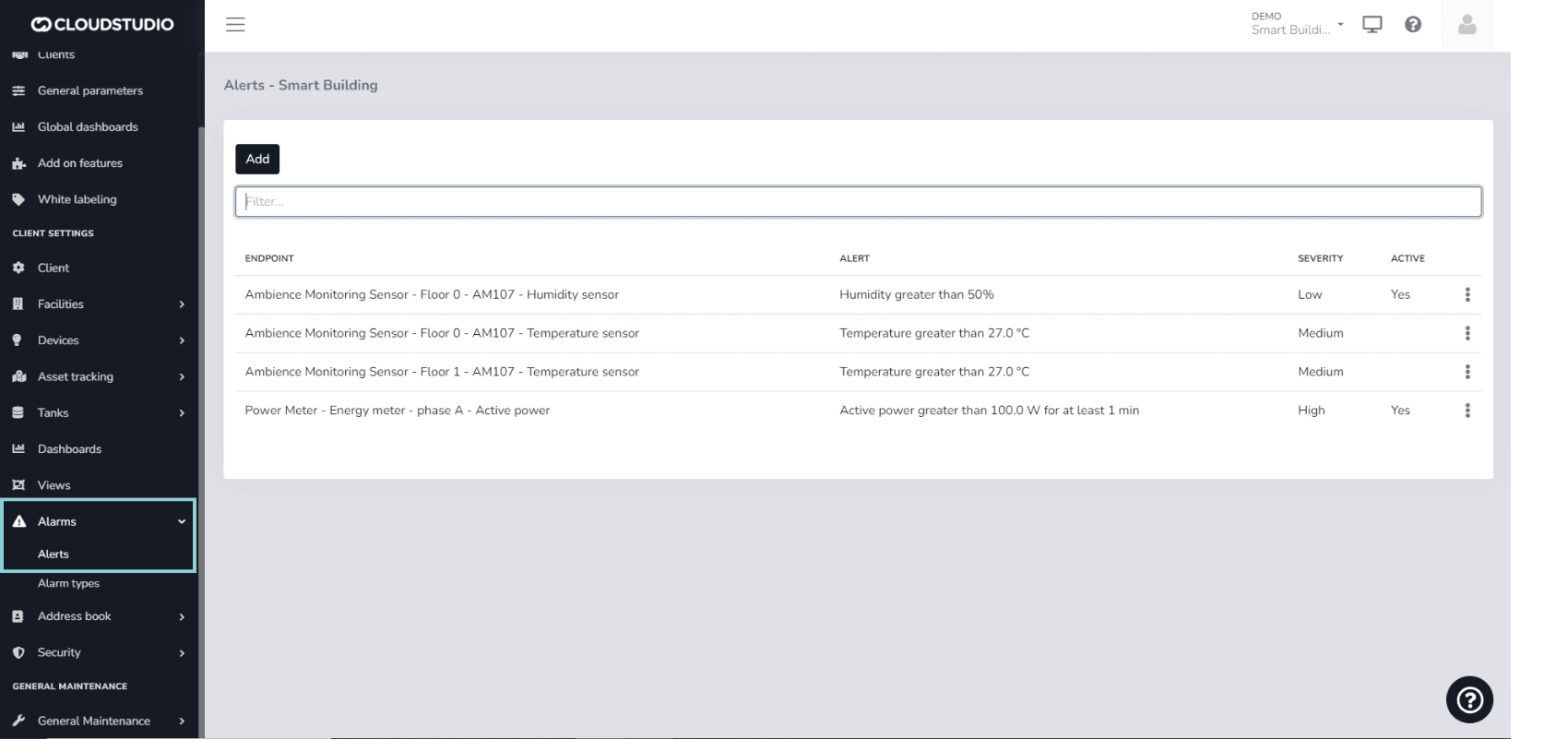
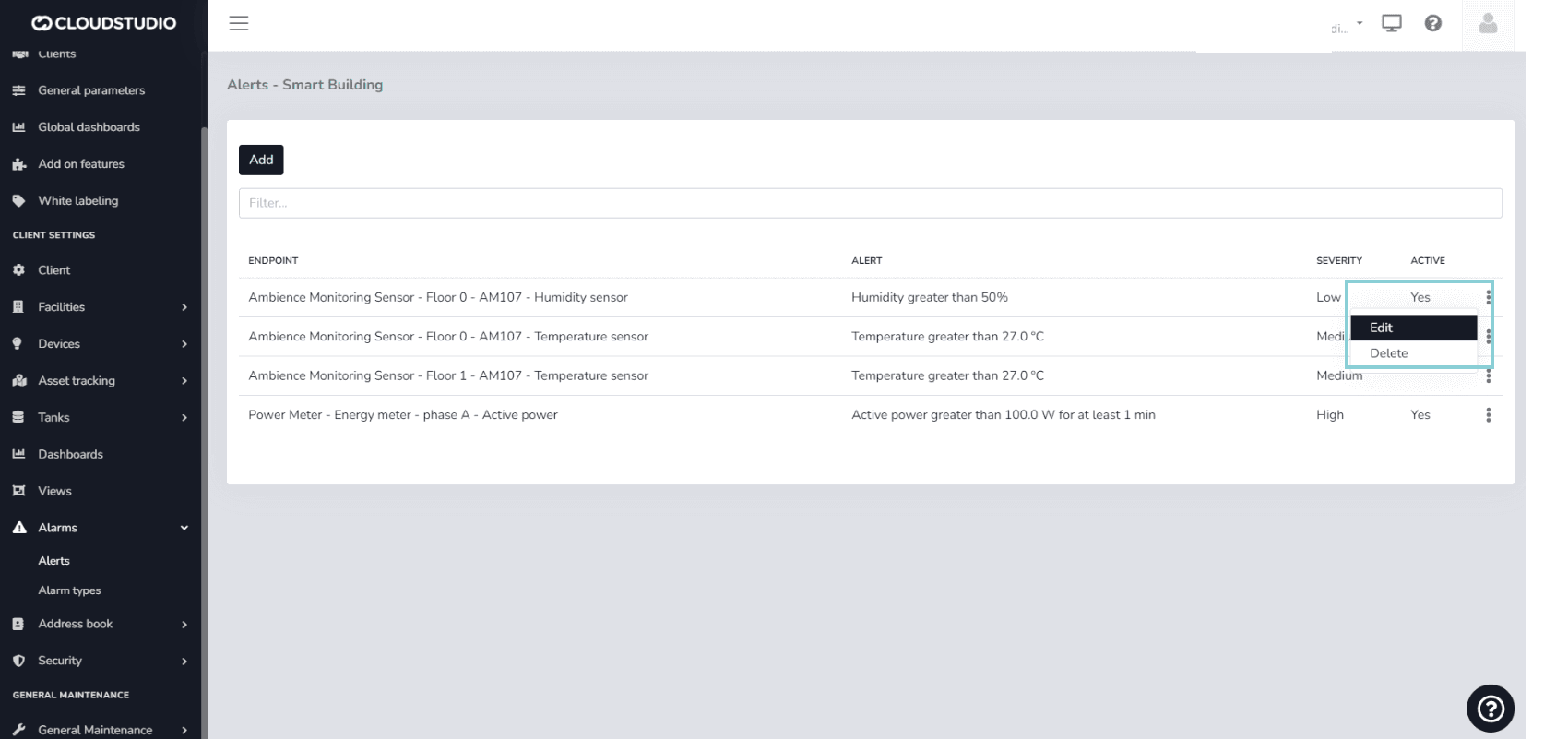
Select the alert to modify using the three dots on the right side and press Edit.
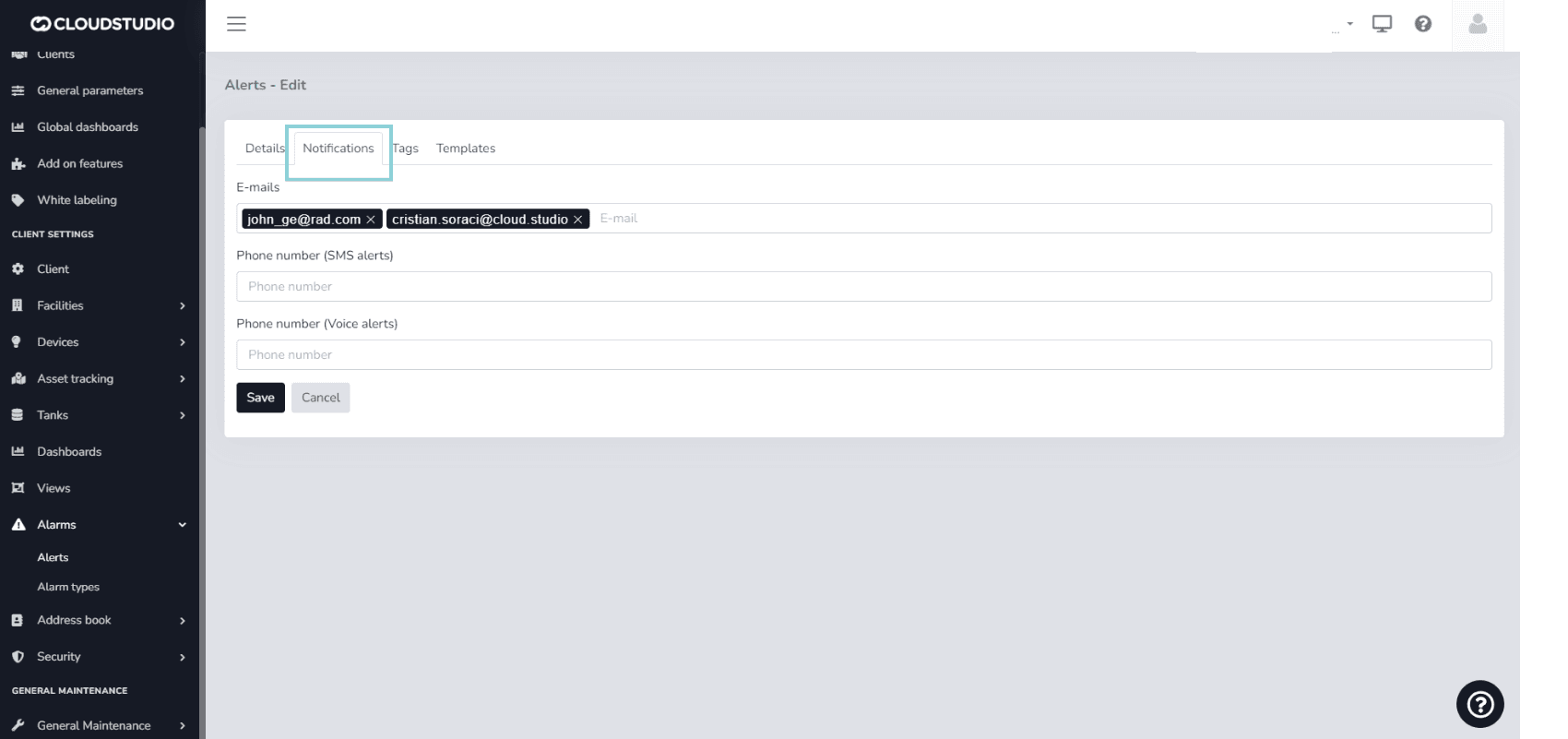
Look for the Notifications option.
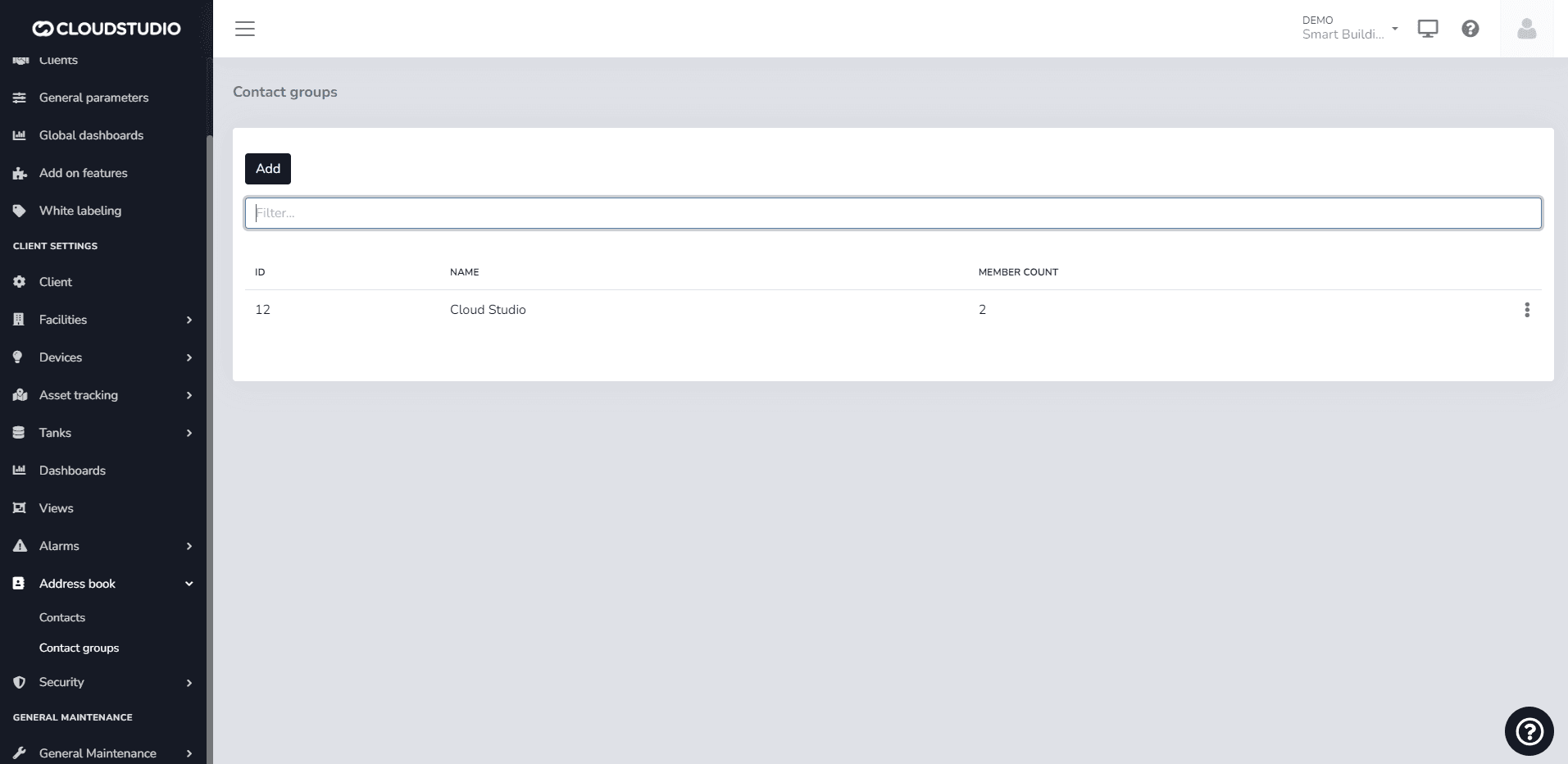
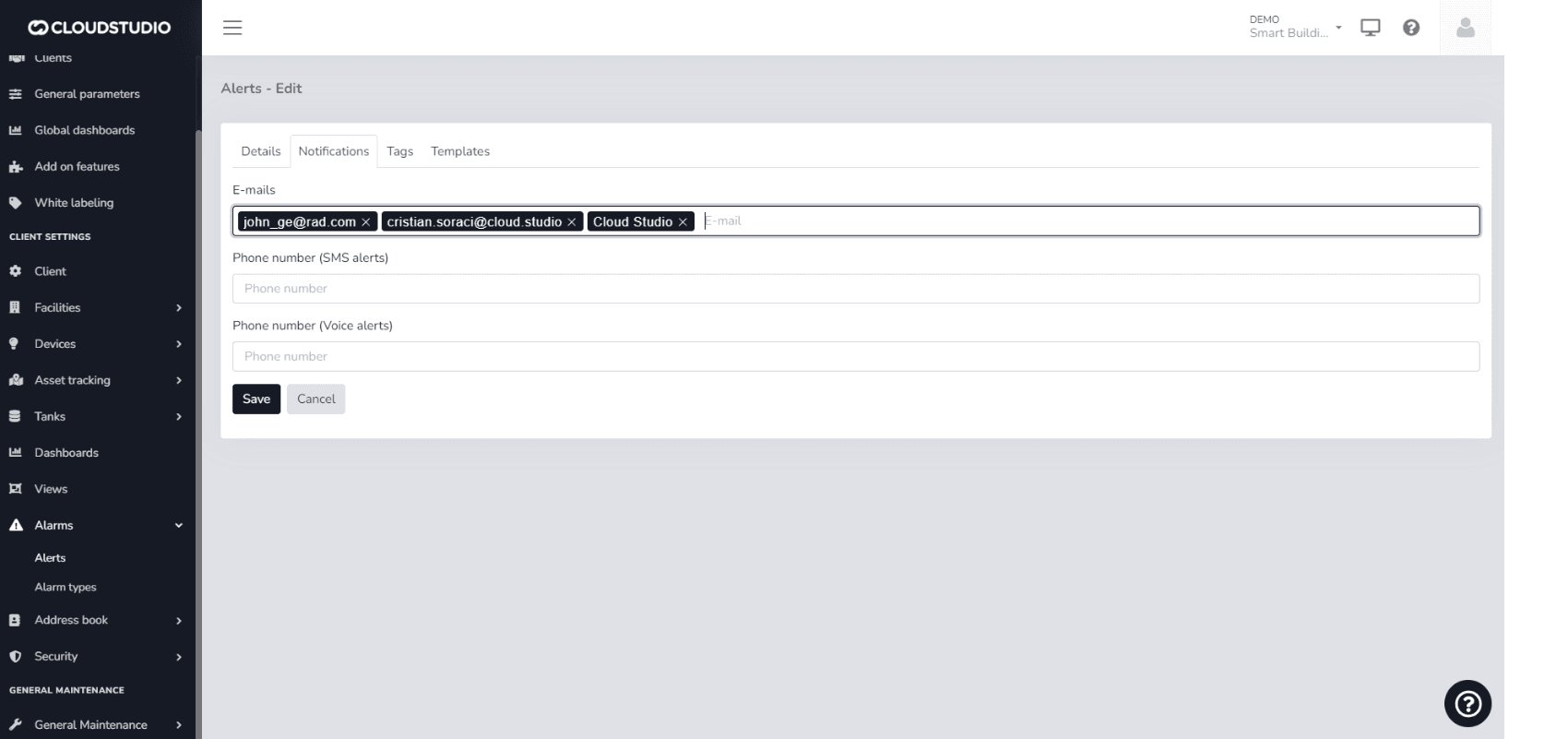
In E-mails, you can simply type the email address(es) you wish to add to the notifications. You can also type the name of a contact or group preloaded in the platform's Address Book. For phone numbers, you can follow the same procedure: type the number or the names of contacts and/or groups preloaded in the system.
_853d.png&w=1920&q=75&dpl=dpl_BD8fBWShVyzXWUEGLrkmqPm49r14)
Important note: For contacts, email addresses, and phone numbers to be saved, you must press the Enter key after typing and ensure they appear highlighted in a box.
Example of a group preloaded in the Address Book
Última atualização em
Variables for Alert Notifications
Variables such as {CLIENT_NAME}, {FACILITY_NAME} or {DEVICE_NAME} that put client, facility and device data into alert notification messages.
Voice and SMS Services
How to enable voice call and SMS notifications, which have a cost, and what the platform shows about their configuration status.