

Voice and SMS Services
Voice and SMS notification services have an associated cost.
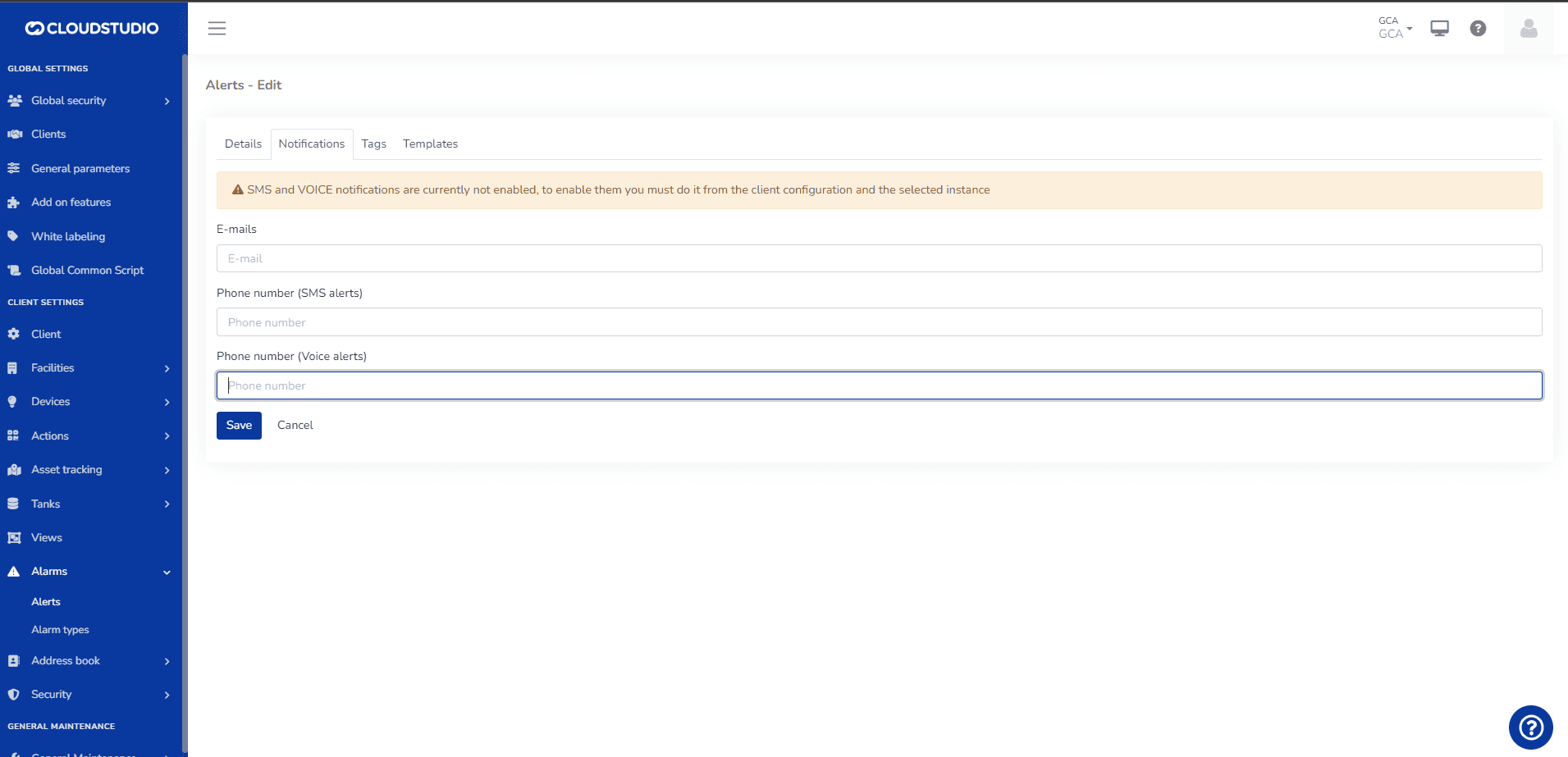
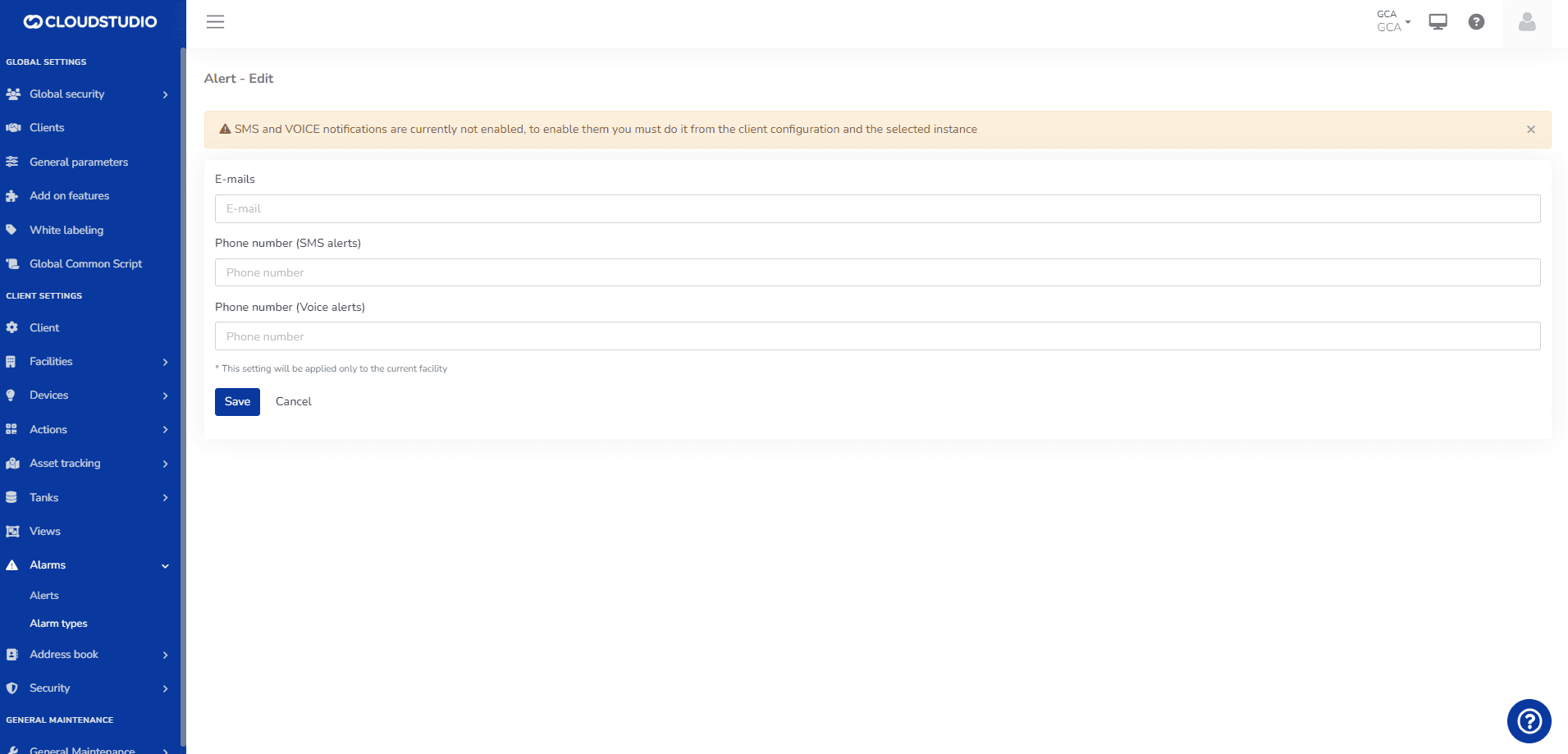
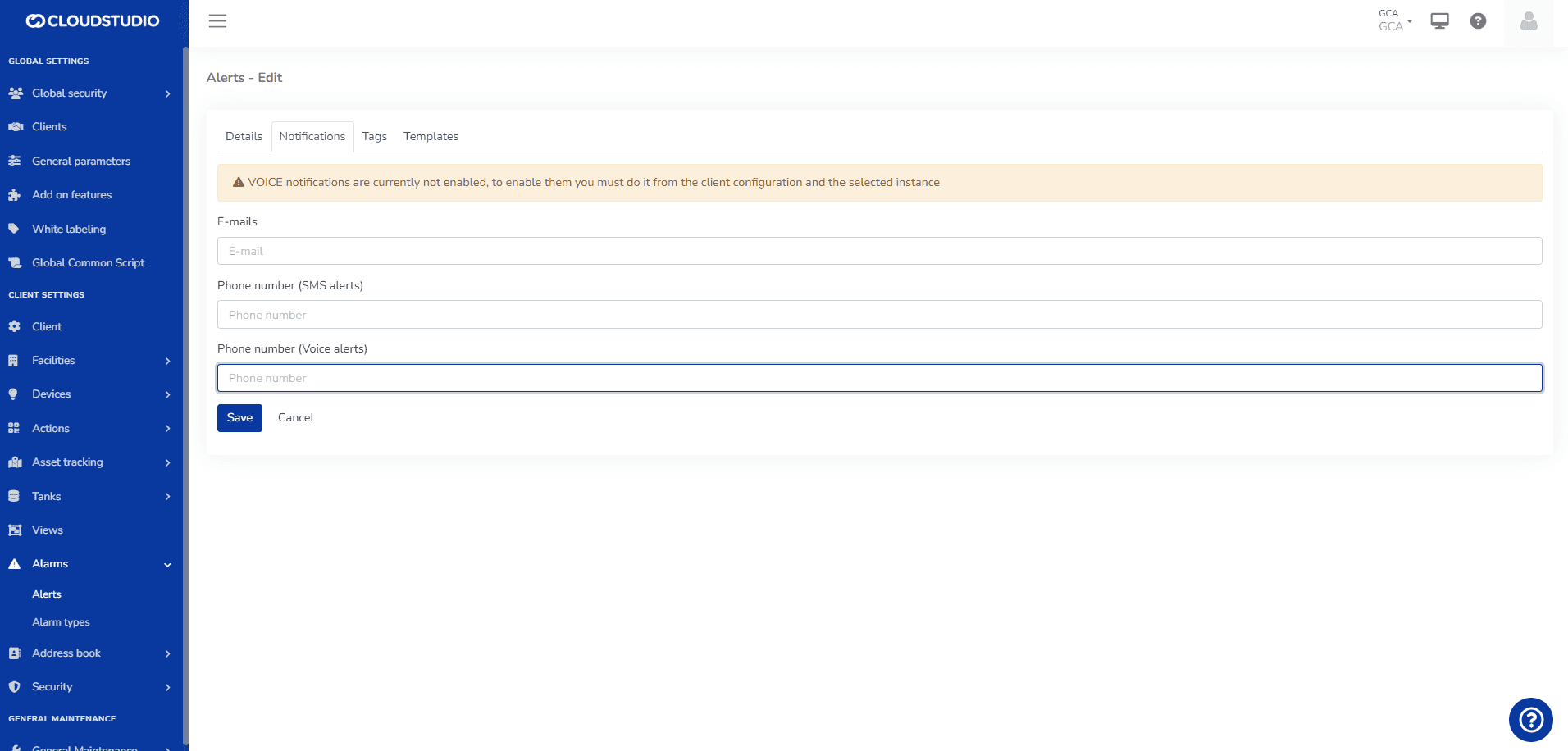
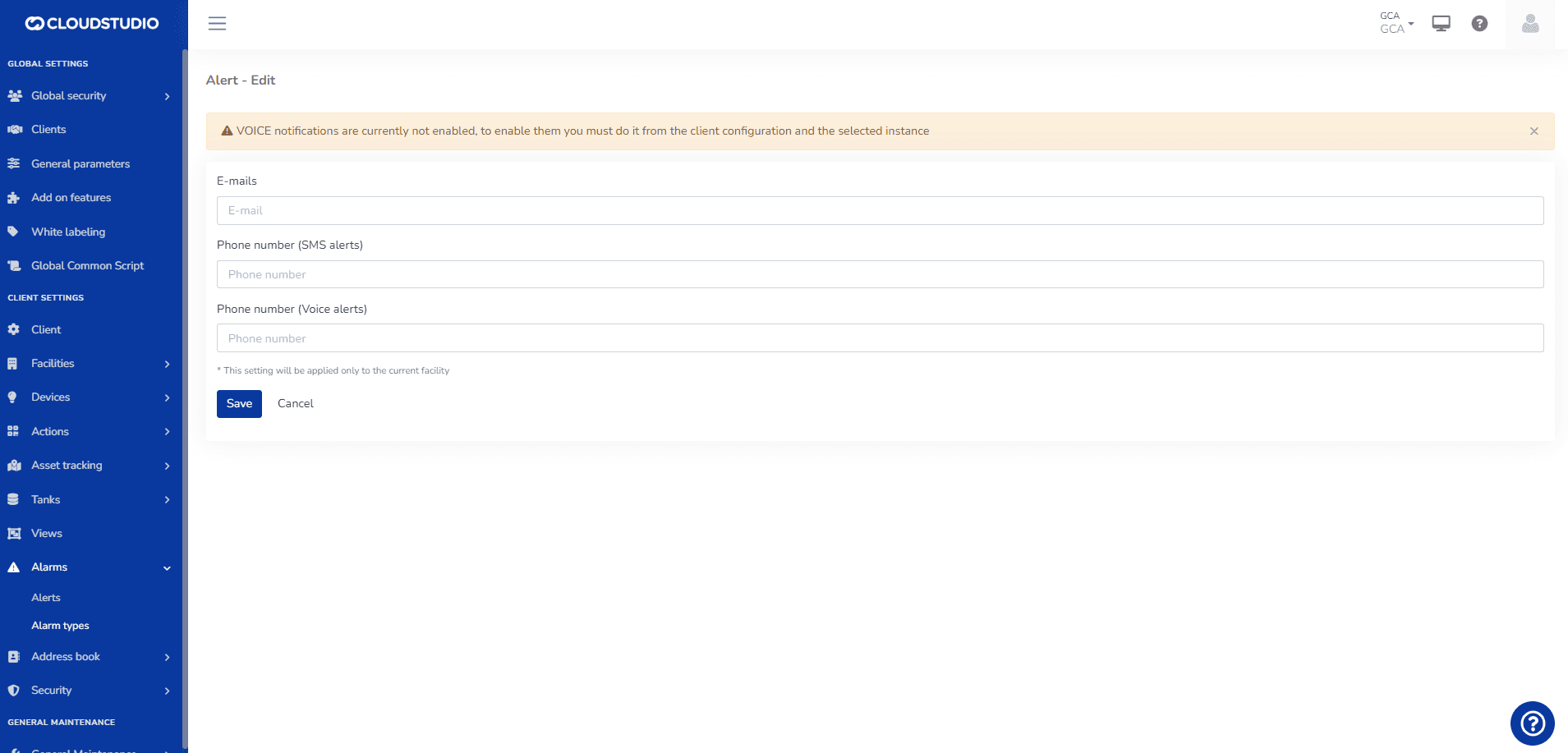
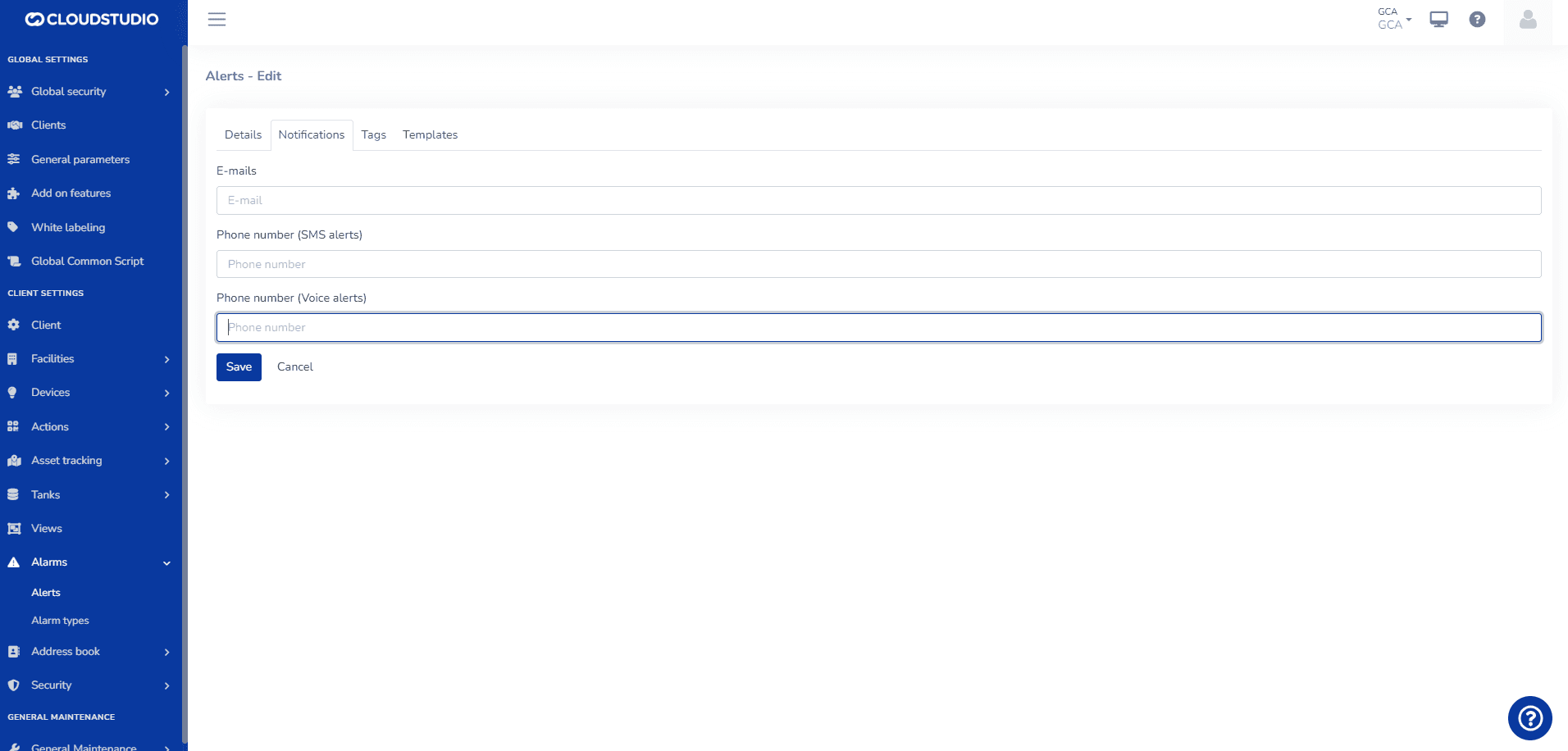
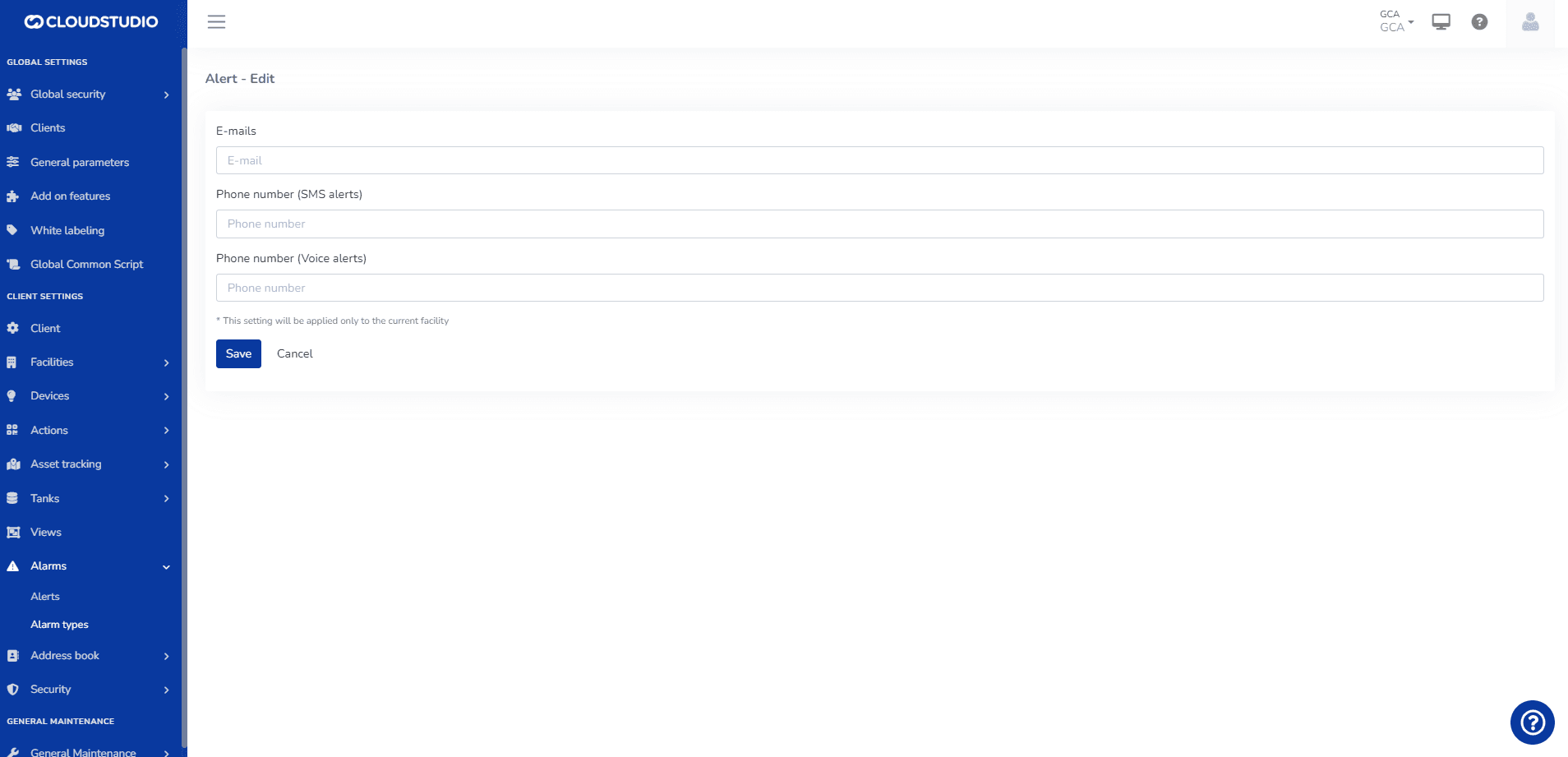
The user can view messages in the notifications tab within Alerts and Alert Types that warn about the configuration status of these services on the platform.
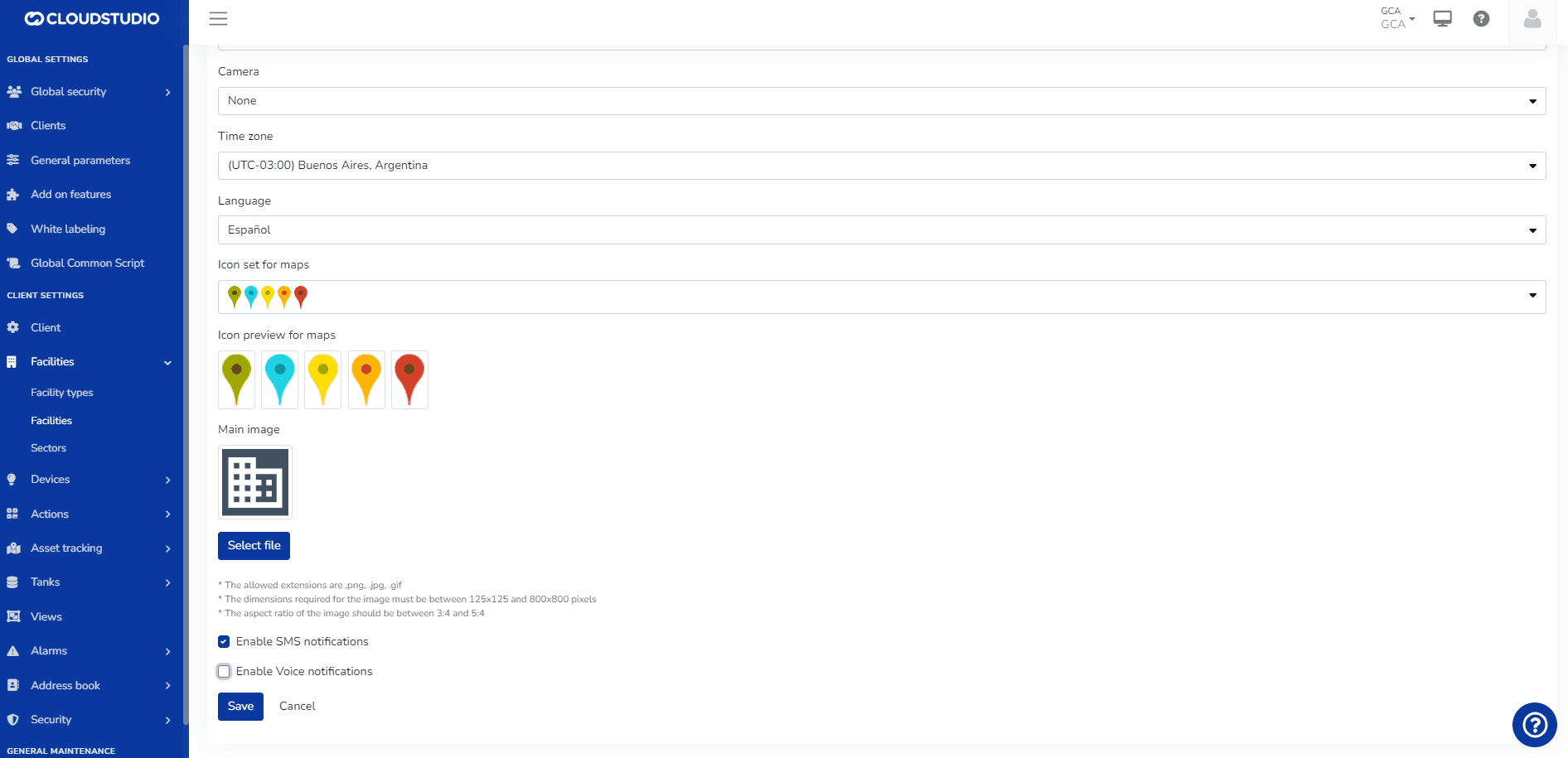
If enabled at the Client level, a user with administrator permissions can enable or disable SMS and Voice notification delivery at the Facility level, deciding which ones will be active.
If the options are not enabled at the Client level, the user will see the options as disabled at the _Facility_** level. That is, to enable voice and SMS notifications at the facility level, they must first be enabled at the client level.**
By default, alerts for all Clients and Facilities are email-only and have no cost.
- ALERT MESSAGES FOR SMS AND VOICE
Clients > Disable SMS and Voice services
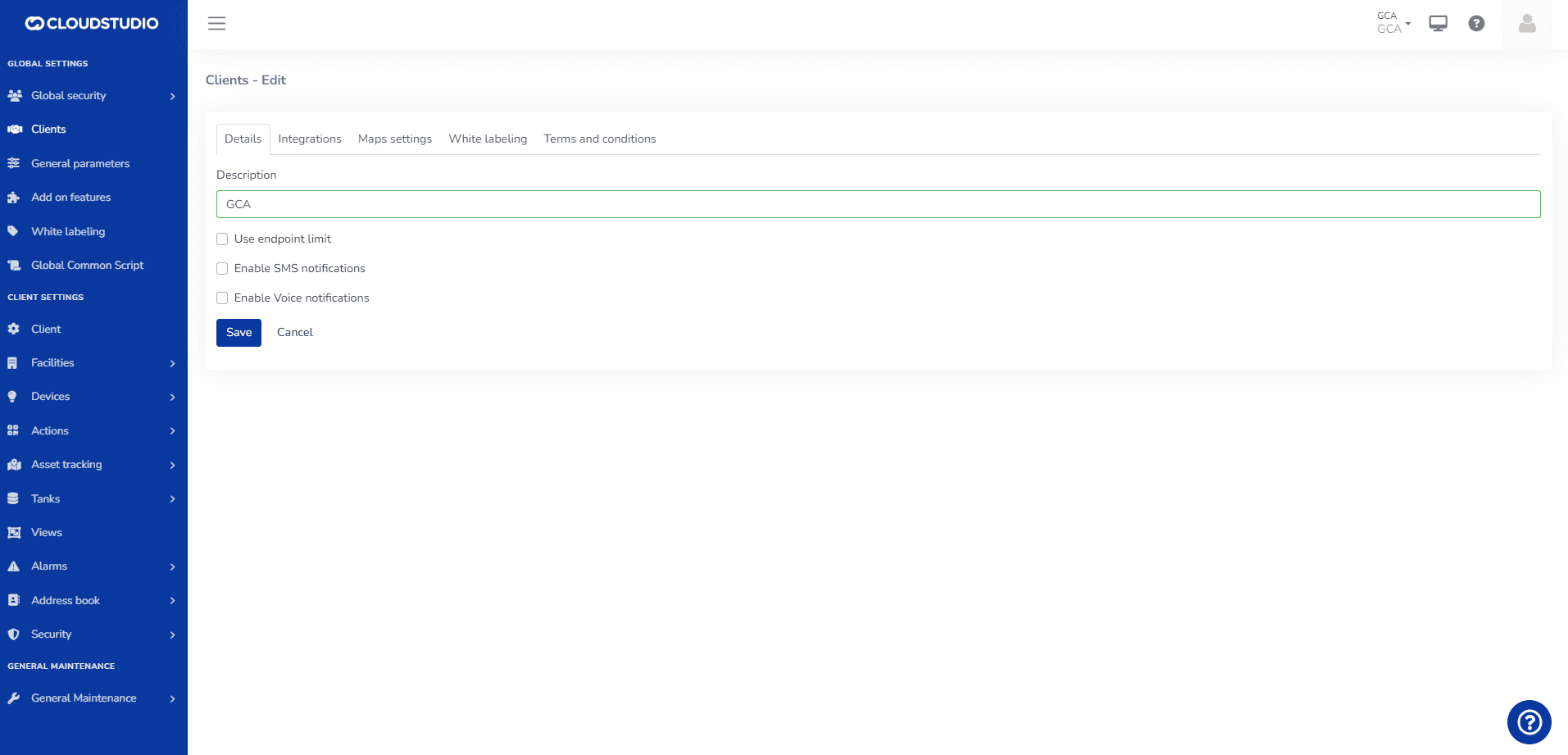
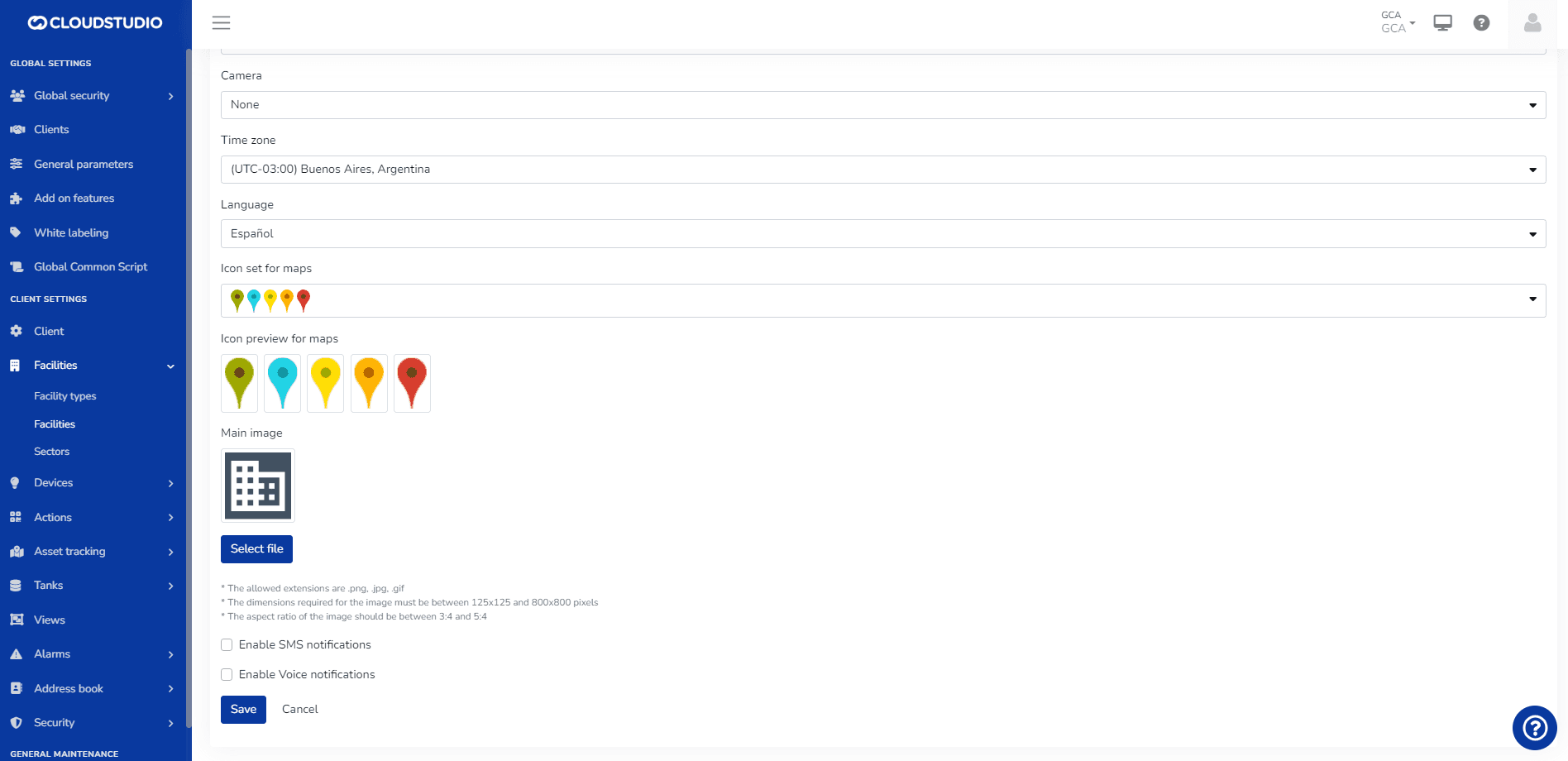
Facilities > The user will not be able to select the facility if the Global configuration is not previously enabled
Alarms > Alerts
Alarms > Alert Types
- ALERT MESSAGES FOR VOICE
Clients > Uncheck Voice and select SMS
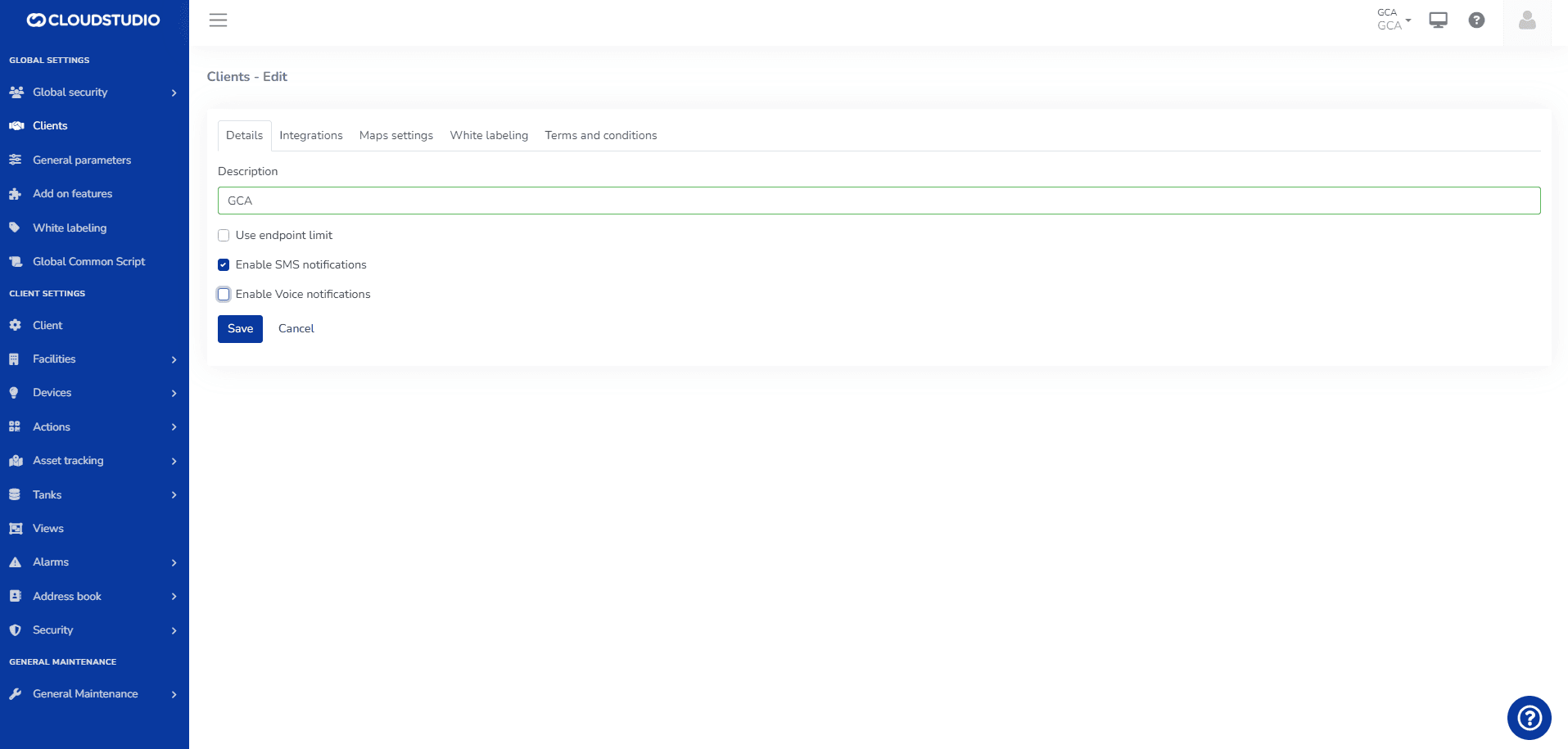
Facilities > The user can select the SMS facility and will see the Voice option as disabled
Alarms > Alerts
Alarms > Alert Types
- ALERT MESSAGES FOR SMS
Clients > Uncheck SMS and select Voice
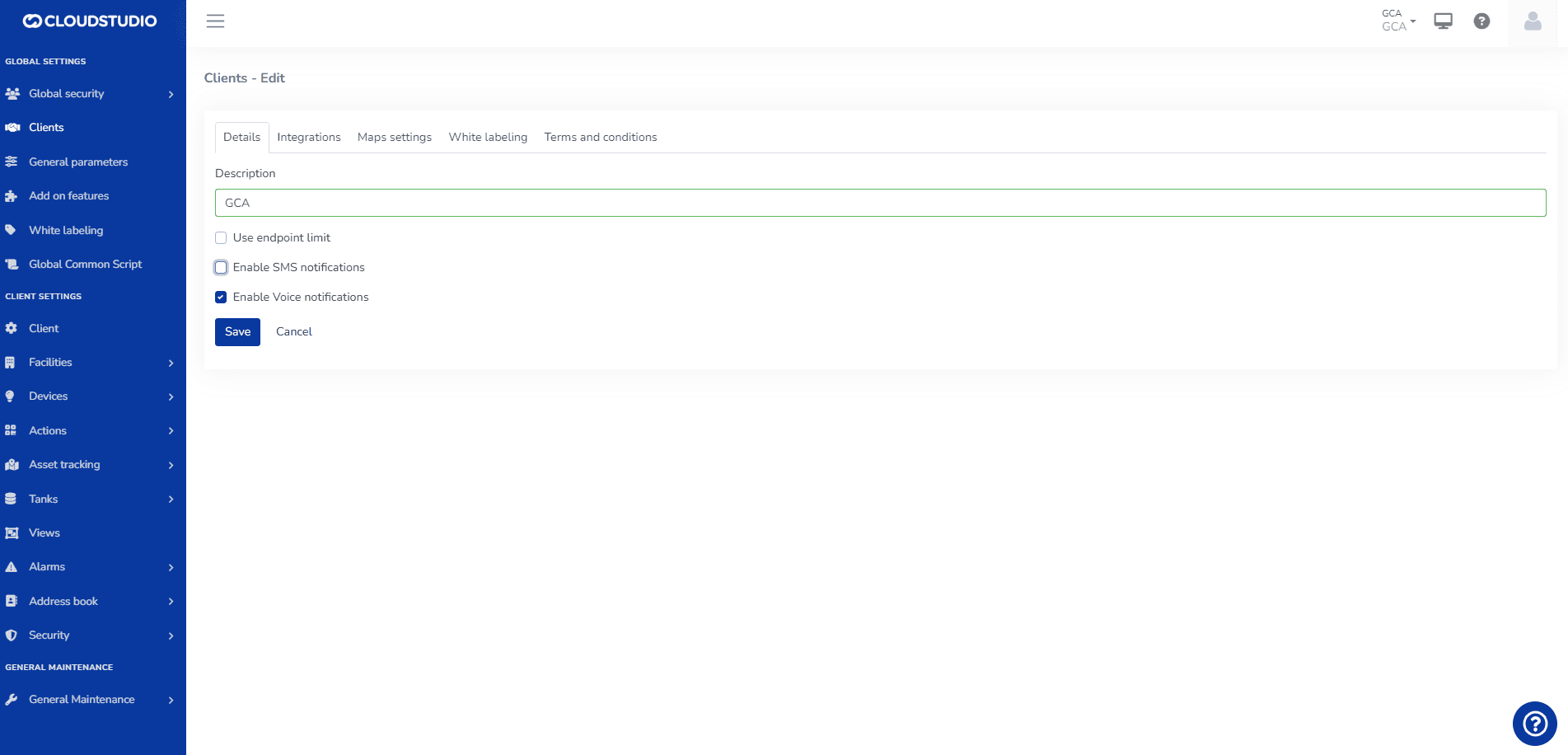
Facilities > The user can select the Voice facility and will see the SMS option as disabled
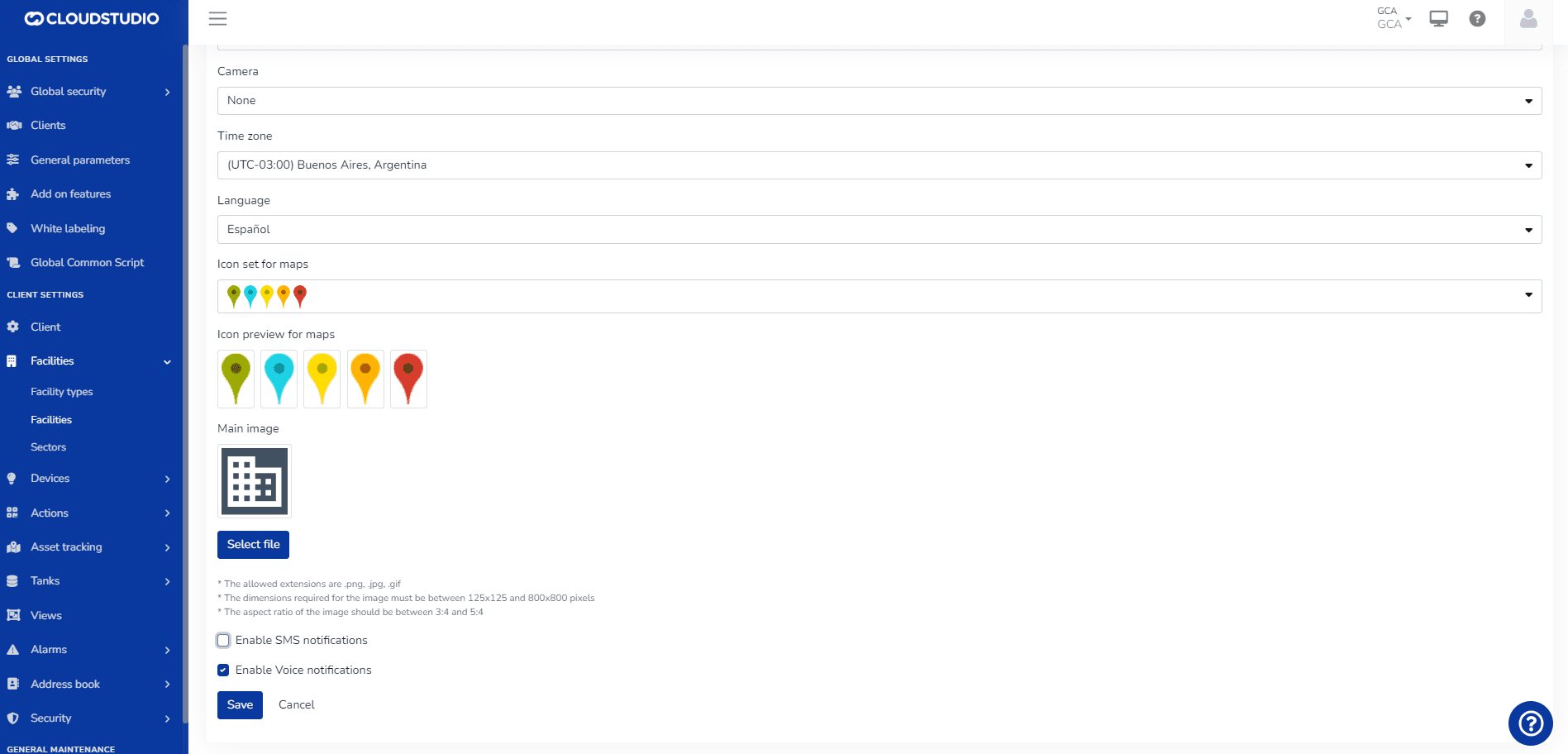
Alarms > Alerts
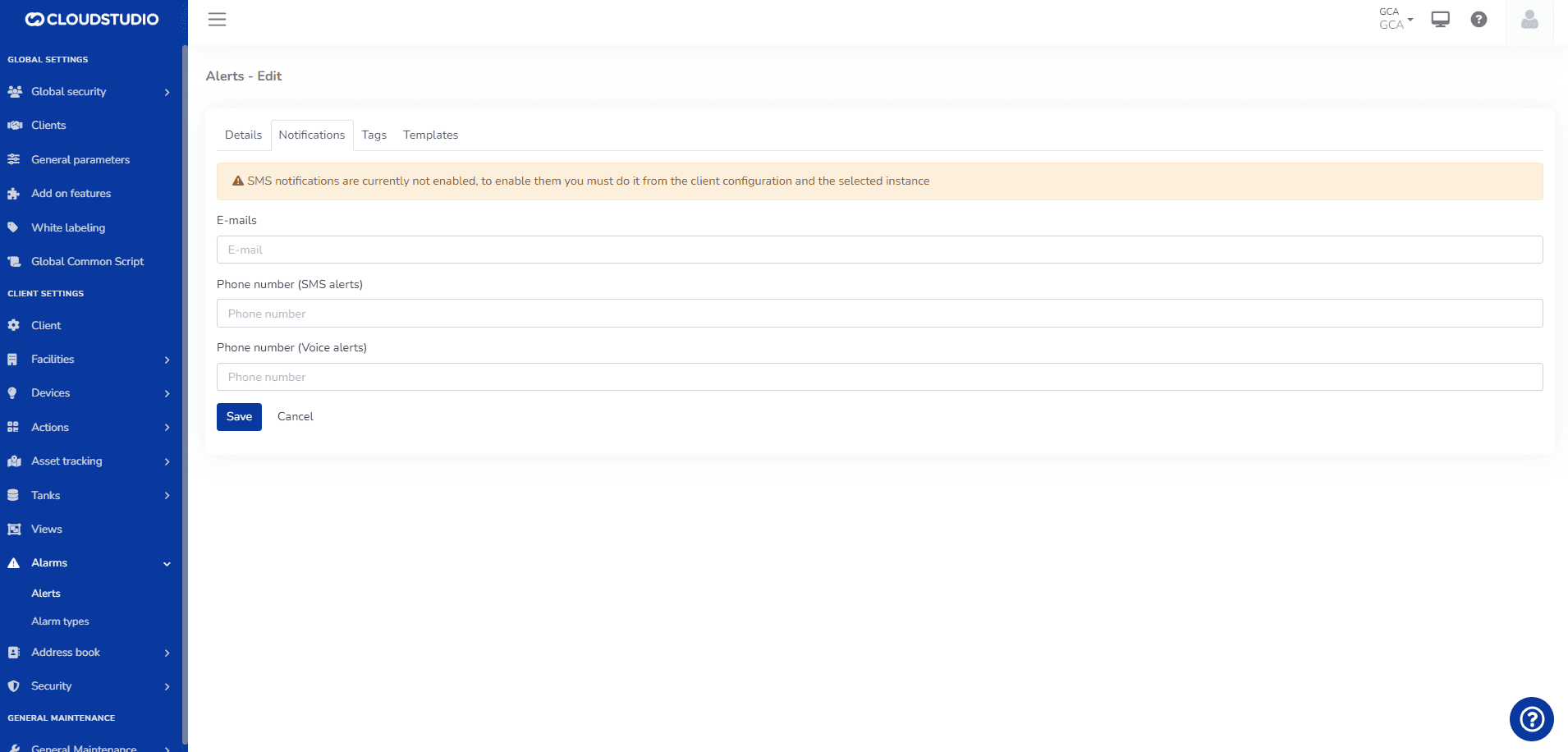
Alarms > Alert Types
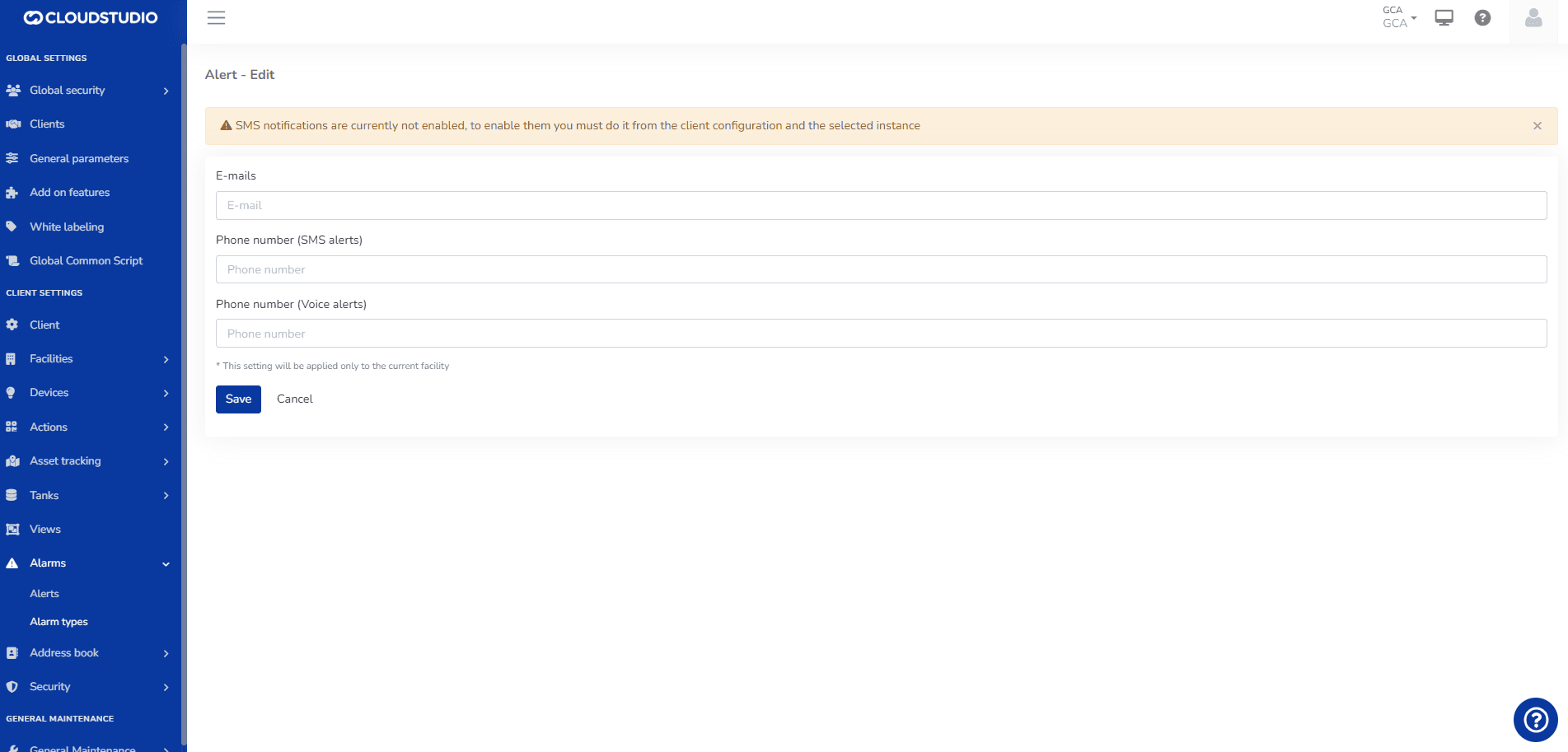
- ALERT MESSAGES WITHOUT DISPLAY
Clients > Select the SMS and Voice option
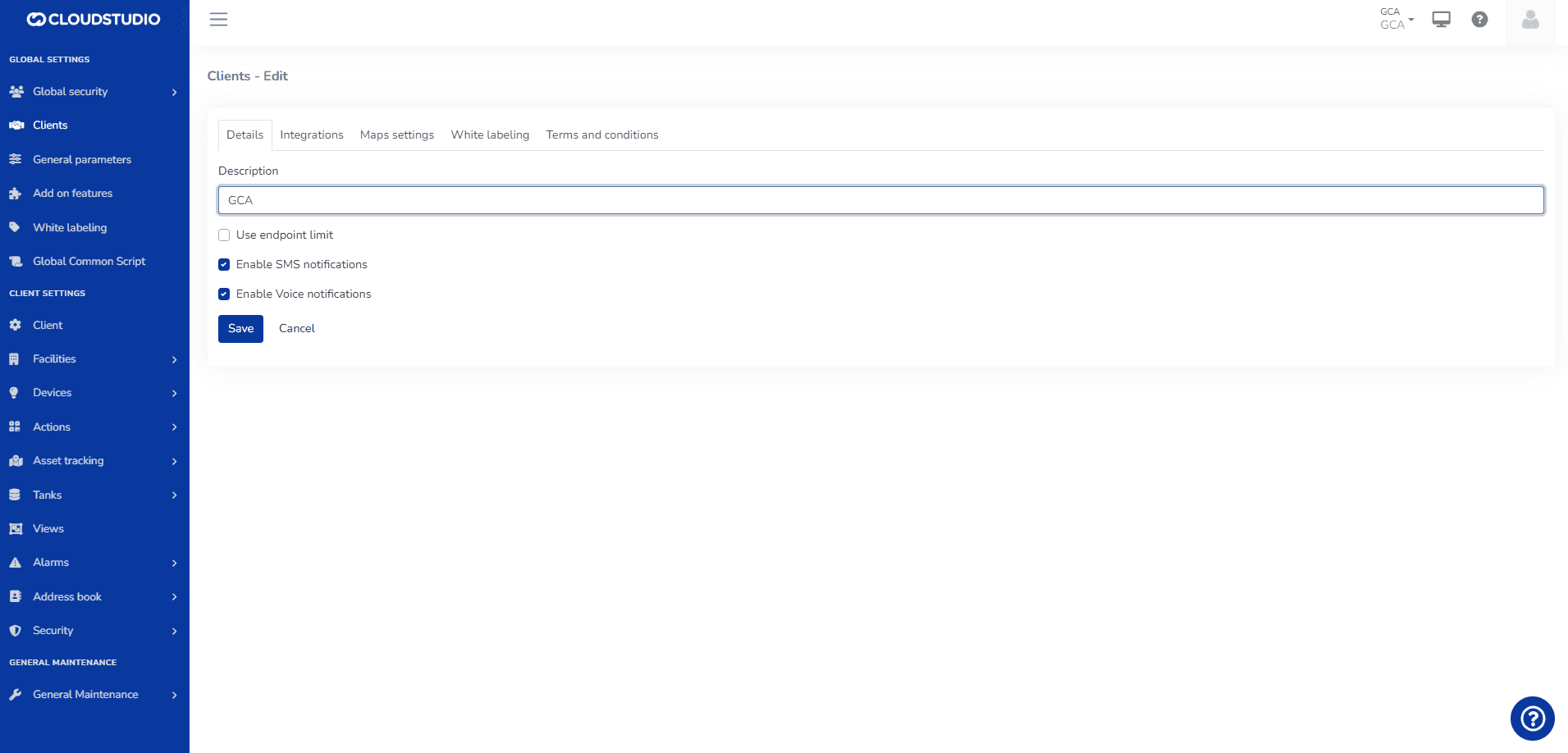
Facilities > The user can select the Voice and SMS facility
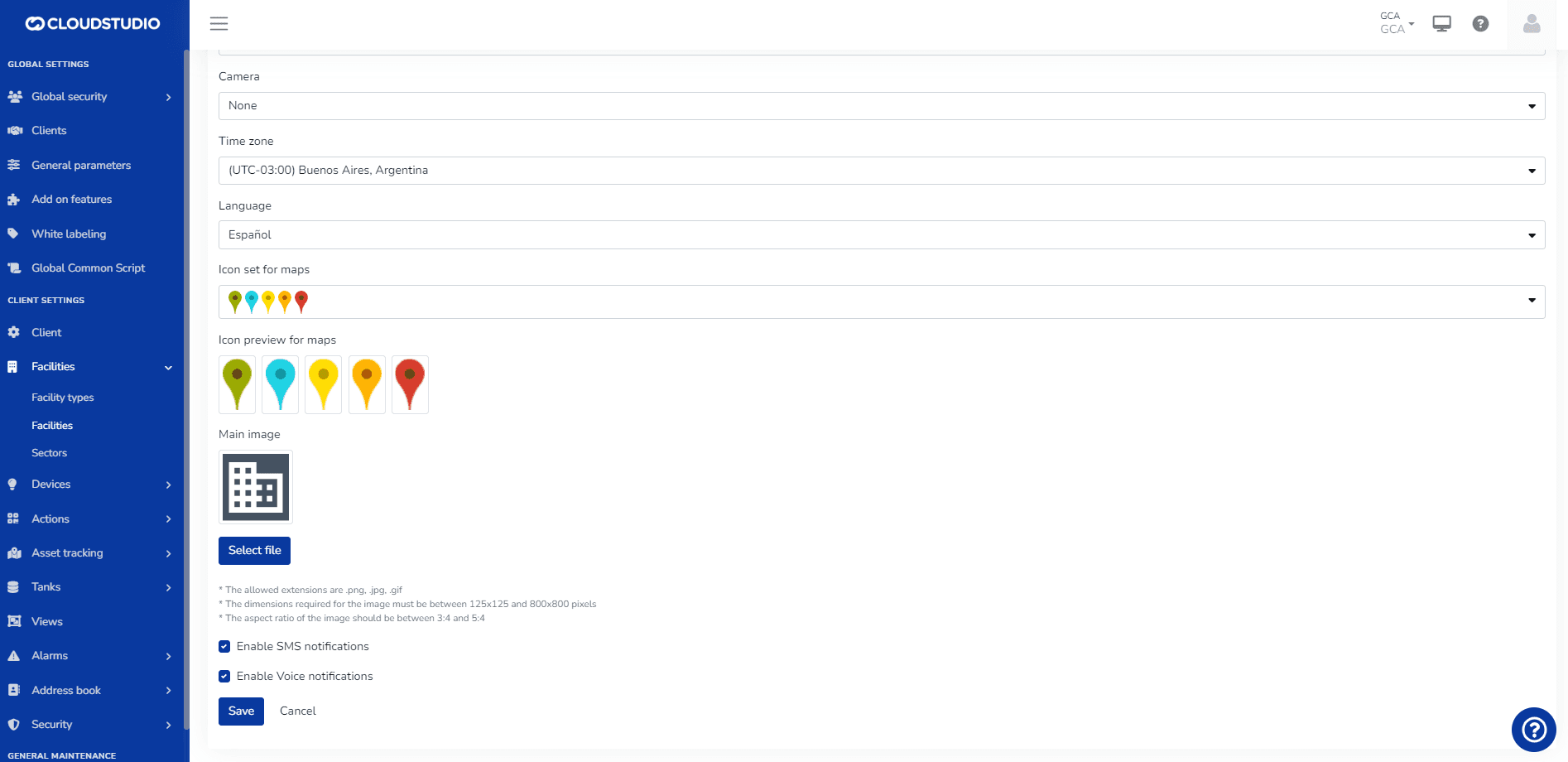
Alarms > Alerts
Alarms > Alert Types
Última atualização em
Configuring Contacts for Notifications
Who receives an alert's notifications: address book contacts and groups, individual email addresses, and phone numbers for SMS and calls.
Voice, SMS, and WhatsApp Services
How to enable voice, SMS and WhatsApp notifications, which have a cost, and what the platform shows about their configuration status.