

Voice, SMS, and WhatsApp Services
Voice, SMS, and WhatsApp notification services have an associated cost.
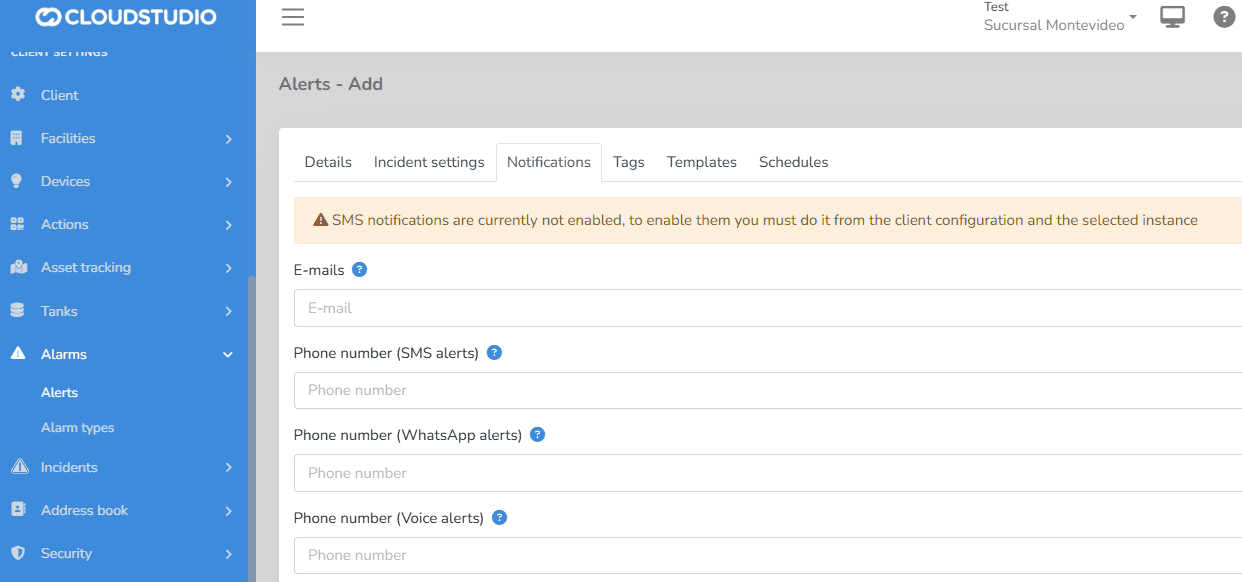
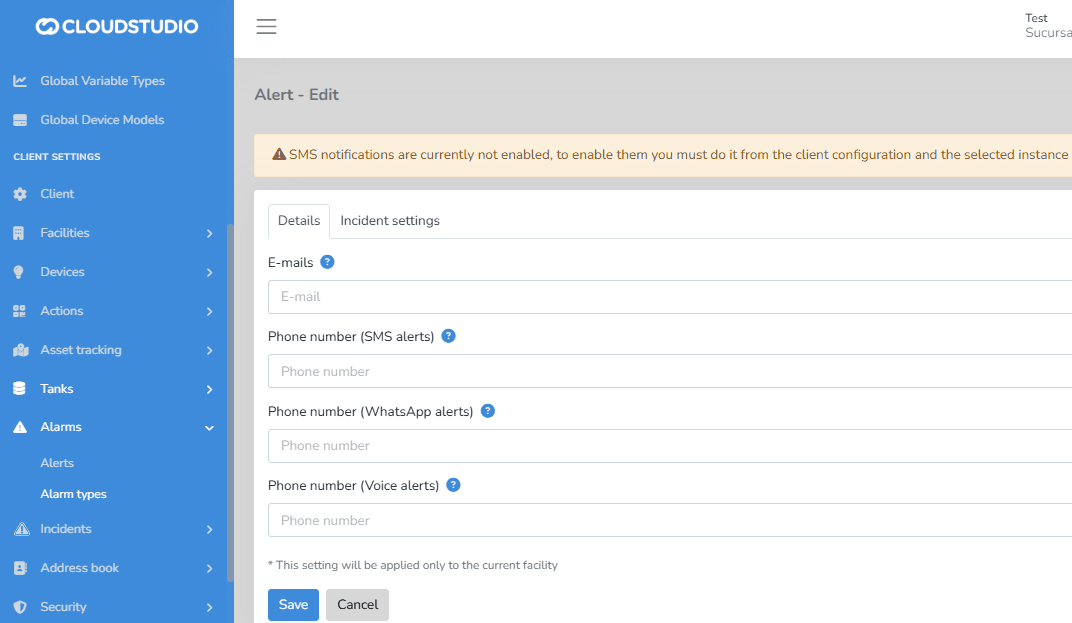
The user can view messages in the notifications tab within Alerts and Alert Types that warn about the configuration status of these services on the platform.
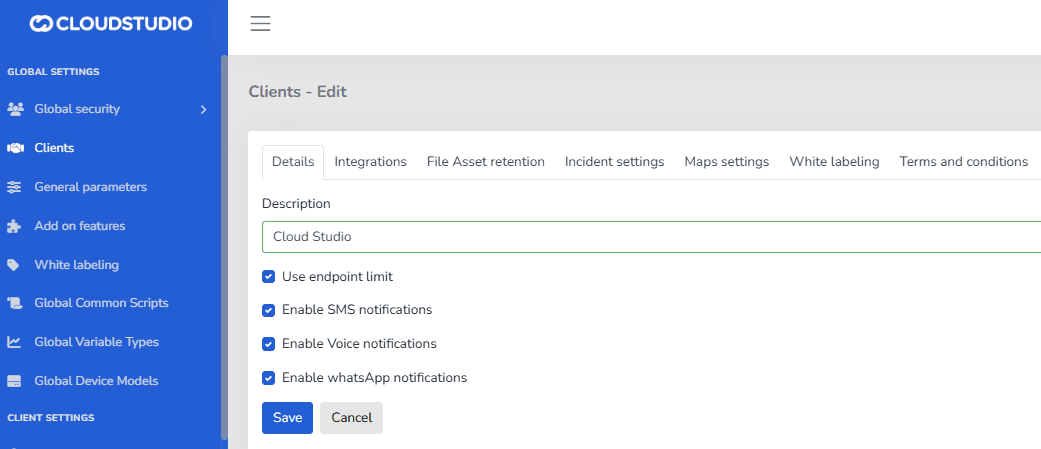
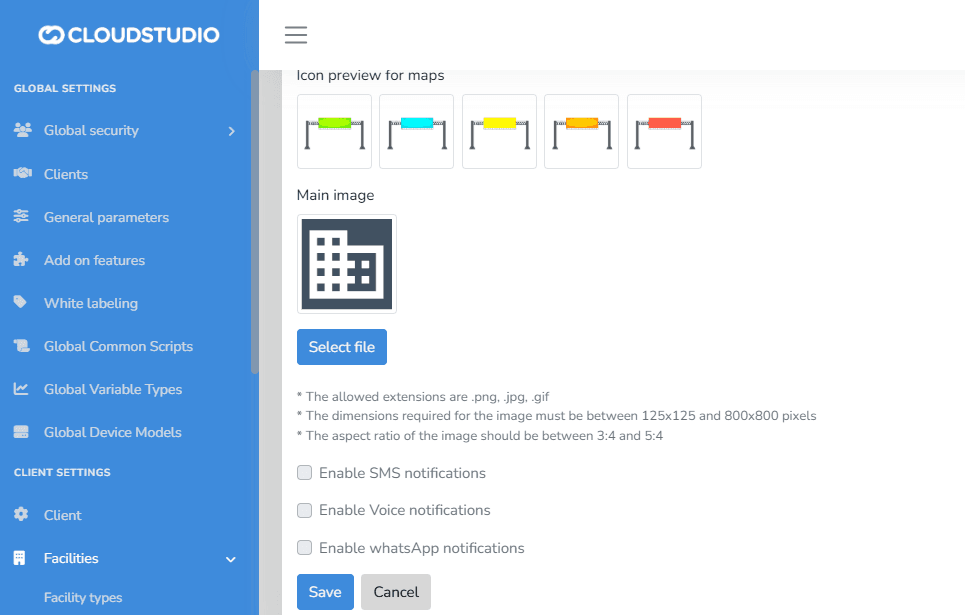
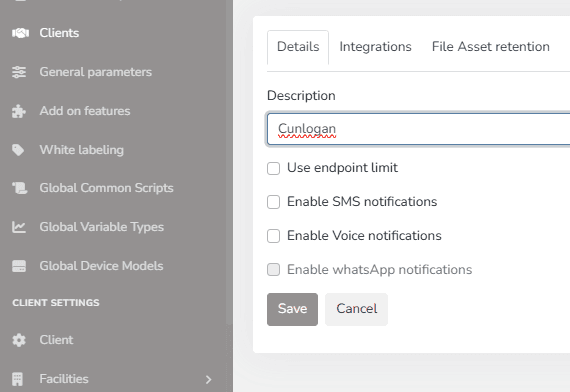
If enabled at the Client level, a user with administrator permissions can enable or disable SMS, Voice, and WhatsApp notification delivery at the Facility level, deciding which ones will be active.
If the options are not enabled at the Client level, the user will see the options as disabled at the _Facility_** level. That is, to enable voice, SMS, and WhatsApp notifications at the Facility level, they must first be enabled at the client level.**
By default, alerts for all Clients and Facilities are email-only and have no cost.
- ALERT MESSAGES FOR SMS, WhatsApp
Clients > Enable SMS, Voice, and WhatsApp services
Facilities > The user will not be able to select the facility if the Global configuration is not previously enabled
Alarms > Alerts
When enabled, the Notifications section of Alerts will display the fields for entering contact information. Both the email and the phone number can be the same or vary depending on the notification type (SMS, Voice Message, WhatsApp)
Alarms > Alert Types The Notification type configuration is also available for Alert Types. You can configure notifications via Email (no additional cost), as well as via text messages (SMS), voice messages, and WhatsApp, with additional cost
Actions & Scripting > Notifications
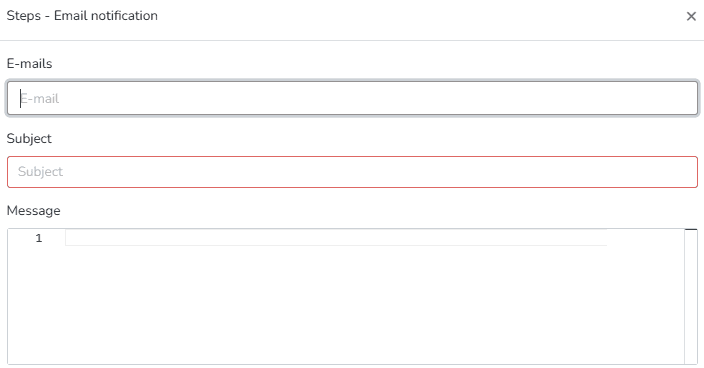
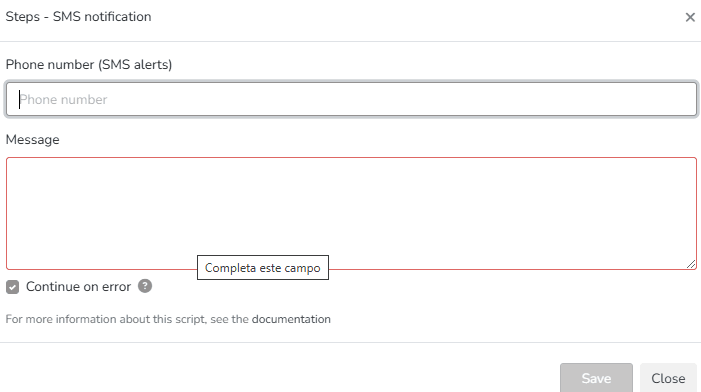
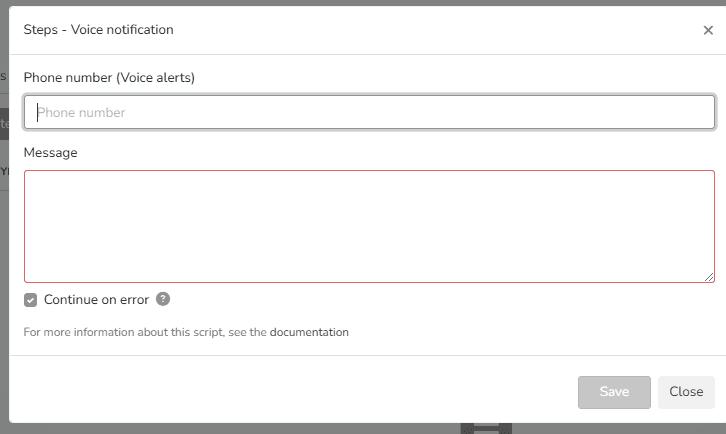
In the Actions and Notifications steps, you can also access the Notification delivery configuration. The enabled Notification channels for the Facility are displayed
- By email
- By SMS
- By Voice
By WhatsApp
Clients > Remove contacts from the different Notification channels
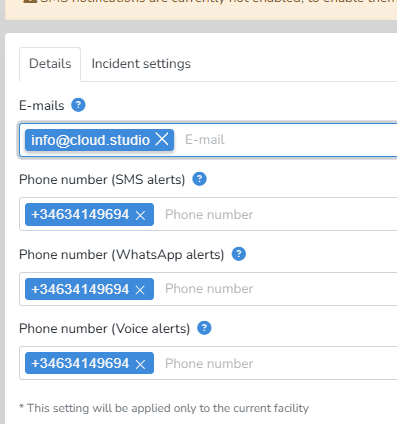
Clients > Disable Notification Channels
You can remove a notification channel by disabling it in the Facility configuration. Once done, the channel will no longer be visible for configuration in the Notification settings
Última atualização em