

共享仪表盘 - Mobile App
The user can use the corresponding icon to share the 仪表盘.
When accessing the 仪表盘 from the 仪表盘列表 and editing is required, the Share option will not be enabled until edit mode is closed.
1- 共享仪表盘: 选择 the 共享仪表盘 option.

This opens a message indicating that a unique link is generated that can be accessed without credentials. An optional description can also be provided.
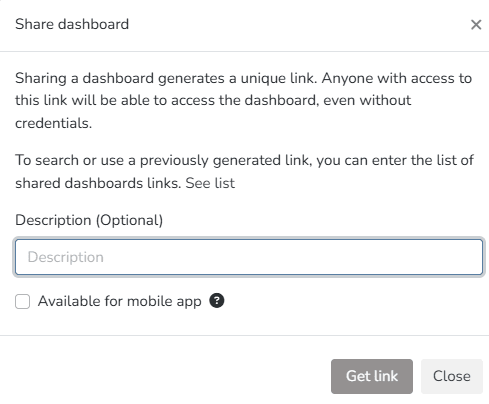
Once the Get Link button is 按下ed, an access link to the dashboard you want to share is generated.
The link can be opened and viewed in a browser without needing access to the platform.
2- 共享仪表盘 - Mobile: 选择 the 共享仪表盘 option.
This opens a message indicating that a unique link is generated that can be accessed without credentials. An optional description can also be provided.
To make it available in the mobile version, check the 'Available for the mobile application' option.
Once the Get Link button is 按下ed, an access link to the dashboard you want to share is generated.
The link can be opened and viewed in a browser without needing access to the platform, as well as on a mobile device.
3- Access to shared links
You can access and manage shared links. To do this, go through the manager with the required permissions. Navigate to 安全 > Shared Links.
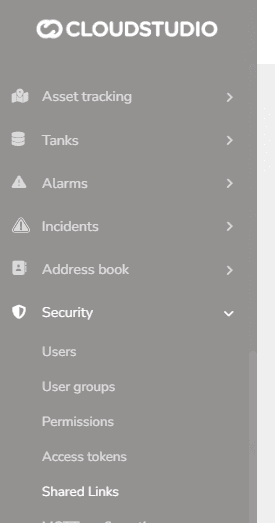
Once t此处, all previously shared links are displayed with the following information: 说明, 设施, link, user who shared it, creation date, last used date, and expiration date.
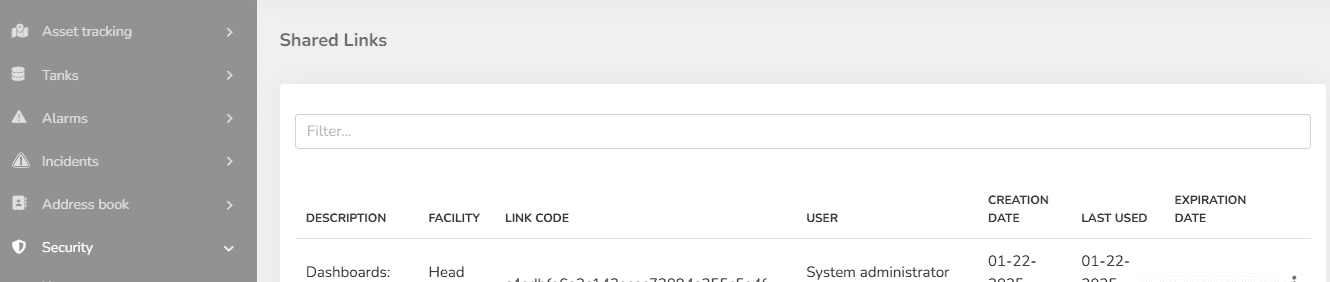
Through the context menu, you can either open the previously created link or expire it, provided you have the necessary permissions.
最后更新于
共享仪表盘
The user can use the corresponding icon to share the 仪表盘 and/or download it in two formats. When accessing the 仪表盘 from the 仪表盘列表 and editing is required, the Share option will not be enabled until edit mode is closed.
仪表盘列表
From this section, the user can manage all dashboards they have created. From the 仪表盘 option and 选择ing the icon shown 下方, the dashboard list can be accessed.