

Edit a Contact Group
To Edit a contact in the address book, expand the three-dot menu that appears to the right of the contact to edit. This menu shows two options: Edit and Delete.
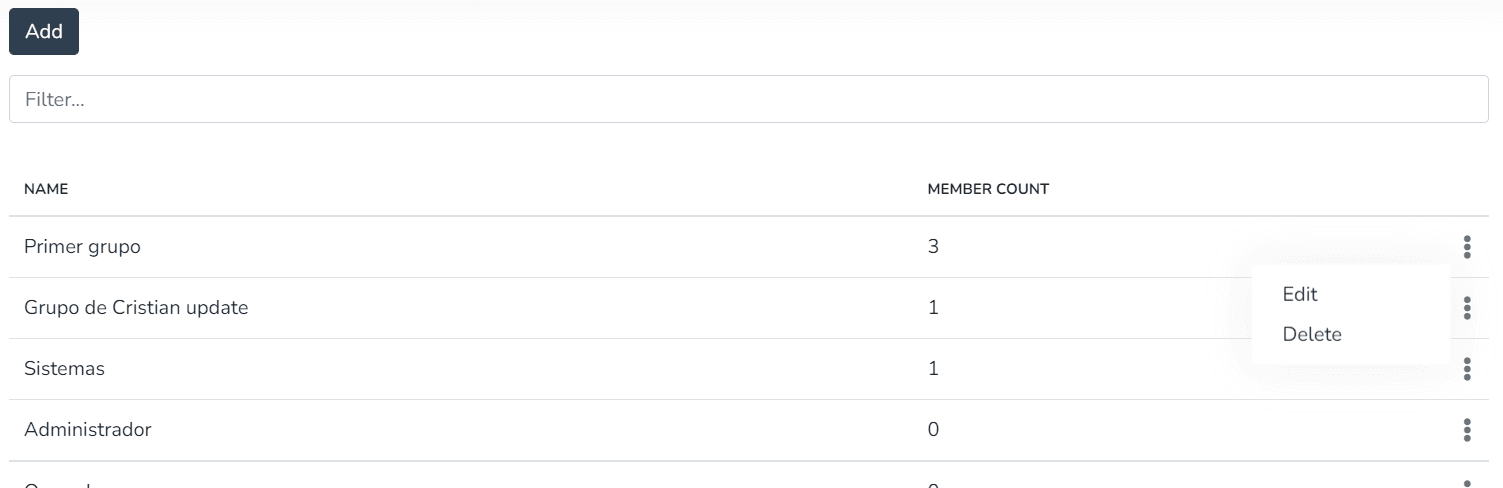
Click on the Edit option in the menu, and a screen will open with the list data ready to be edited.
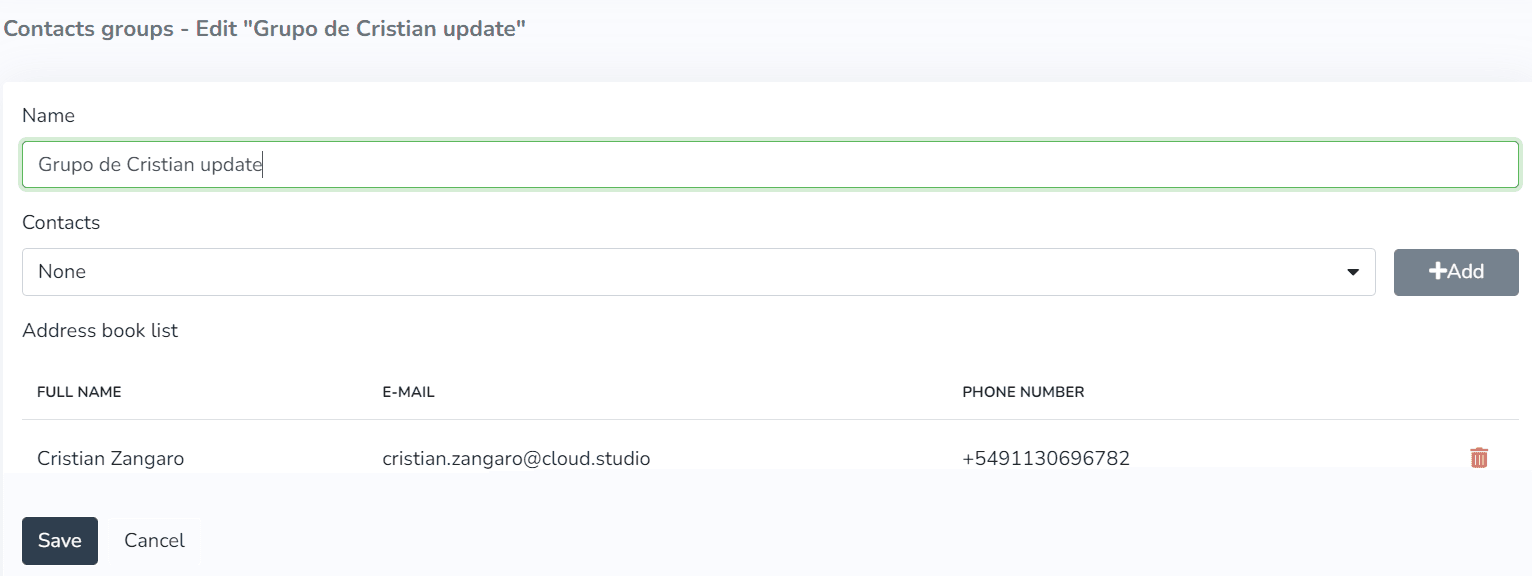
IMPORTANT: Do not leave required fields empty.
Add More Contacts
The Address Group Book allows including the following data in each record:
- Group name (required)
- Contacts
Type the group name in Name. To add contacts, they must be loaded in the platform. You can learn more about creating contacts in this section. Select the contact you wish to add from the dropdown list and click Add.
_2b25.png&w=1920&q=75&dpl=dpl_E9BwGkPgYPUYBsQNVD6oAL57z83e)
_2bc7.png&w=1920&q=75&dpl=dpl_E9BwGkPgYPUYBsQNVD6oAL57z83e)
Delete Contacts
If the goal is to Delete the selected contact, clicking the Trash can icon will display a confirmation message before permanently deleting the contact.
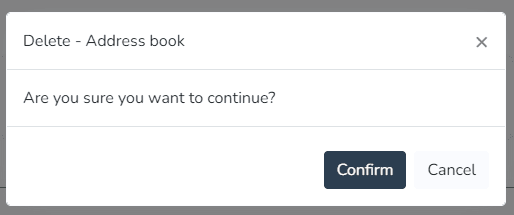
Press the Confirm button to permanently delete the contact without the possibility of recovery. You can click the Cancel button to leave the contact unchanged.
More Information
Última atualização em
Create a New Contact Group
To create a new contact group in the Address Book, go to Client Configuration > Address Book > Contact Groups. Press add and the following screen will open...
Security
Within "Client Configuration" in the Manager panel, you will find the Security option. Here you can add users, edit them, set a password, delete them, and also suspend them.