

Batch Device Creation
The batch device creation feature allows users to efficiently load multiple devices using a CSV file. This tool is especially useful for large-scale installations, as it avoids manual entry one by one, even allowing you to combine different device models in a single file.
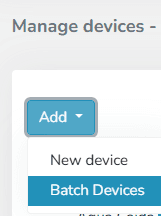
Reference File
Before uploading, the platform offers a sample CSV file for download. This file contains the structure and columns needed to facilitate correct device entry. A sample file is generated for each registered device model, although you can later include devices of different models in the same file.
Each row in the file represents a device, and each column represents an attribute. The required fields are described below:
Description: the name used to identify the device Address: the device's address (logical address) Device model: the device type, created in the Device Models section, that indicates its characteristics, such as: endpoints, offline timeout periods, etc. Device model ID: a unique identifier for the device model Latitude: one of the two coordinates for geolocating the device (position relative to the equator line) Longitude: one of the two coordinates for geolocating the device (east-west orientation, relative to meridians) Icon ID: identifier for the device's image icon Default dashboard ID: identifier for the default dashboard for that device Default view ID: identifier for the default view for that device Communication Interface: name used to identify the device in the Device Gateway
Upload Process
Once the CSV file is prepared, it can be easily uploaded from the corresponding feature, either by browsing or dragging the file to the designated area.
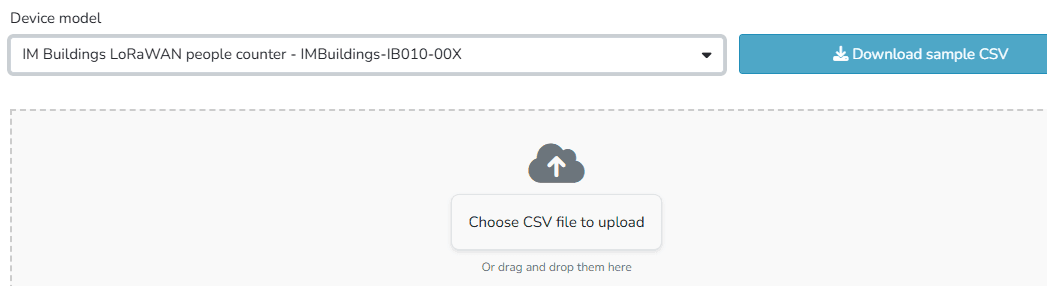
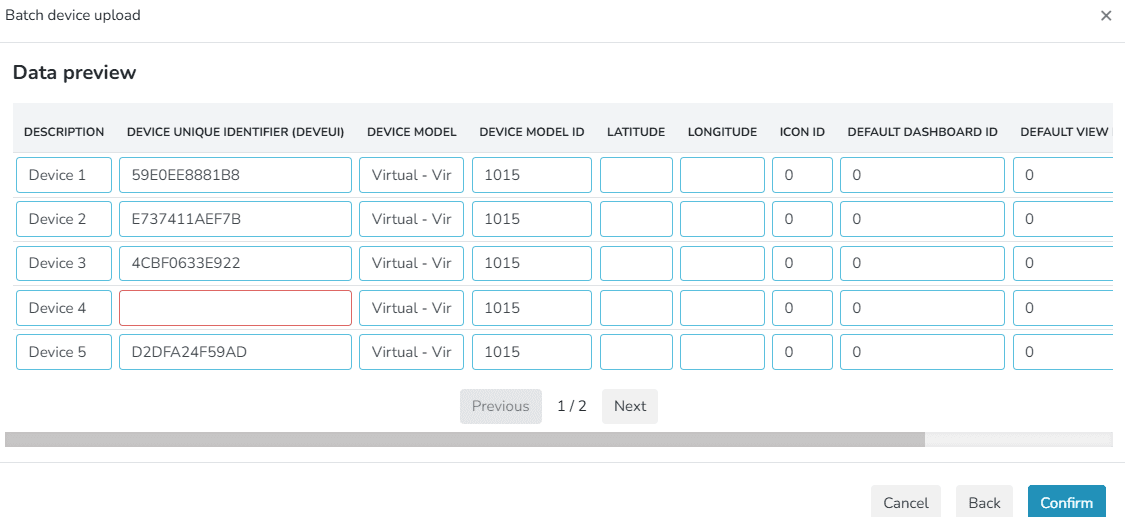
After selecting the file and clicking Next, you access an editable preview showing all included devices. At this stage:
The system validates the data automatically.
Detected errors are highlighted for easy inline correction.
Values can be edited directly from the preview.
When the file has no errors and the data has been verified, press Confirm to execute the batch creation.
Confirmation and Display
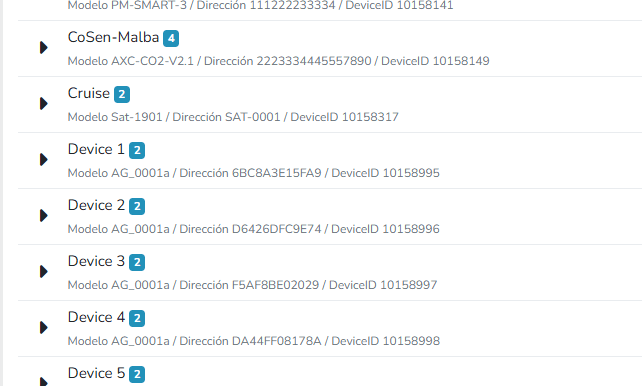
Once the process is complete, the system shows a summary indicating:
- Which devices were created successfully.
- Which could not be created (for example, if they already existed in the instance).

By clicking Save, the new devices are integrated into the general list of the corresponding instance.
Última atualização em
Devices
When creating a device in Gear Studio, you can choose its model. Gear Studio supports two types of device models: Models built into Gear Studio...
Device Model Promotion
On the platform, device models can exist at the local level (specific to a client) or at the global level (available to all clients in the instance). This feature allows promoting a local device model to a global model, with the goal of reusing configurations across different clients.