

Endpoint Status Text
From the Views section in the Monitor panel, the user can view the states of a discrete or scalar variable associated with an endpoint. The Endpoint status text element will display the preconfigured value based on the state reported by the endpoint.
This feature supports a list of operable sensors available here
- Add New Element:
- Manager > Views > Add an element of type Endpoint Status Text.
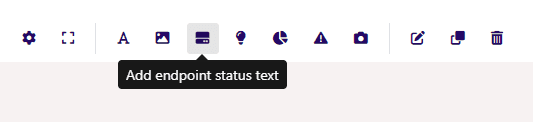
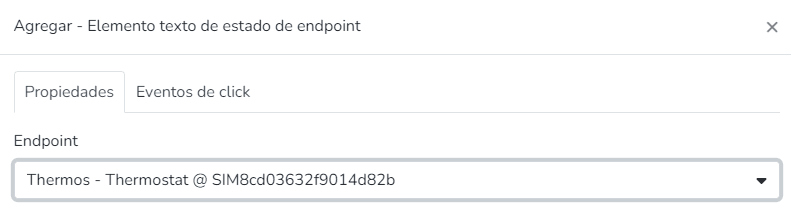
- Endpoint Selection & Image Upload:
- Properties Tab > Select the Endpoint > Only Endpoints of the following types will be selectable: Current Sensor, Flow Sensor & Generic Flow Sensor
- Make Endpoint Operable:
- Click Events Tab, within the Click Event Types list, an option called Operate will appear, which will allow the user to subsequently modify the Endpoint from Monitor
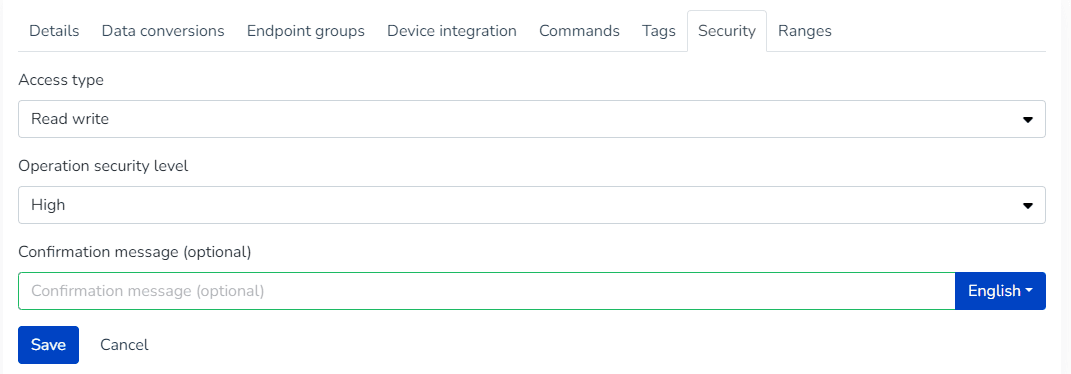
- This option will be visible if the Endpoint's Security section has the Read Write_ or _Read Write Command options selected
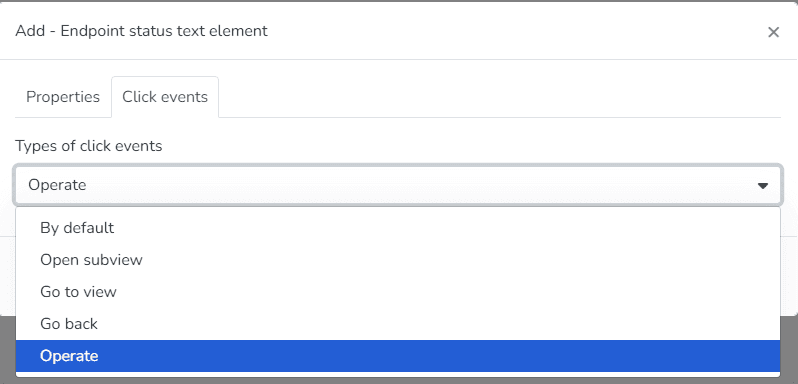
Define Endpoint as Operable
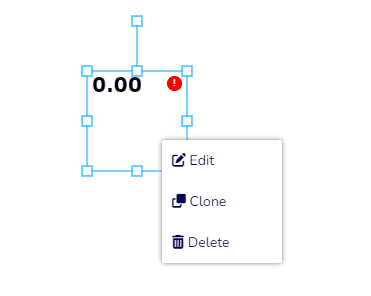
- Edit, Clone, or Delete Element:
- The user can right-click to resize, Edit, Clone, or Delete the selected element
- Modify Element Values:
- Modify Element Values:
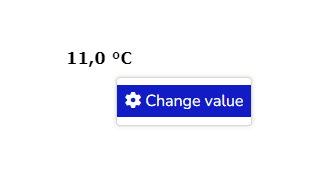
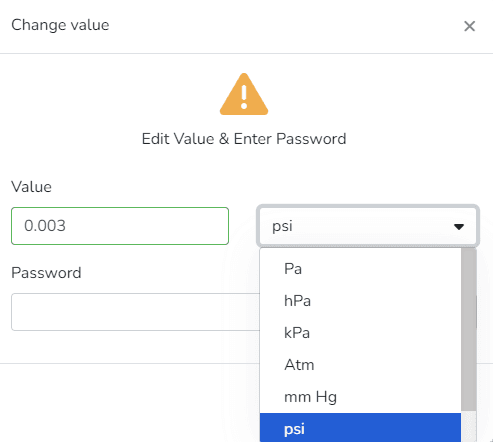
- Monitor Panel > Views > Select View > The user will see the added sensor(s), which can be modified from here by clicking on the added text element and selecting "Change Value"
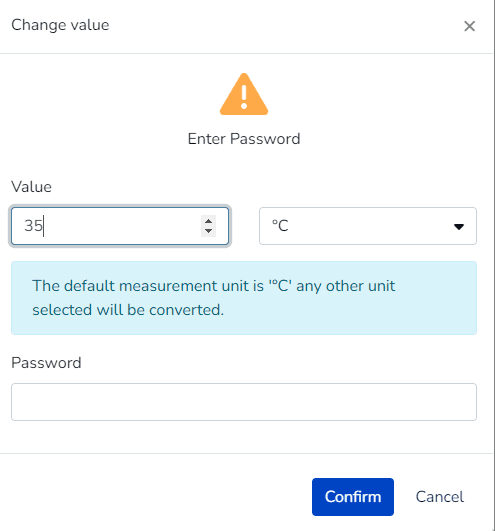
- Value > If the endpoint's variable type is scalar, an input field is displayed with the endpoint's state value that you want to modify.
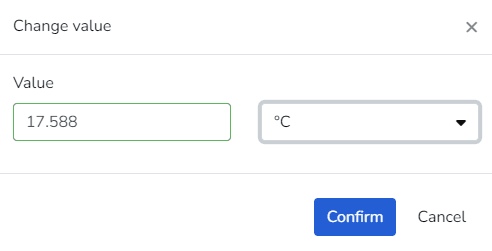
- If the selected endpoint's variable type is discrete, a list of that variable's states is displayed.
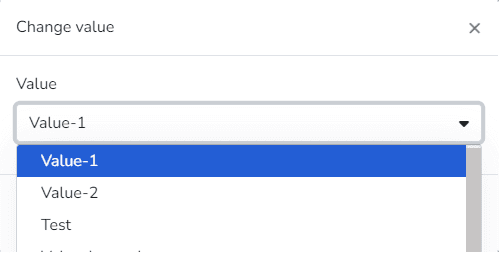
- Unit > If the endpoint's variable type is scalar, a list of measurement units based on the magnitude represented by the endpoint's state is displayed.
- When the sensor's security level is Medium > The user can configure an optional alert message.
- When the sensor's security level is High > The user can:
- Configure an alert message (Optional)
- The user must enter the password when editing the Endpoint to confirm the new value.
Última atualização em