

报告 Export Customization
This feature allows customizing the subject and body of the email sent when scheduling a report. Additionally, it allows adjusting the name of the attached document, the header, and the footer.
Export configuration
In the download dropdown of each report, a new option called "export configuration" will appear.
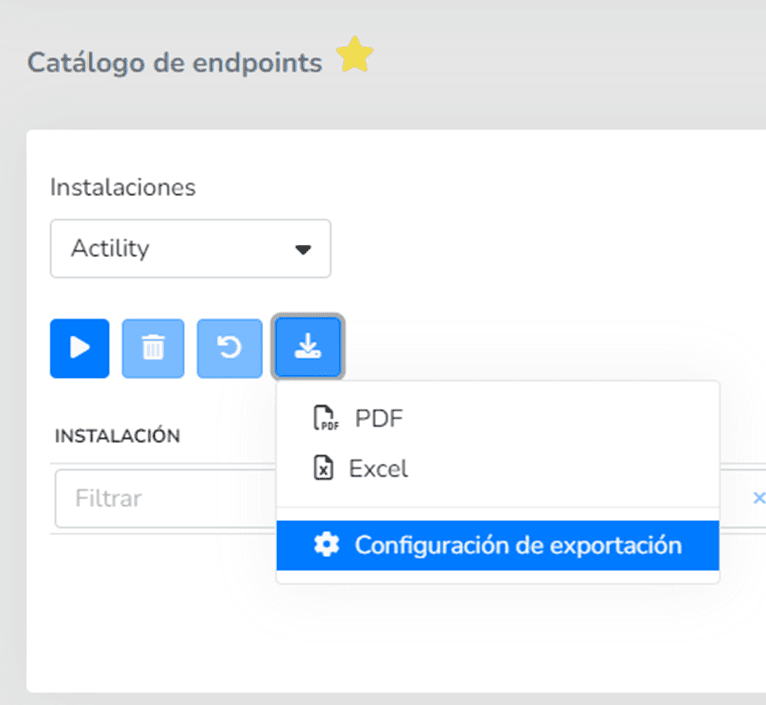
This option will open a modal that allows customizing the header, footer, and generated file name. Additionally, through a checkbox, it allows enabling or disabling each of these settings. For example, you can deactivate the display of the header and footer:
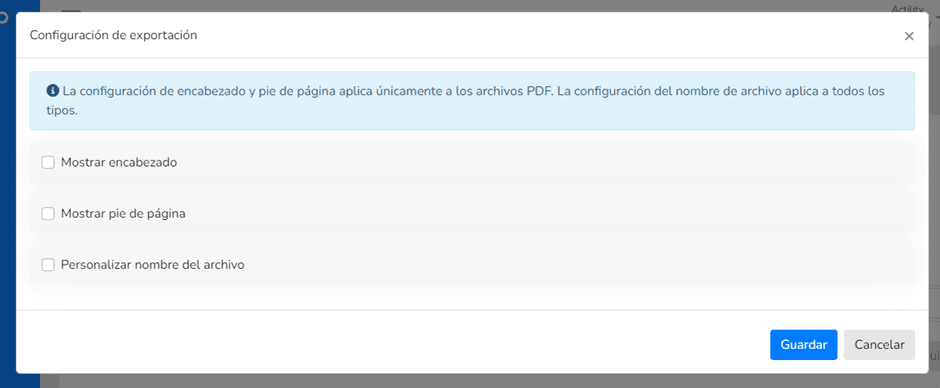
Header and Footer
When enabling either option via the checkbox, a code editor will appear 下方 each one to 输入 the HTML template you want to use for the report's header or footer.
File name
When enabling the customize checkbox, a text field will appear w此处 you can type the custom name for the file that will be generated during export. Only alphanumeric values and hyphens are allowed.
Save as favorite
When saving the report as a favorite, the export configuration (header, footer, and file name) will also be saved. It can subsequently be edited from the favorite editing view:
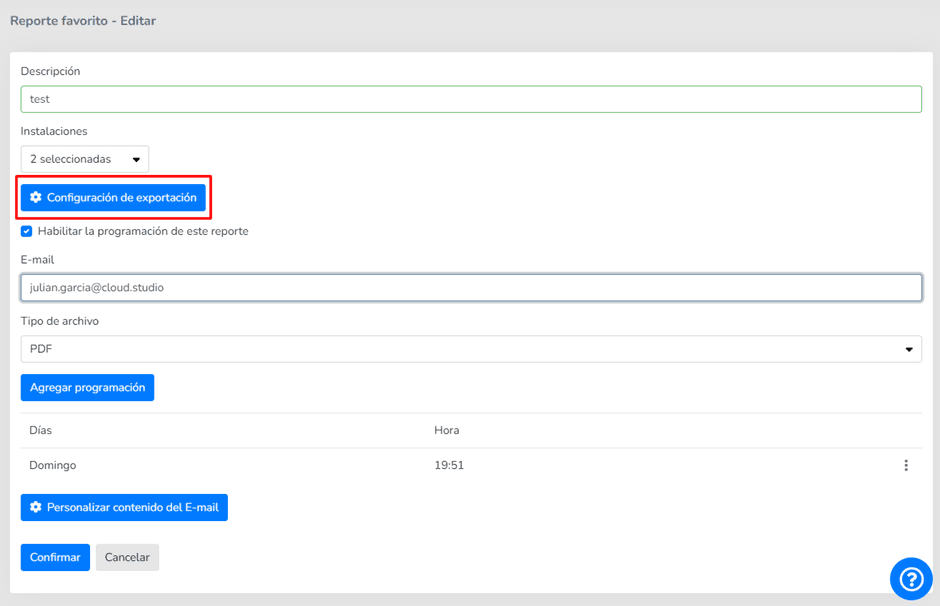
When 按下ing the configuration button, the same modal mentioned 上方 will appear with the export settings.
It is worth noting that if the report is scheduled, it will also be generated with the saved configuration.
Notification email customization
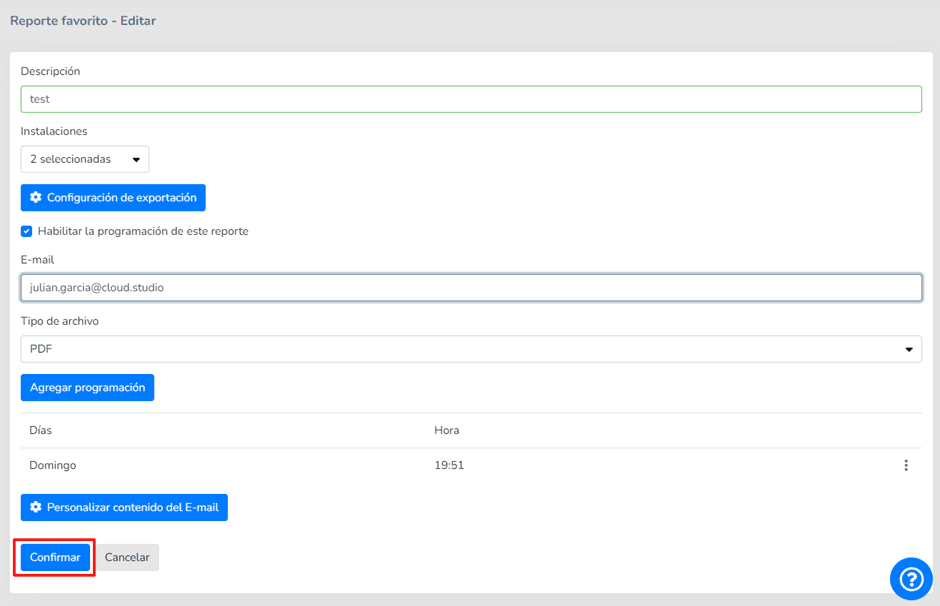
When saving a favorite report, it can be scheduled to be sent according to the established criteria. Below the scheduling options, a button with the text "customize E-mail content" has been added, which allows customizing the subject and content of the email sent when scheduling a report:
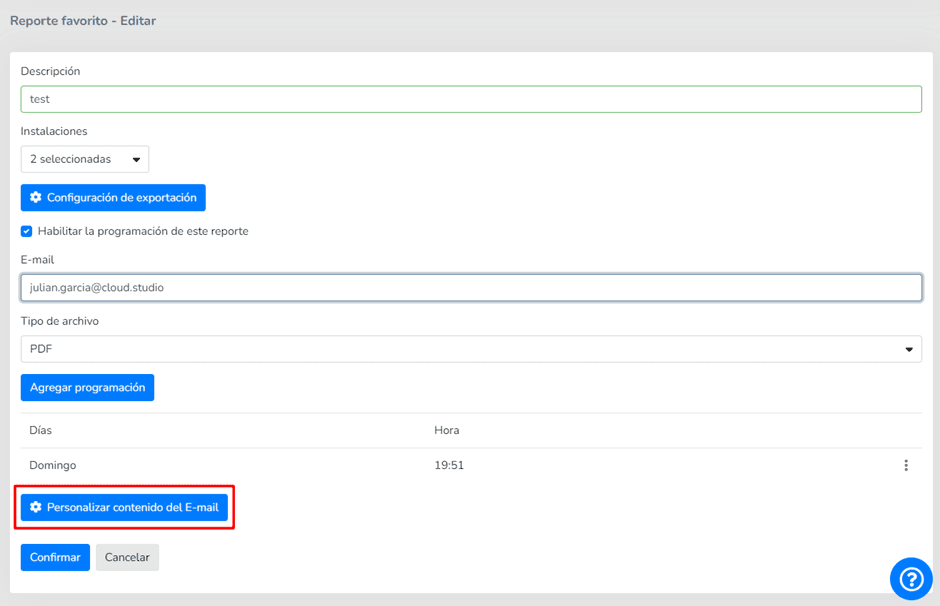
When 按下ing this button, a modal will open with a code editor and a checkbox to enable or disable subject customization:
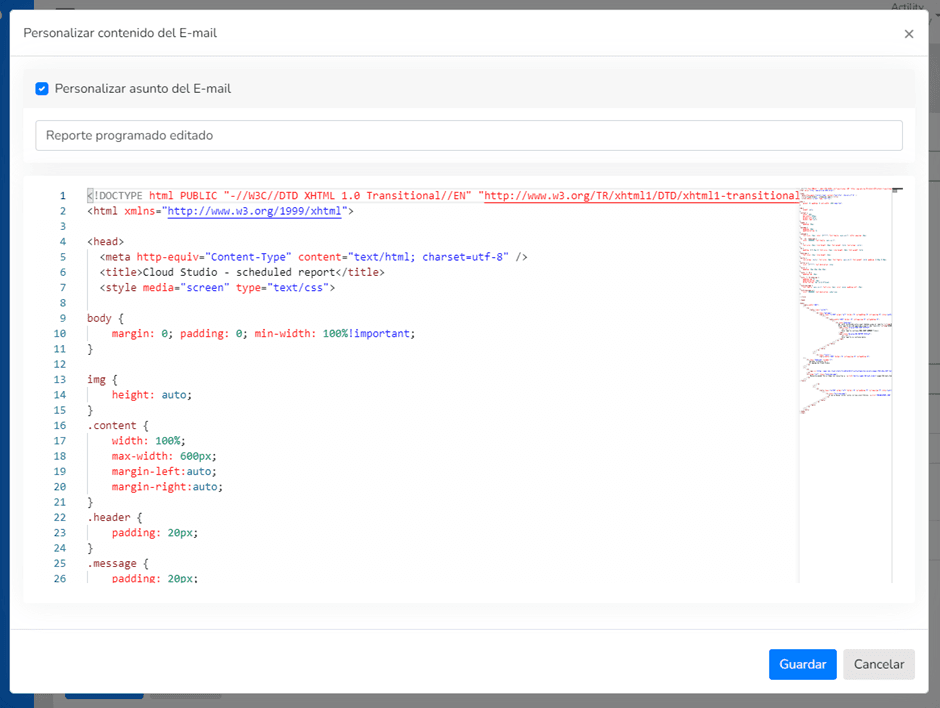
Subject
Through a checkbox, you can enable or disable subject customization. If the checkbox is enabled, a text field will appear allowing you to 输入 the custom subject text.
Body
Below the subject, a code editor field will appear that, by default, shows the template currently used in Gear Studio.
To save changes made to a favorite's customization (both email and export configuration), you must save the favorite. That is, 按下 the "confirm" button on the favorite report editing screen:
最后更新于
Configured Notifications 报告 by Instance
This report lists the notifications configured at the instance level, considering all Clients and 设施 it contains. 筛选器: Client (all or 选择ed list)...
数据提取 API
简介 本节 explains how to extract data from the Gear Studio platform 使用 HTTP API, such as: 提醒: the API allows extracting the...