

资产追踪筛选器
In 筛选器, the user can filter the display.
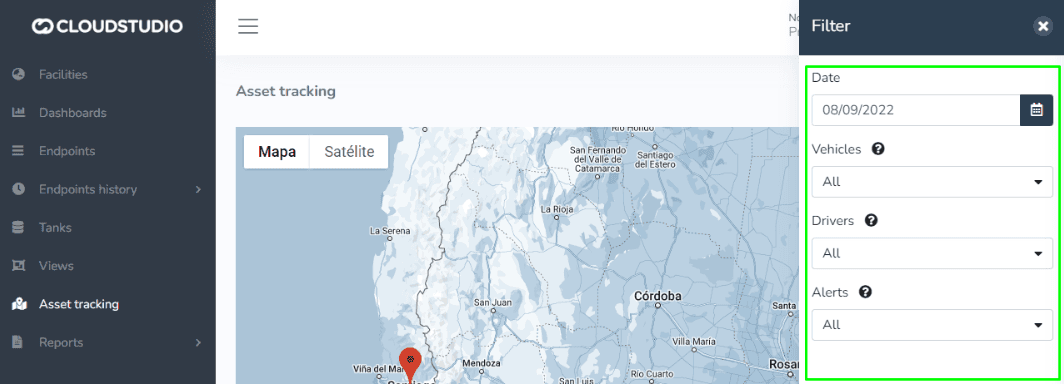
重要说明 note about filter display:
Depending on each instance's configuration options, some of these options may not be available.
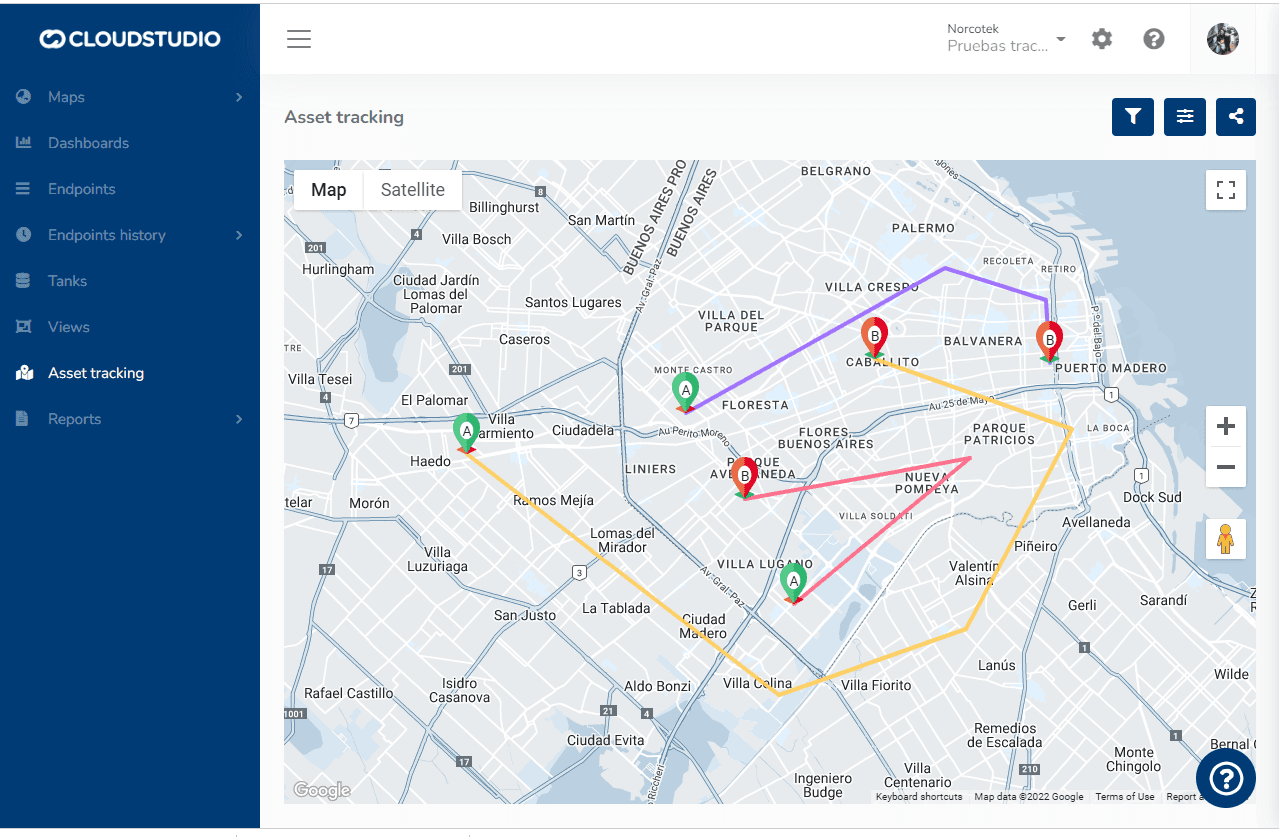
Button display on the Asset tracking screen.
Filter/配置s/share asset tracking.

说明
When the screen loads, all 选择ed filters are displayed with the current date.
When no filter is 选择ed and/or no information (Asset) exists, the map c输入s on the facility.
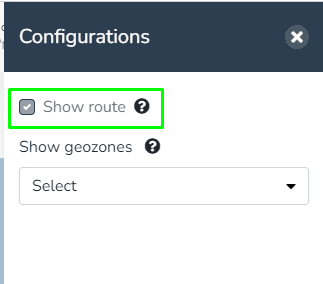
The "show route" option will be checked for previous dates in the 配置s tab.
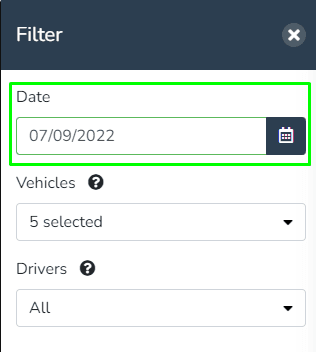
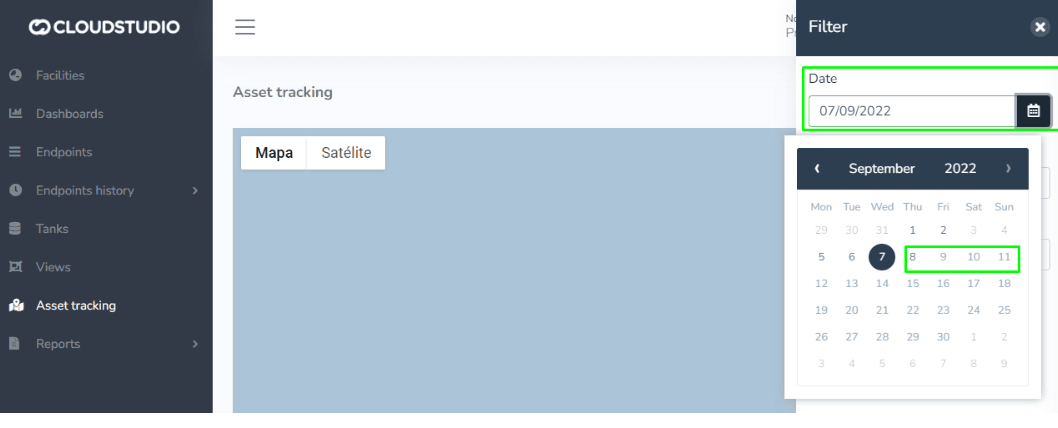
Future dates in the date filter are disabled.
The filter order is as follows:
Filter tab:
- Date
- Vehicles
- Drivers
- 提醒
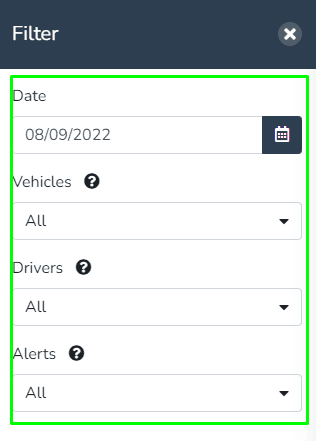
提醒:
The "提醒" filter has the following functionality:
All "TAGS" associated with alerts for the client's Vehicles will be listed, along with options to show those that have no active alarms or that are not associated with any "TAG".
For example: T此处 are 2 alerts w此处 each has the following associated tags:
- 提醒 1 -> Tags: Taxi, Panic, Emergency
- 提醒 2 -> Tags: Patrol, Emergency
The alerts filter will show different items according to each client's needs, initially starting with:
*No active alarms.
*警报 without tags.
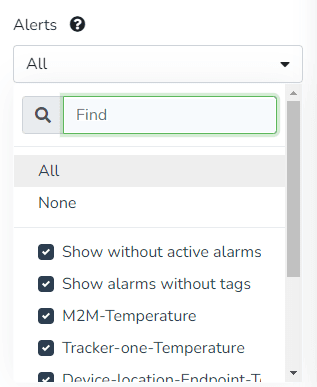
Note: This means that for the alerts filter to have more than one item in the list, tags must be configured for each alert that should be displayed in the "提醒" filter.
This alert TAG configuration can also be done via Scripting with the current features.
配置 tab:
- Show Route
- 地理围栏
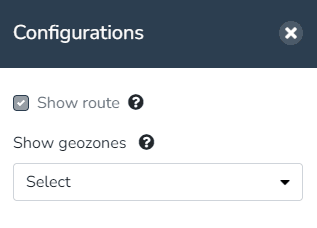
Modifiable default filters.
- Date
- Vehicles
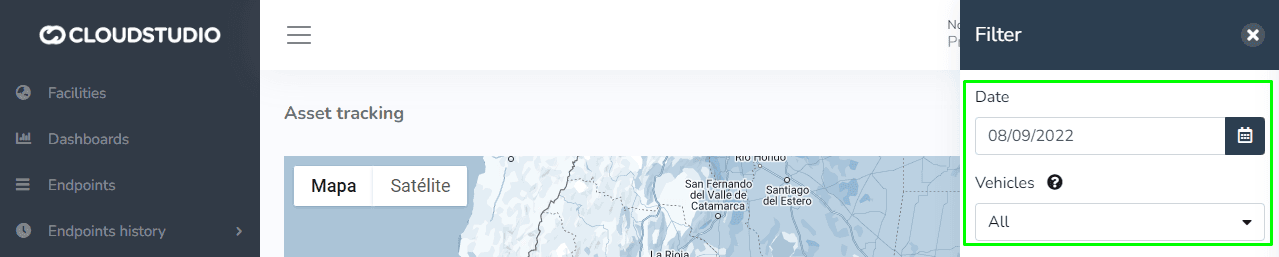
Route tracking: In this option, the user can view the asset's route. The route start and end points (A, B) can also be seen.
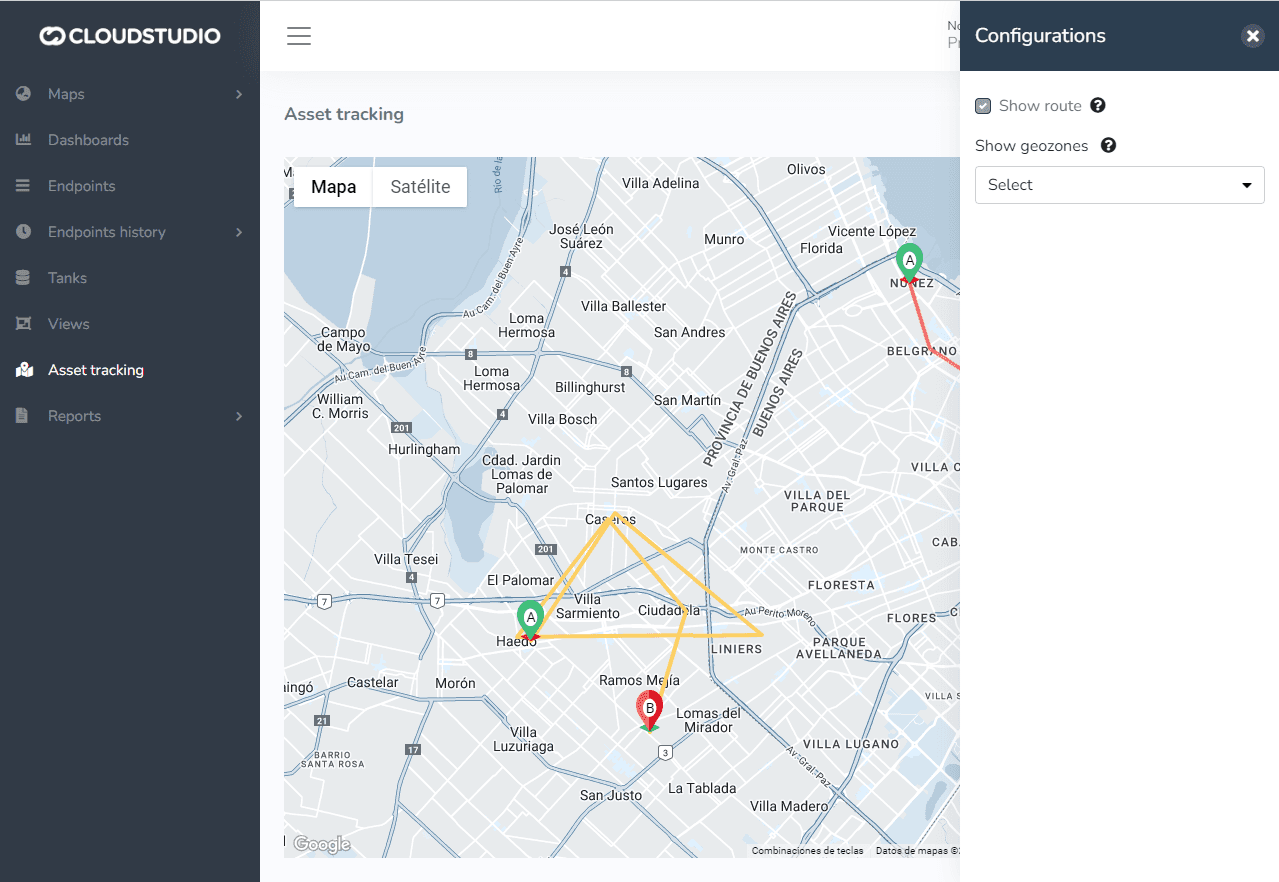
Route tracking start and end: In this option, the user can view the asset's route. The user can see the start and end points of the filtered vehicles' routes (A, B).
最后更新于