

White Labeling - User Level
Just as there is instance-level white labeling and client-level white labeling, each user can modify the logo, background colors, and text to adapt the interface to personal preferences, improving visibility and creating a more pleasant and appropriate environment for each user. These changes only apply to the active user's session and are not visible to other users.
Menu Logo
This option allows the user to modify the Logo displayed in the platform menu for the user who configured it, when logging in with that profile, while maintaining the look and feel configured at the Instance level for other users.
Press Change and then select the image file from your computer. For the changes to take effect on the platform, press Save at the bottom of the page.
Image requirements: * The allowed extension is .png * The required dimensions are 449x115 pixels
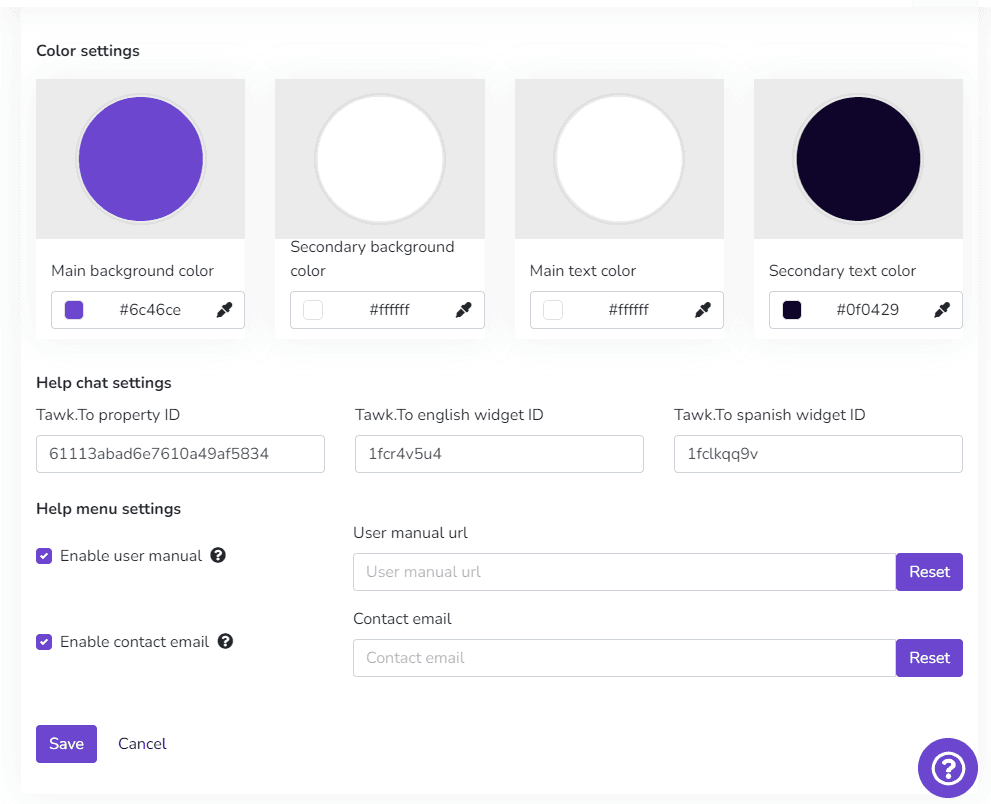
Color Configuration
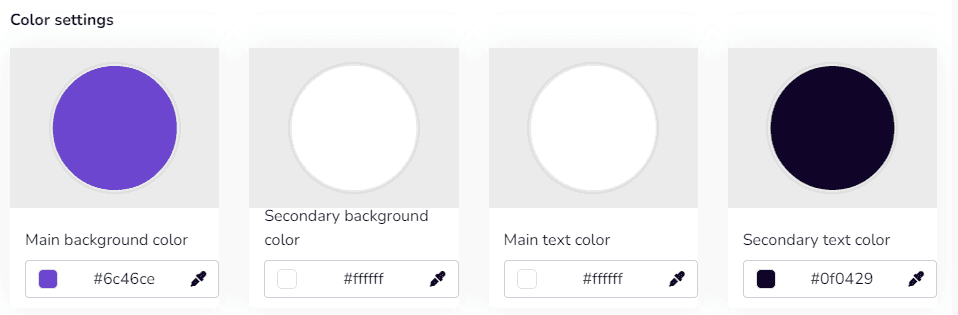
This option provides color palette selection for the individual user's platform. It allows selecting two colors (primary and secondary). For example, the primary color is displayed as the menu background, and the secondary color is displayed on menu icons and text. Similarly, it allows modifying the primary text color and the secondary color displayed on platform button text.
The platform includes a hexadecimal color picker, making it possible to configure any color as needed.
Última atualização em