

Étapes
When creating a new step, it is necessary to indicate the step type and whether it should continue to the next step in case of error. Additionally, the required attributes for each particular type must be completed.
Regardless of the step type, for each step it is possible to indicate whether execution should continue in case of error, using the Continue on error attribute: this field indicates whether, in case errors occur when executing the step, the action should stop or continue to the next step. If this field is enabled, the error is logged, but the action continues with the execution of the next step. If the field is disabled, the error is logged and the action stops immediately.
Steps are divided into the following types:
Set, Add and Subtract
These three step types are represented with the same user interface, where you can select 1 Endpoint to act on, 1 variable associated with the Endpoint, and 1 numeric value which will modify the state of this Endpoint.
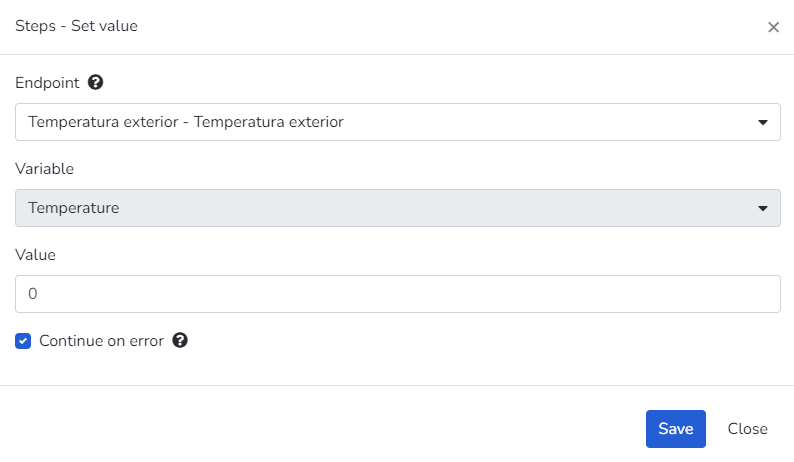
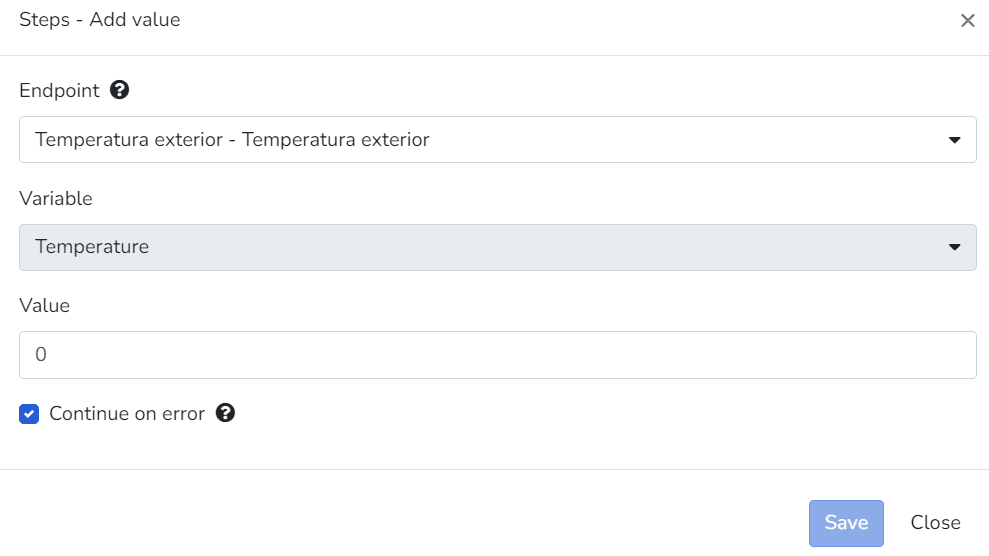
Add value
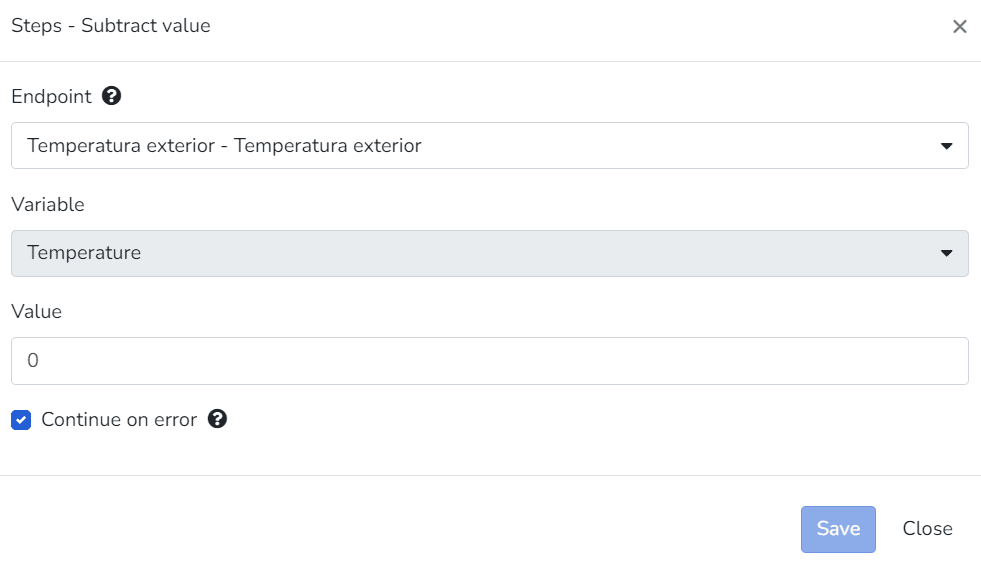
Subtract value
- Endpoints that have access set to Read Only mode will not be visible for selection for this step type. - By default, Endpoints have access set to Read Only mode, and there are cases where this cannot be modified due to the Endpoint type with which it was created. - If the Endpoint type allows modifying access, this can be done by accessing the security tab within the Endpoint configuration.
Turn On, Turn Off and Toggle
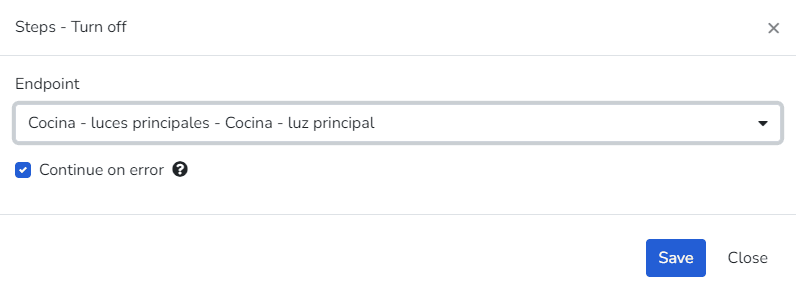
These three step types are represented with the same user interface, where you can select 1 Endpoint to act on to change its state. They can only be used for Endpoints of type Appliances, Dimmer, and Thermostat.
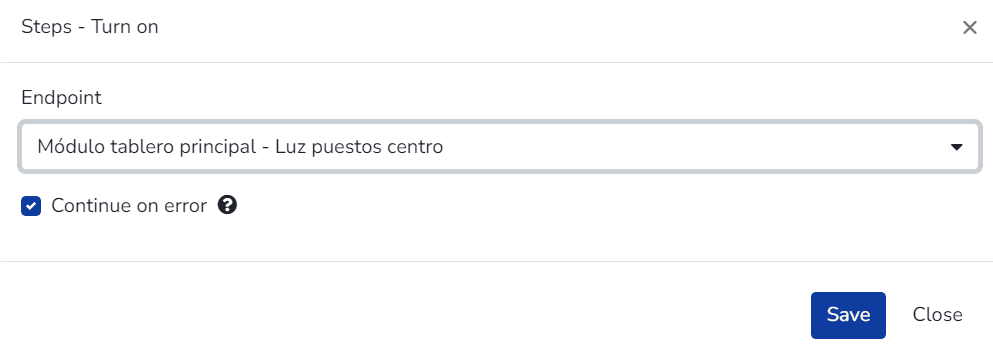
Turn On
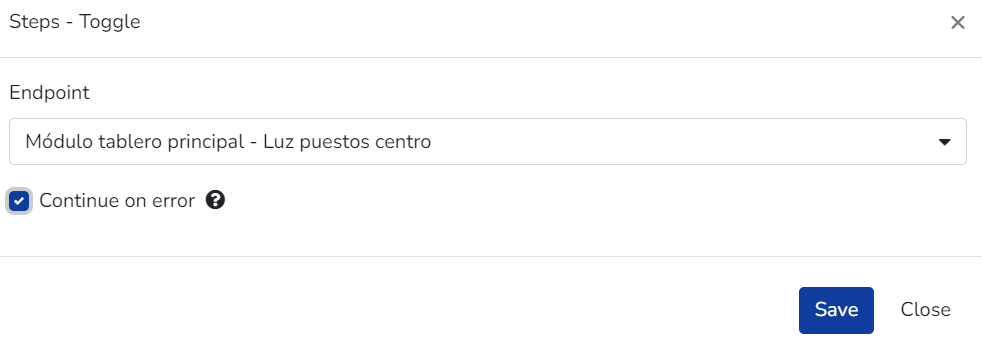
Toggle
For the "Toggle" type, the behavior will be to toggle the state: if it was "on", this step will change it to off and vice versa.
Email, SMS and Voice Message
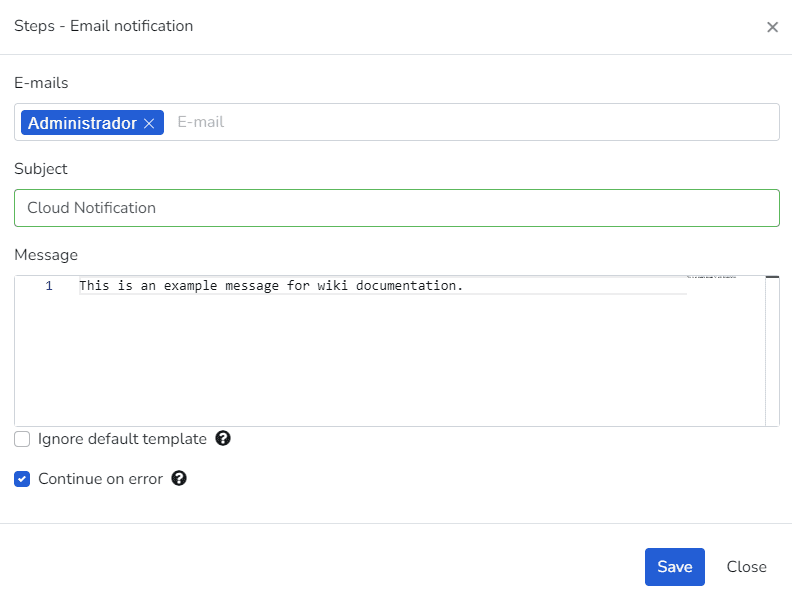
These three step types allow sending a notification via e-mail, SMS, or voice.
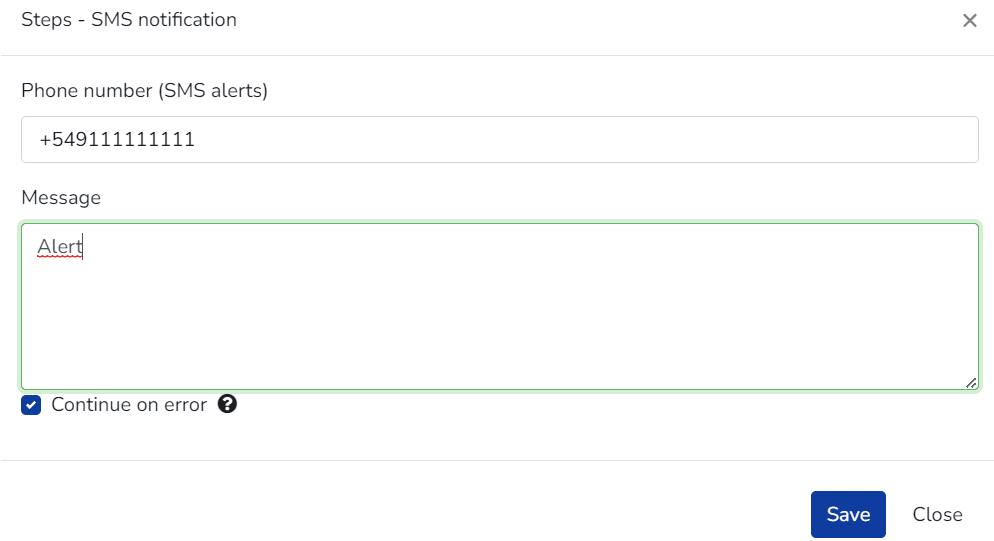
SMS Notification
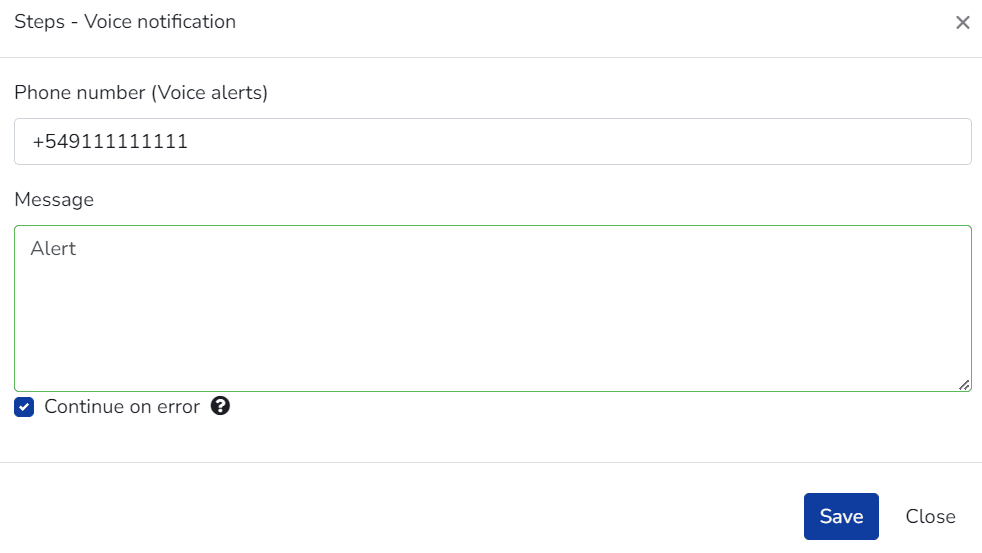
Voice notification
Script
A code fragment in an interpreted language (JavaScript) that is easy to understand, expanding the range of tools available when processing a specific business logic.
- Code tab: Allows editing the JavaScript code that the action step will execute. These scripts can also include methods from the Cloud Studio utility library for JavaScript.
- Test tab: Allows testing the execution of the action step's script, allowing modification of the event received by the action for testing purposes.
- Dependencies: Allows selecting scripts from the common and global script library that will be dependencies for the action step's script.
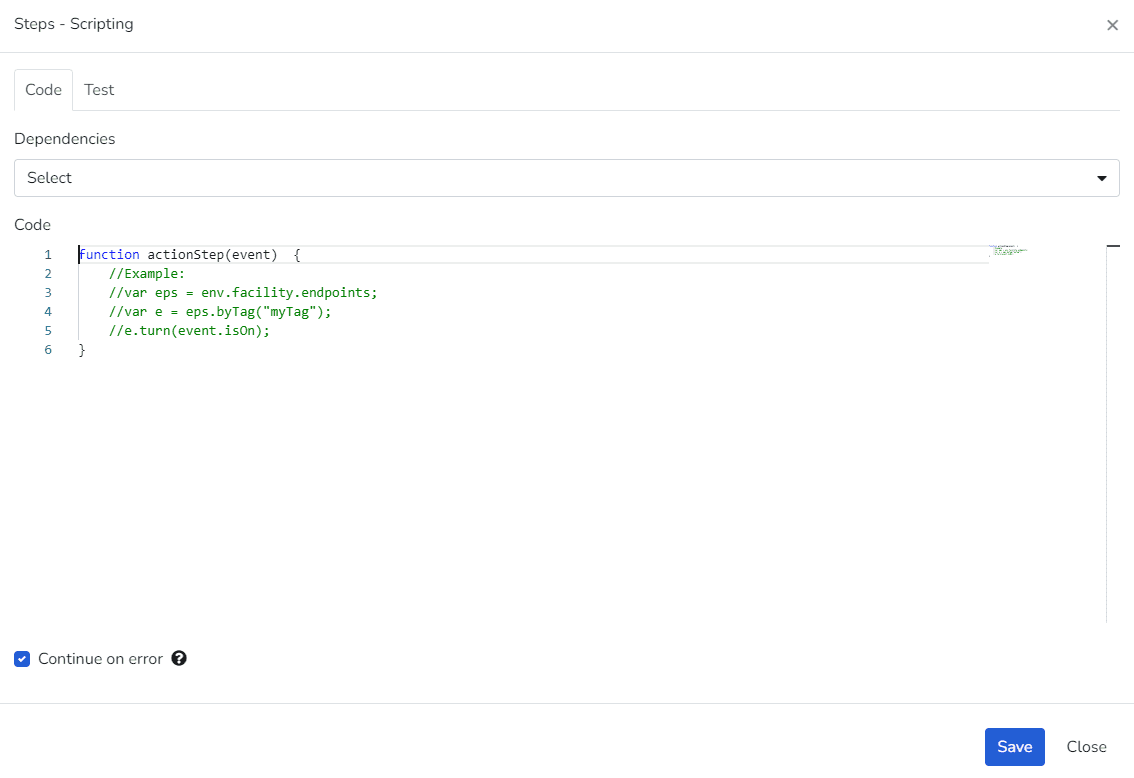
Scripting
Dernière mise à jour le
Actions
Les actions sont des ensembles d'étapes qui peuvent être exécutées manuellement ou comme conséquence d'événements configurés. Une fois qu'une action démarre, toutes les étapes associées sont exécutées les unes après les autres dans l'ordre établi jusqu'à ce que la séquence soit complétée.
Objets, méthodes et propriétés de scripting
Dans ces pages, vous trouverez le guide des objets, leurs propriétés et méthodes disponibles pour développer des scripts d'action.