

Helium
Die Integration mit Helium ermöglicht Cloud Studio IoT-Plattform die Kommunikation mit LoRaWAN devices using a variety of device models available on the market. This article describes the steps necessary to complete the integration.
Voraussetzungen
Vor der Integration muss der Benutzer Folgendes haben:
- Eine Instanz-Kennung. Je nach Gear-Studio-Abonnement sind die häufigsten Instanznamen:
- gear.cloud.studio. Dieser Instanzname entspricht einer gemeinsamen Gear-Studio-Instanz, einschließlich der kostenlosen Version.
- xxxx.cloud.studio. Dieser Instanzname entspricht Flex-Instanzen, bei denen das Hosting von Cloud Studio bereitgestellt wird, der Kunde aber die verwendete Subdomain (xxxx) wählen kann.
- Sonstige. Für Enterprise-Kunden, die ihre eigene Domain verwenden, sollte der gewählte Domainname verwendet werden.
- Ein Access Token. Data sent from Helium Console will use this access token to access the platform, and therefore Helium will have the permissions associated with this access token. It is recommended to create a new access token specifically for the Helium integration to simplify security control.
Creating a Connection with UI
Melden Sie sich an bei console.helium.com. Folgen Sie dann diesen Schritten:
- Click on Integrations -> Add New Integration -> HTTP**.**
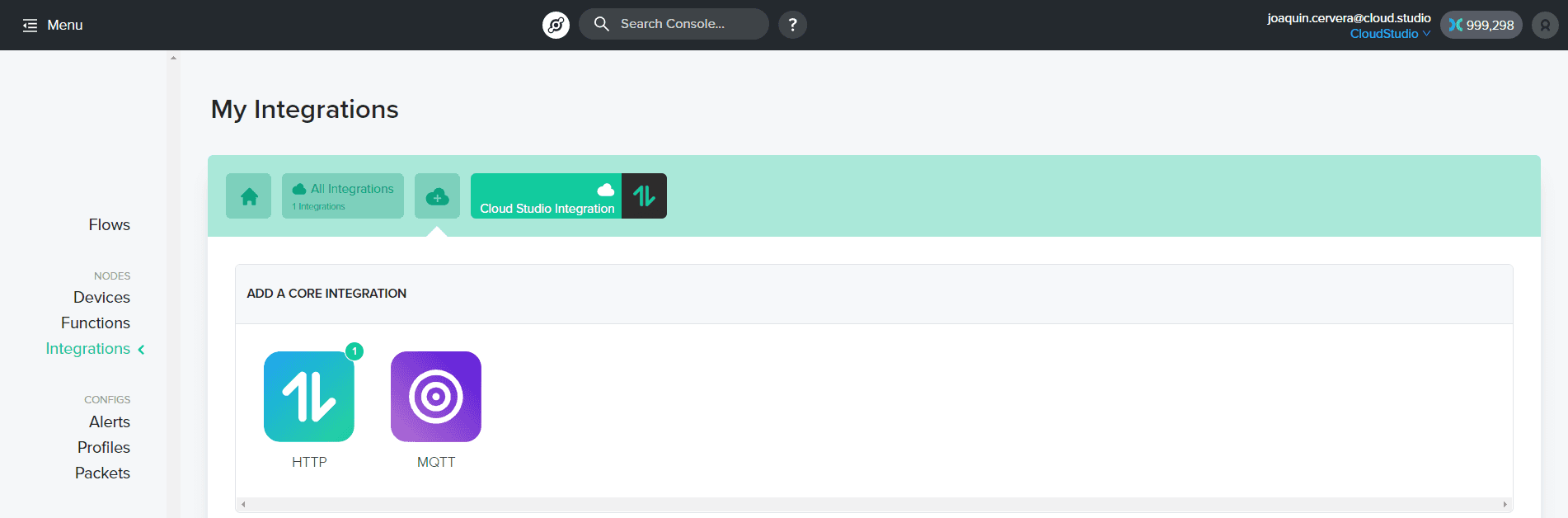
- A new page will open. You will need to update the information within the section: "Update your connection details".
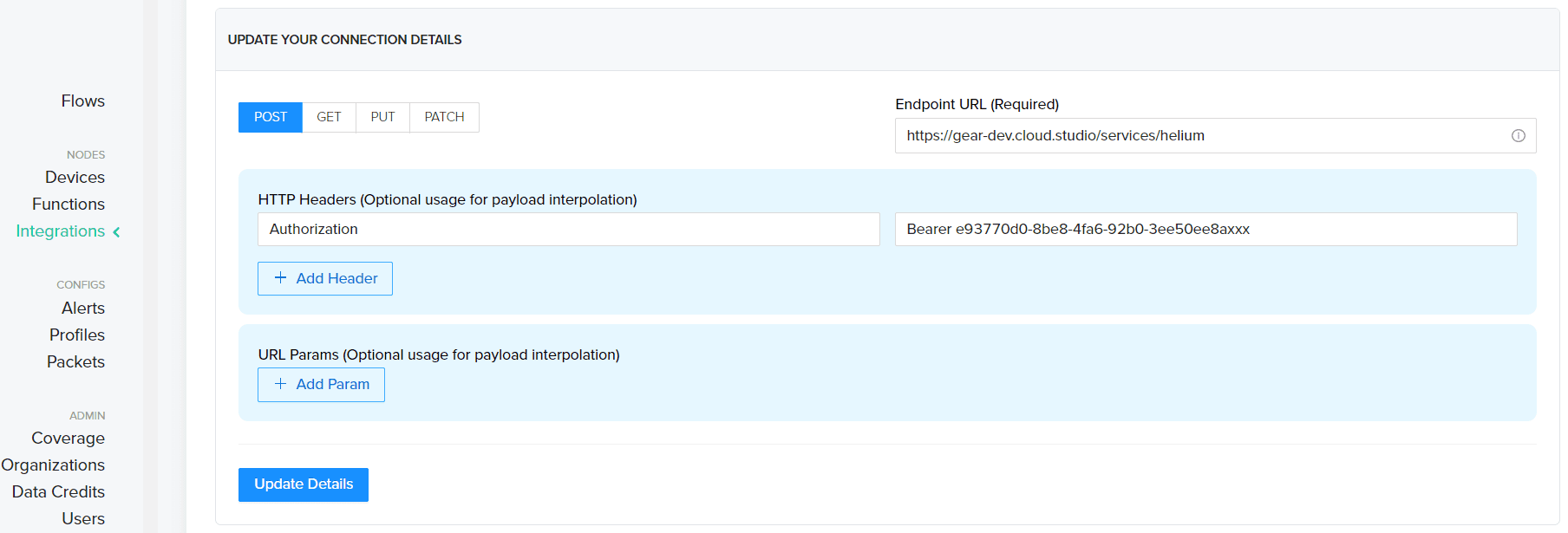
The fields to update are:
- Endpoint URL (Required): Must be filled with the instance URL followed by "/service/helium". For example, when using the general Gear.cloud.studio instance, the URL to enter would be https://gear.cloud.studio/services/helium.
- HTTP Headers (Optional usage for payload interpolation): The "Key" variable must be filled with the word "Authorization" and the "Value" variable must be filled with the word "Bearer" followed by the previously generated access token, separated by a space.
Finally, add the selected name for the integration and click "Add the integration".
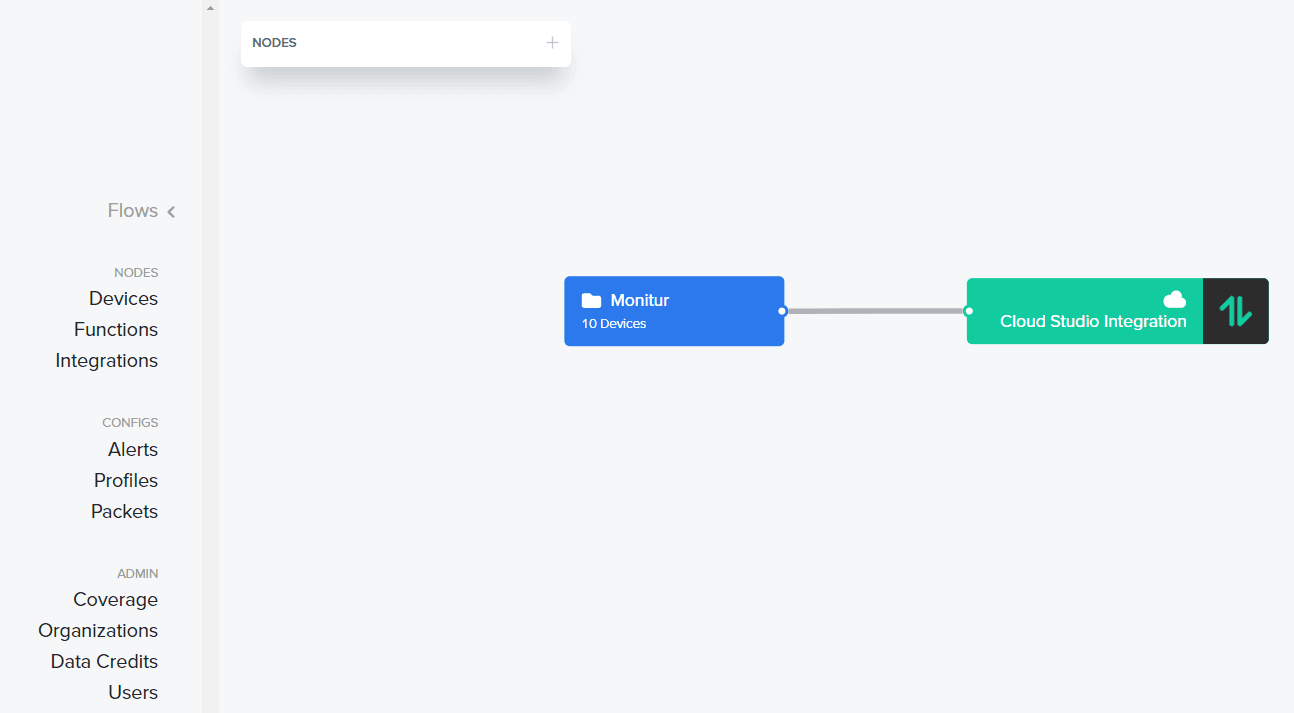
- Within the main menu, go to the Flow option, add the devices (previously connected), add the integration created in the previous step, and then connect both nodes.
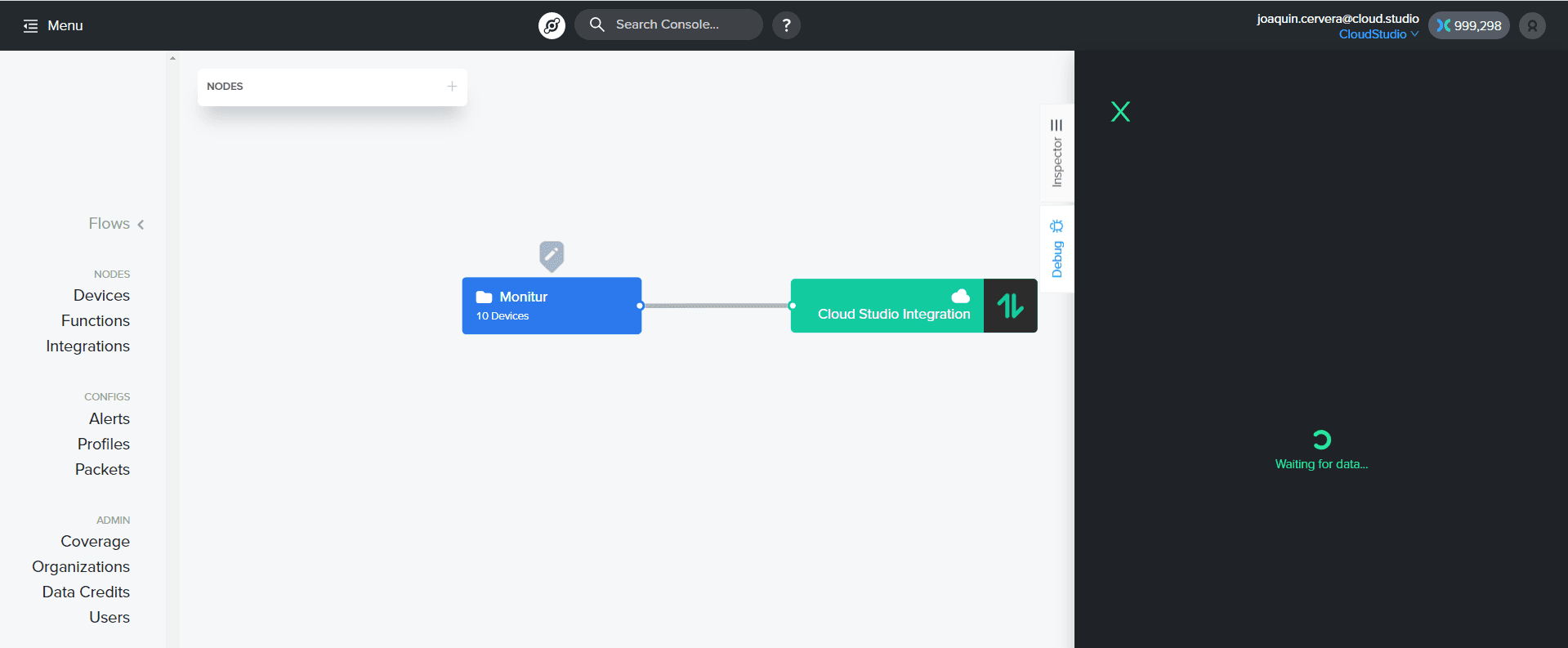
- You can verify the correct data delivery by clicking on the device and then clicking on the "Debug" tab.
Informationen auf der Cloud Studio IoT-Plattform anzeigen
Verbinden Sie sich mit Ihrer Gear Studio Instanz und navigieren Sie zur Konfiguration.
- Gehen Sie zu Geräte Abschnitt und klicken Sie auf die Hinzufügen Schaltfläche, um ein neues Gerät zu erstellen.
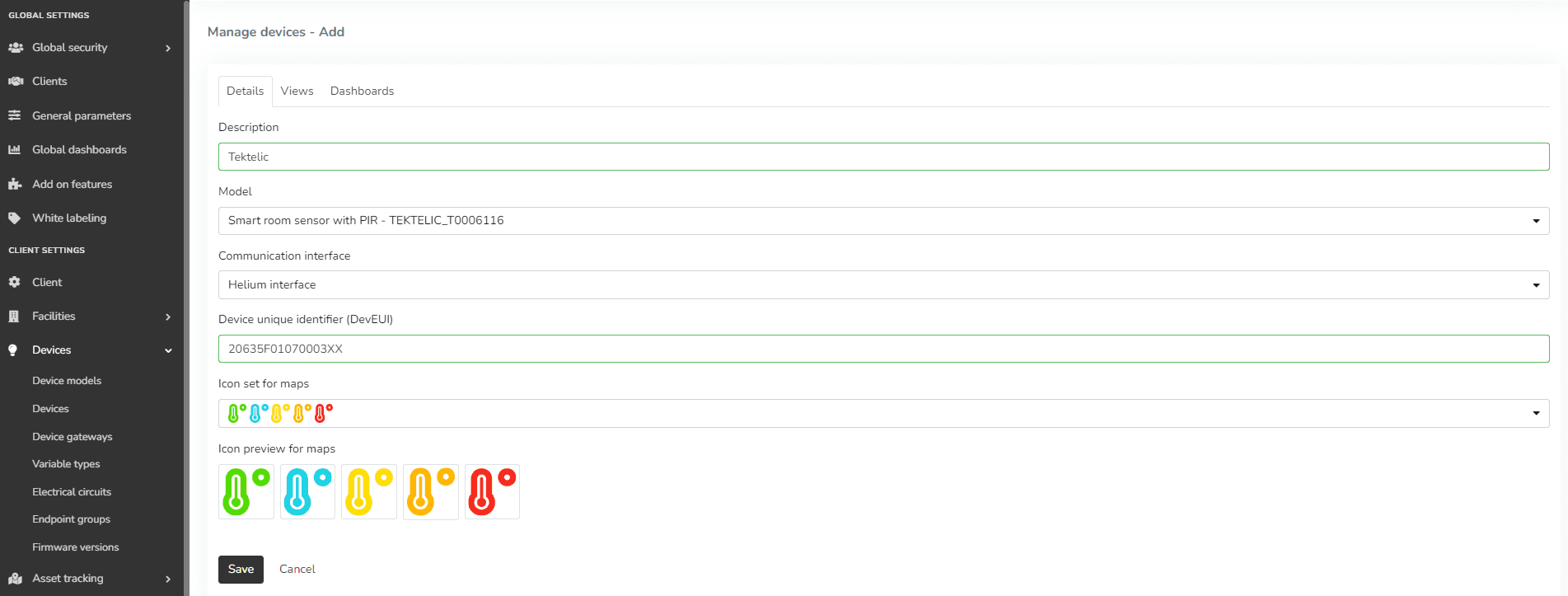
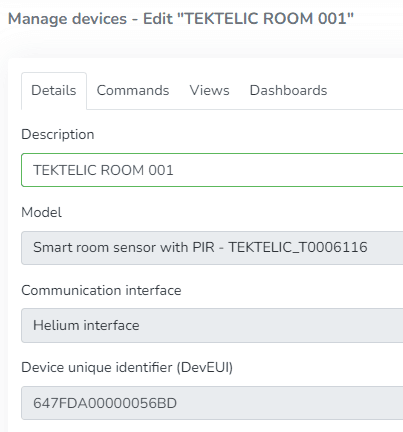
- Füllen Sie das Formular mit den Gerätemodell created earlier (or using the available drivers), select the "Helium interface" communication interface, and the Adresse Feld entspricht Ihrem DevEUI (zu finden in der Helium Geräteliste).
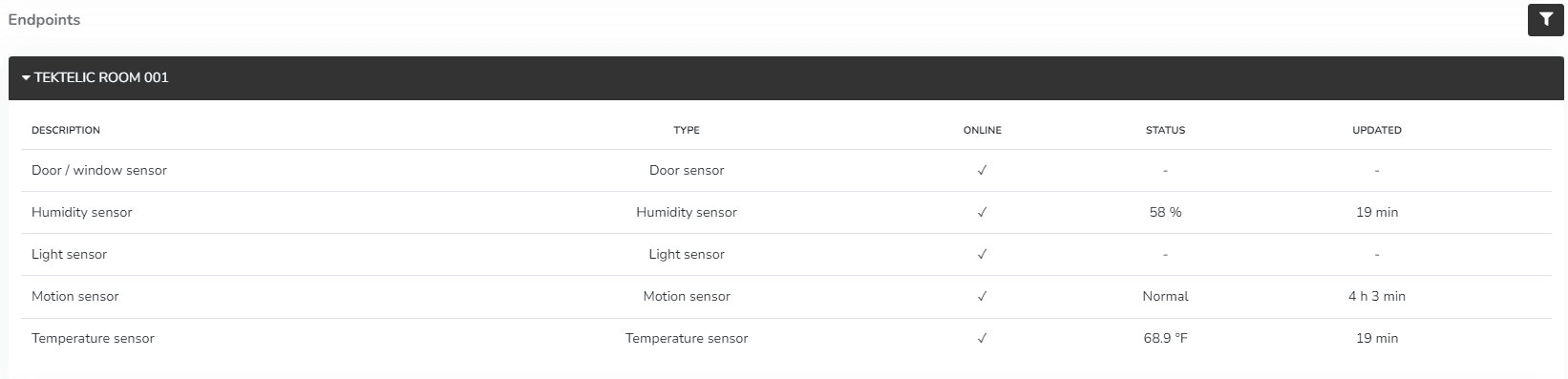
- Nachdem das Gerät erstellt wurde, werden die an die Plattform gemeldeten Daten angezeigt in Endpoints Abschnitt im linken Menü von Monitor. Beachten Sie, dass LoRaWAN Geräte alle 5 bis 15 Minuten Daten melden können, sodass die Anzeige von diesem Intervall abhängt.
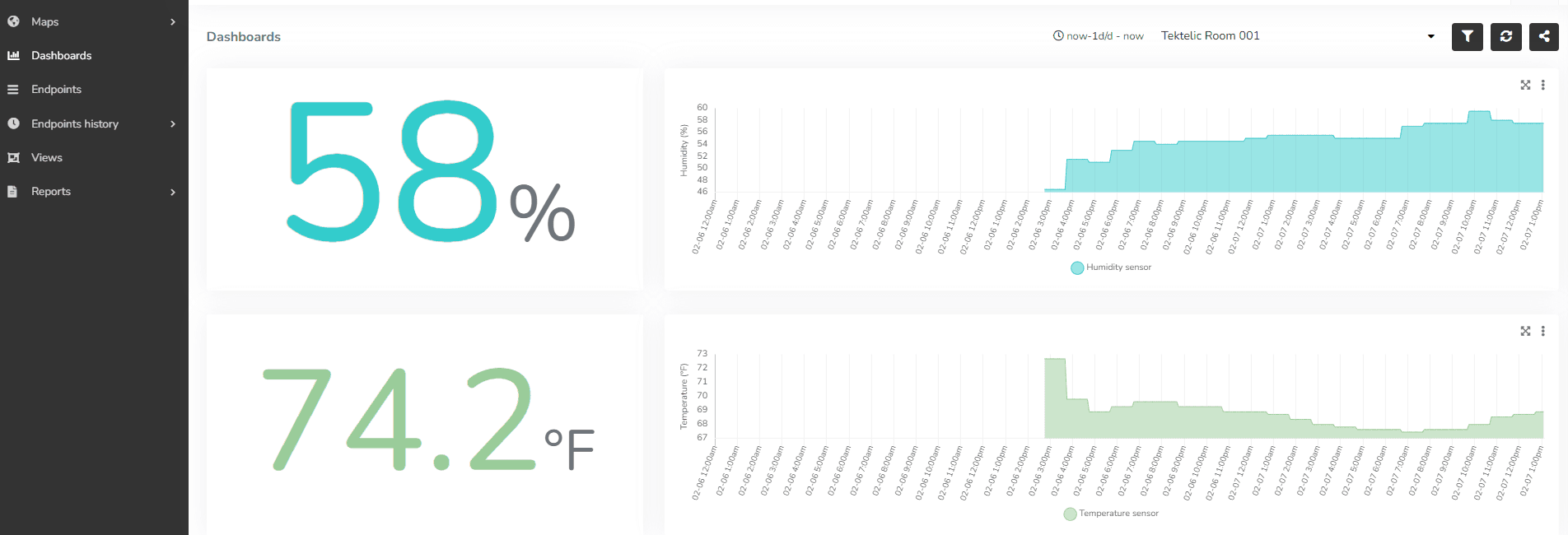
- Sobald die Geräte korrekt verbunden sind, können Sie ein benutzerdefiniertes Dashboard mit einer Vielzahl von Widgets verwenden, um die vom Gerät gesendeten Daten anzuzeigen.
Zuletzt aktualisiert am
LORIOT
Die LORIOT-Integration ermöglicht der Plattform eine solide Kommunikation zwischen einem Konnektivitätsanbieter und einer hochwertigen IoT-Plattform wie Cloud Studio IoT.
Matrix der Methoden für Sensor-Aktualisierung
Aktualisierung von Daten auf Geräteebene Diese Tabelle enthält die verfügbaren Methoden zur Aktualisierung von Gerätedaten. Geräteeigenschaft, Scripting-Methode, HTTP-Methode, HTTP-RAW-Methode.