

Edit a Contact
To EDIT a contact in the address book, expand the three-dot menu that appears to the right of the contact to edit. This menu shows two options: Edit and Delete.
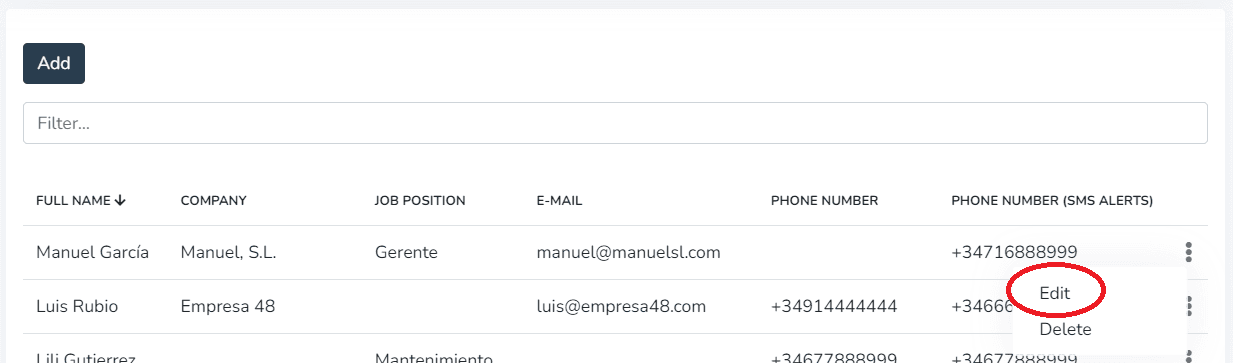
Click on the EDIT option in the menu and a screen will open with the contact's data ready to be changed or updated.
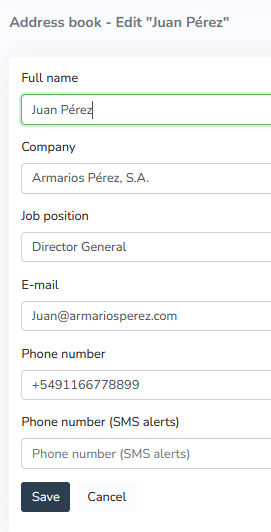
IMPORTANT: Do not leave required fields empty.
Once the necessary changes have been made and saved by clicking the "Save" button, the contact will appear in the address book list with the applied corrections.
If the goal is to DELETE the selected contact, clicking "Delete" will display a confirmation message before permanently deleting the contact.
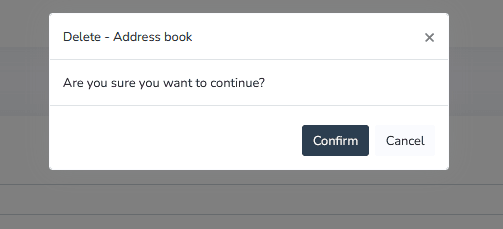
Clicking the "Confirm" button will permanently delete the contact without the possibility of recovery.
Clicking the "Cancel" button will leave the contact unchanged.
More Information
Last updated on