

Create a New Contact Group
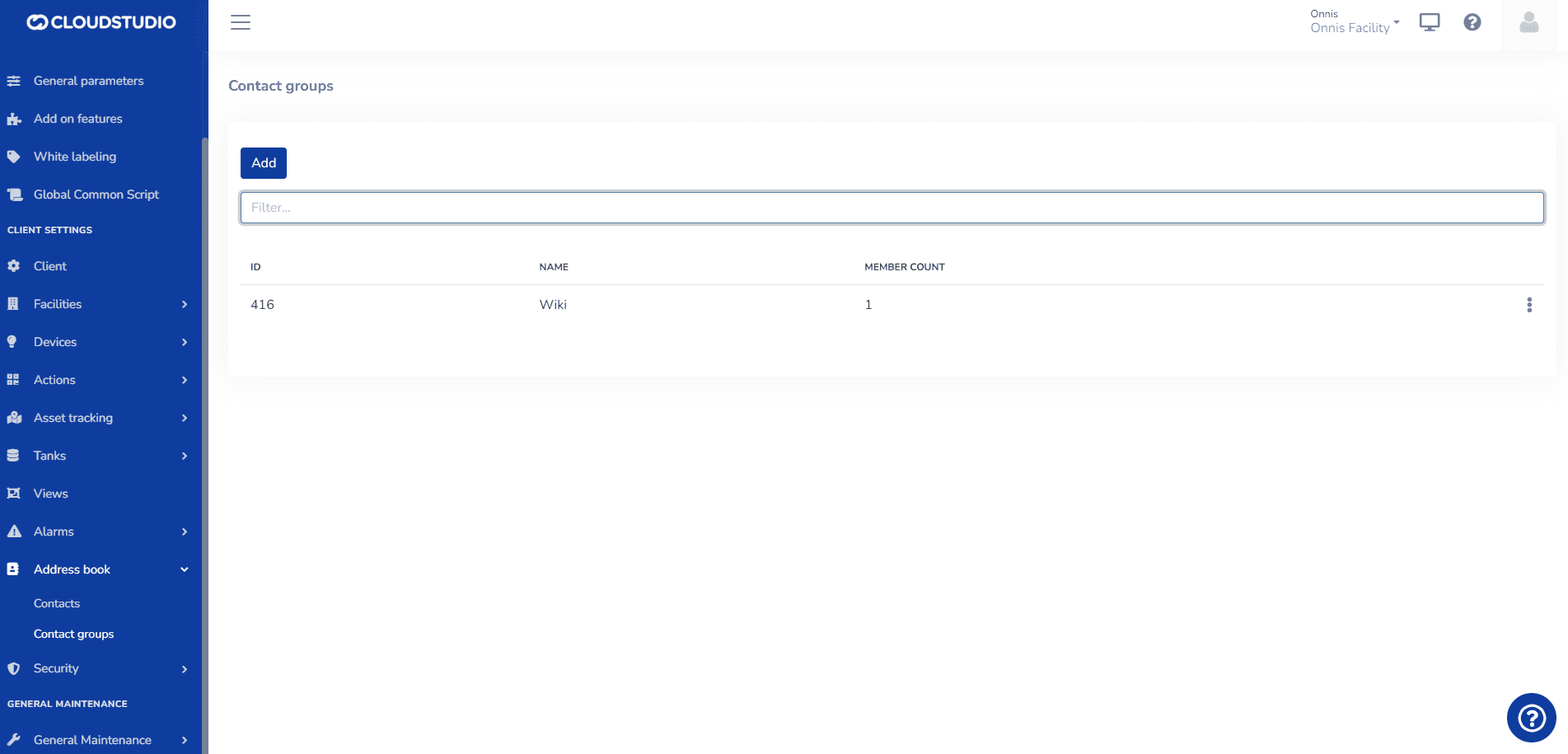
To create a new contact group in the Address Book, go to Client Configuration > Address Book > Contact Groups.
_fe2d.png&w=1920&q=75&dpl=dpl_87LH5cJ2L3jjsAK3mA5aYAZuUopg)
Press add and the following screen will open:
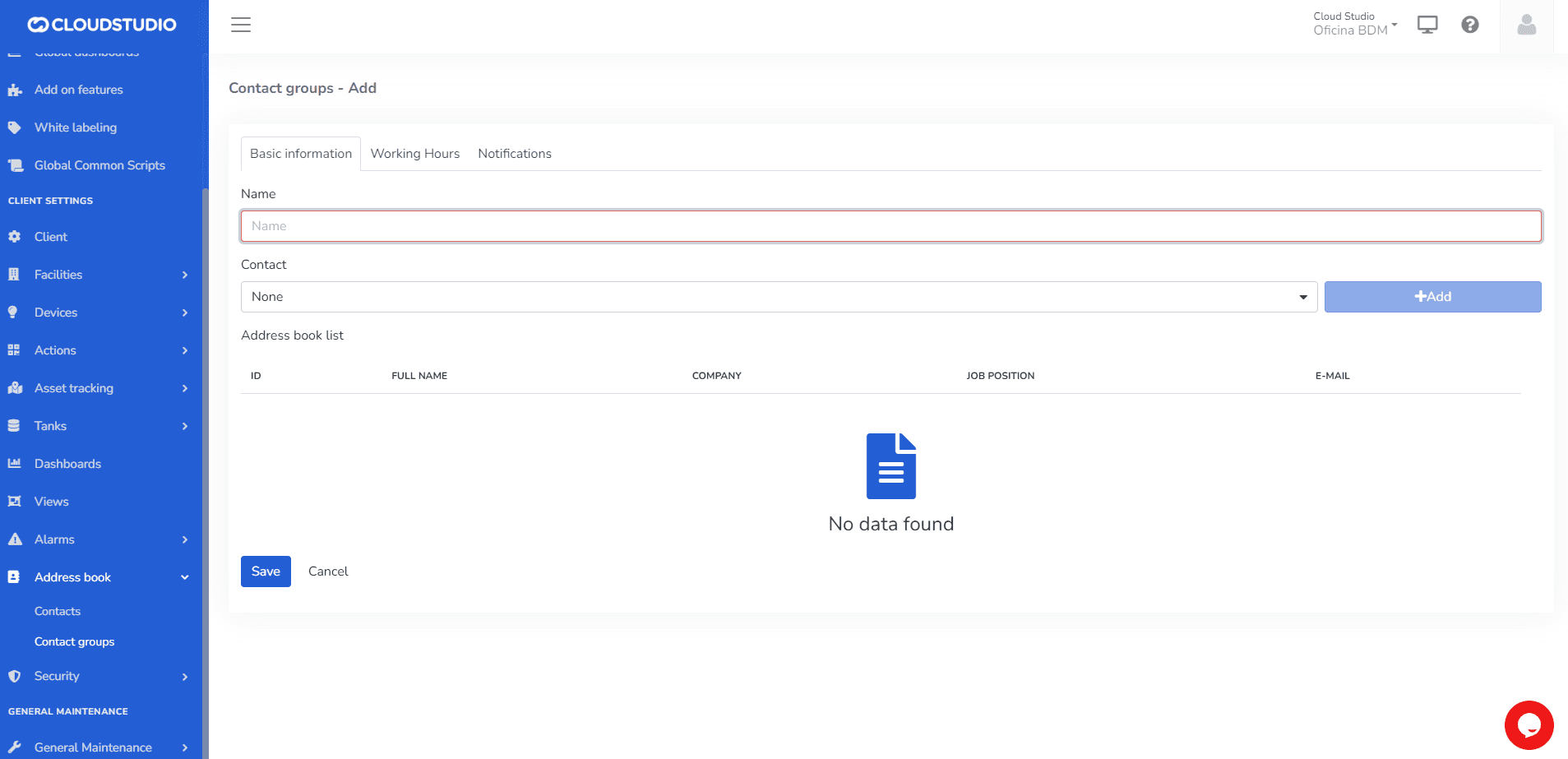
The Address Group Book allows including the following data in each record:
- Group name (required)
- Contacts
Type the group name in Name. To add contacts, they must have been previously loaded in the platform. You can learn more about creating contacts in this section. Select the contact you wish to add from the dropdown list and click Add.
_2b25.png&w=1920&q=75&dpl=dpl_87LH5cJ2L3jjsAK3mA5aYAZuUopg)
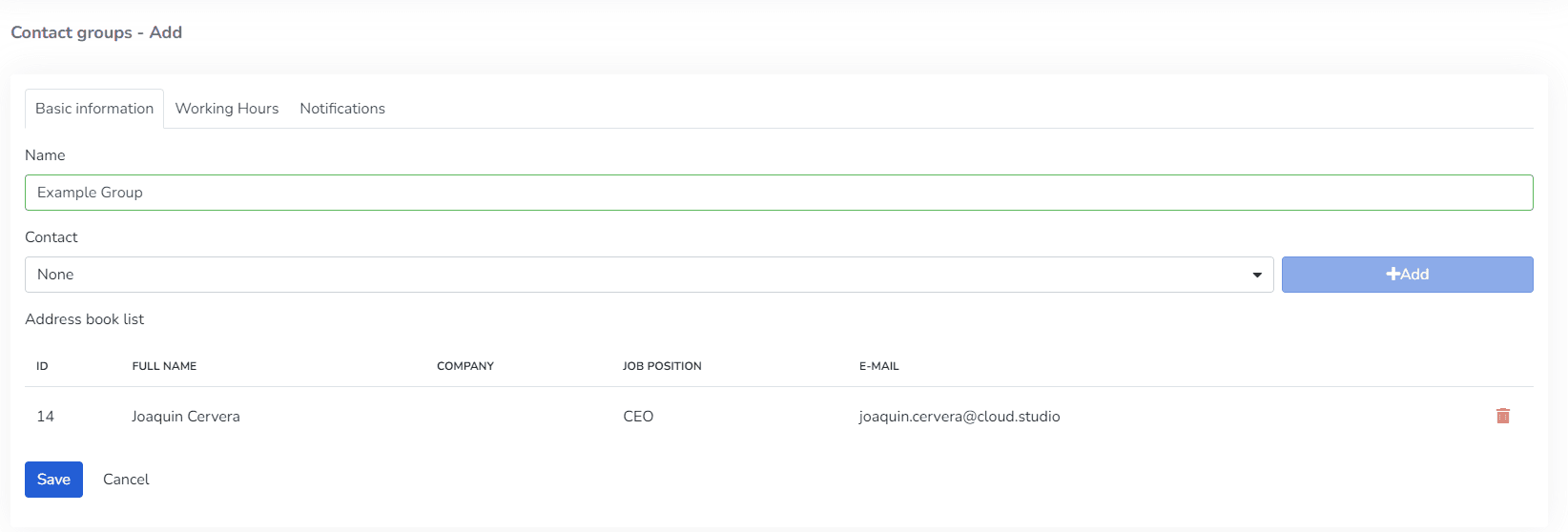
IMPORTANT: - Do not leave required fields empty, including the "Name" field for the group. - Once a contact is selected, you must always press "Add" or it will not be added to the list.
Once the desired data has been entered, press the "Save" button or press the "Enter" key on the keyboard to update the list.
2- In the Working Hours tab, add the time zone, as well as the days and hours during which you wish to receive alerts.
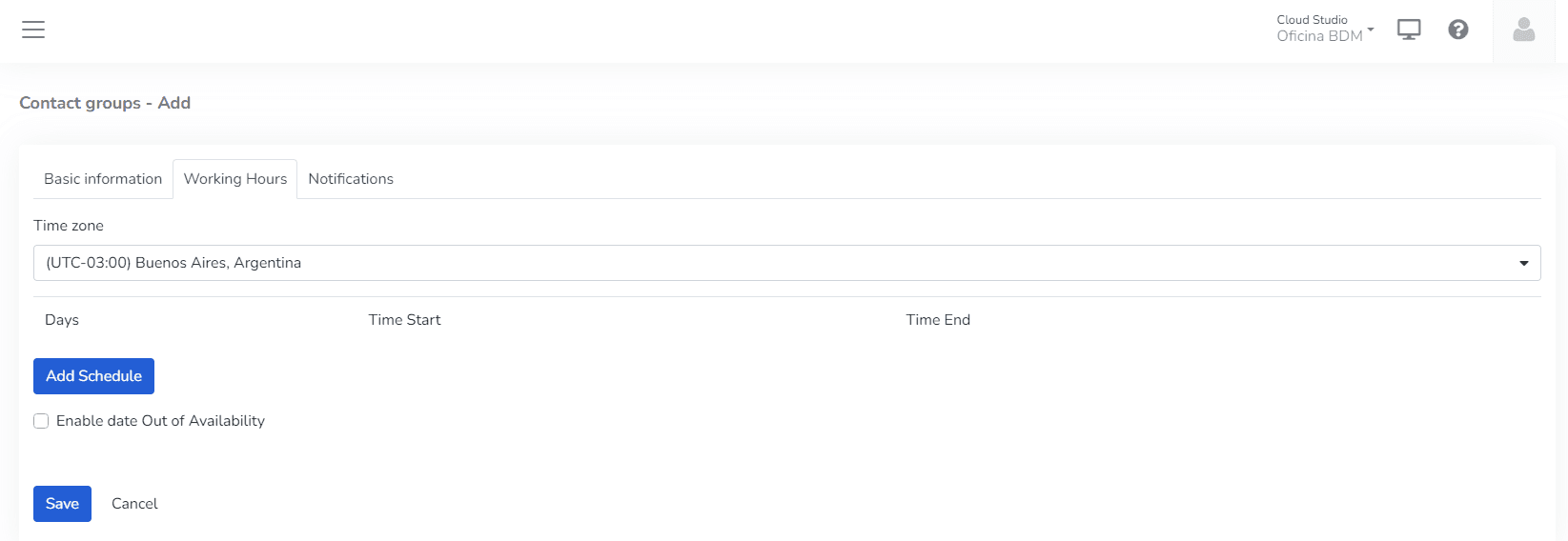
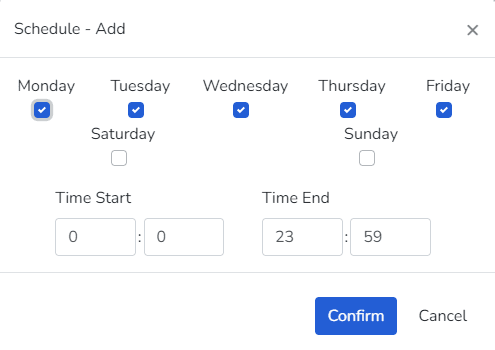
The user can enable the Enable out-of-availability date option.

3- In the Notifications tab, the user can:
- Configure which device or devices to assign > Level

- Configure the severity of notifications to receive > Severity Level

- Configure the channels through which notifications will be sent > Channels

Below is an example of a generated contact group.
More Information
Last updated on