

Endpoint Status Image
From the Views section in the Monitor panel, the user can view the states of a discrete or scalar variable associated with an endpoint. The Endpoint status image element will display the preconfigured image based on the state reported by the endpoint.
If the value entered by the user does not correspond to the variable's values, the Endpoint will display the default image preconfigured in the element editing.
This feature supports a list of operable sensors available here
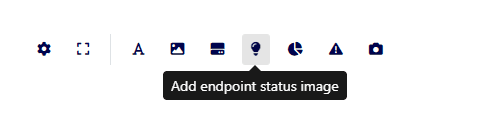
- Add New Element:
- Manager > Views > Add an element of type Endpoint Status Image.
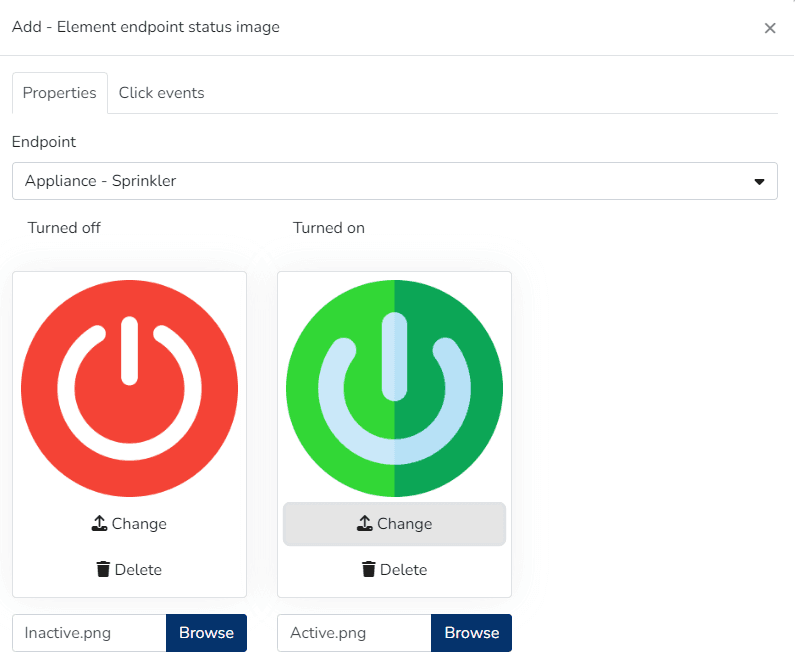
- Endpoint Selection & Image Upload:
- Properties Tab > Select the Endpoint > Only Endpoints of the following types will be selectable: IAS Sensors (motion, occupancy, and binary sensors), Appliances & Endpoints that have associated discrete variable types.
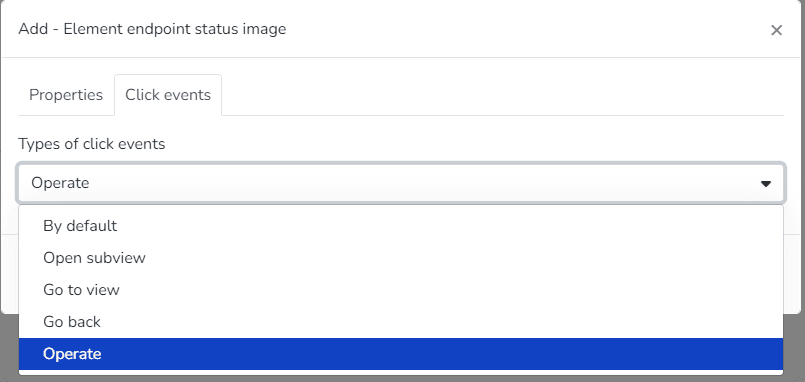
- Make Endpoint Operable:
- Click Events Tab, within the Click Event Types list, an option called Operate will appear, which will allow the user to subsequently modify the Endpoint from Monitor
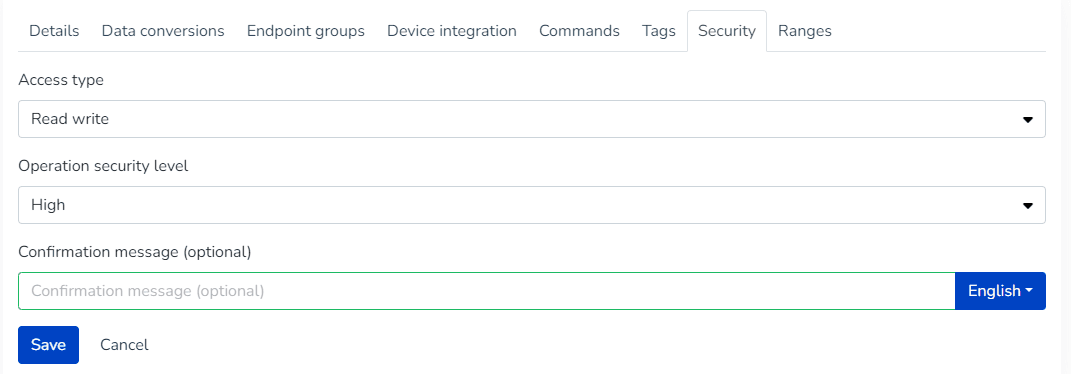
- This option will be visible if the Endpoint's Security section has the Read Write_ or _Read Write Command options selected
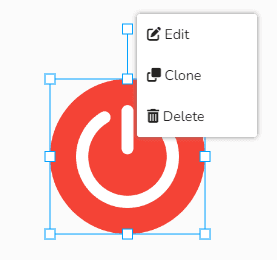
- Edit, Clone, or Delete Element:
- The user can right-click to resize, Edit, Clone, or Delete the selected element
- Modify Element Values:
- Monitor Panel > Views > Select View > The user will see the added sensor(s), which can be modified from here by clicking on the added image element.
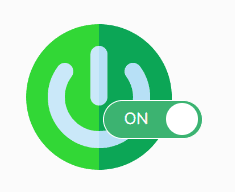
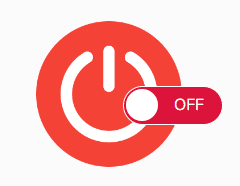
Appliances & ON-OFF devices
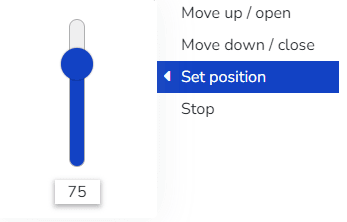
Curtains & Closure Control
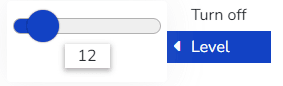
Update Dimmer
Update Thermostat
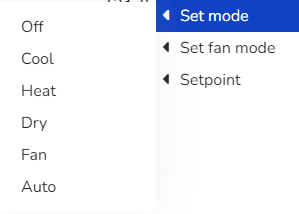
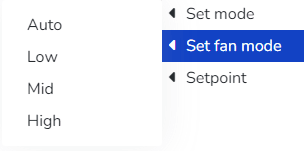
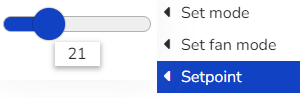
- When the sensor's security level is Medium > The user can configure an optional alert message.
- When the sensor's security level is High > The user can:
- Configure an alert message (Optional)
- The user must enter the password when editing the Endpoint to confirm the new value.
Last updated on