

Edit Groups and Widgets
Dashboard Design editing is tied to each user's permissions. If the user has the required permission, they can use the edit button located in the upper right corner of the dashboards when entering the Dashboards option in the Monitor menu.
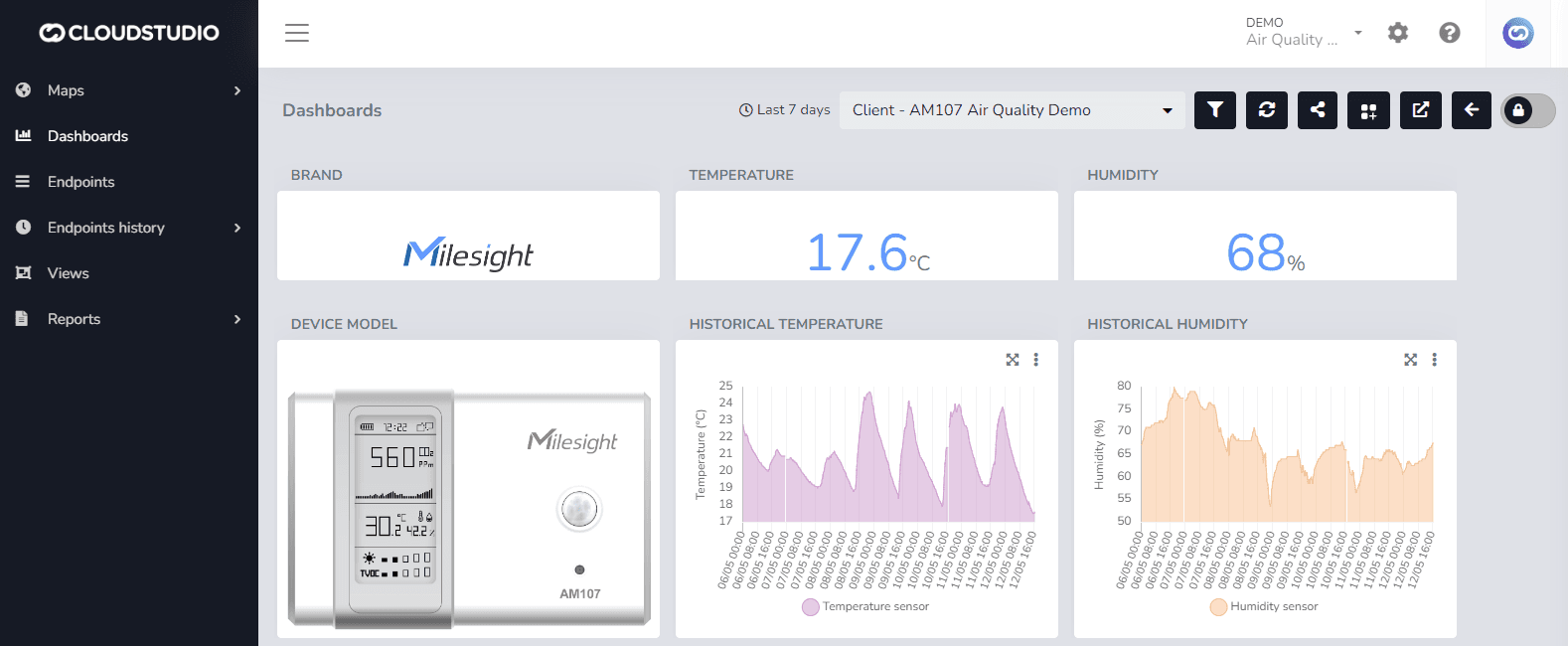
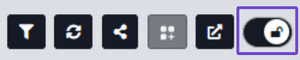
With the Drag and Drop system, you can move and resize widgets and groups as desired. As shown below:
_f58e.gif&w=1920&q=75&dpl=dpl_87LH5cJ2L3jjsAK3mA5aYAZuUopg)
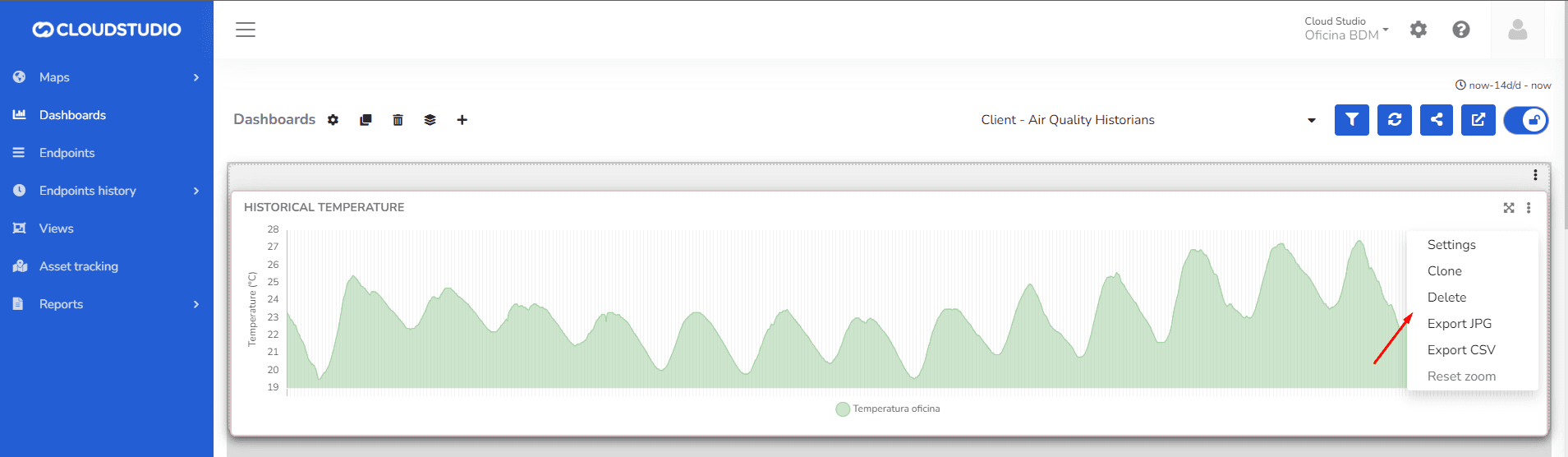
Each Widget has its own options in edit mode. Depending on the widget type, the user can access configuration, clone the widget, delete it, export it in JPG format, export it in CSV format, and reset the zoom on a chart widget.
Some widgets allow you to choose any color for data visualization when accessing settings. Color ranges can also be set according to variable values. For charts, users can choose different formats such as lines or bars.
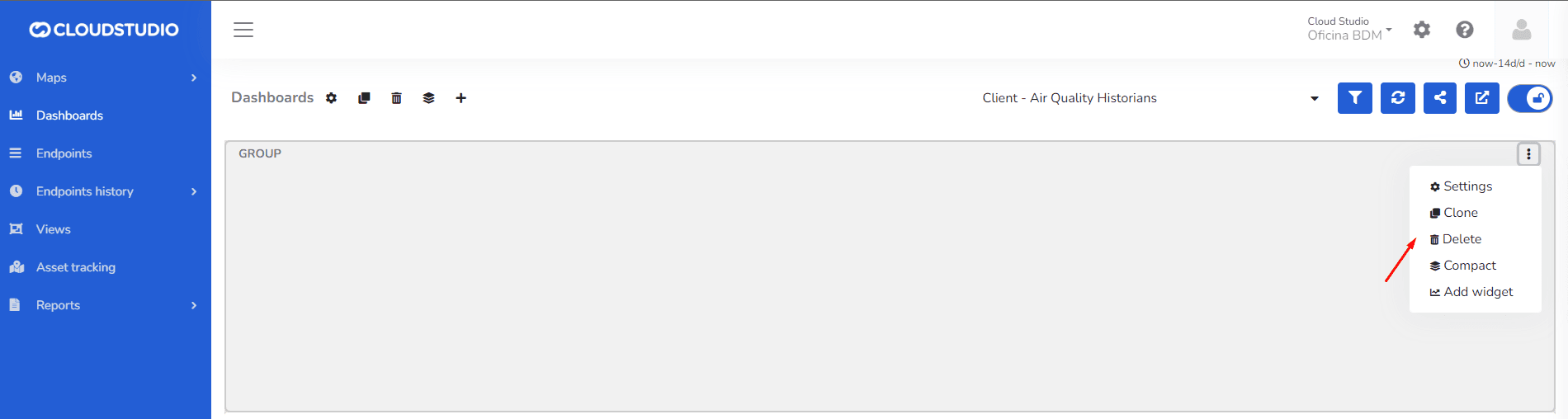
Each Group has its own editing options. The user can configure the group, clone it into an identical one, delete it, compact the widgets inside by removing empty spaces, and add new widgets within it.
Last updated on