

08-07-2022
For this production deployment, the following improvements and/or corrections suggested by the client were included:
- Device address change.
- In the Manager's device list, you will find the action in the three-dot menu called "Change address".
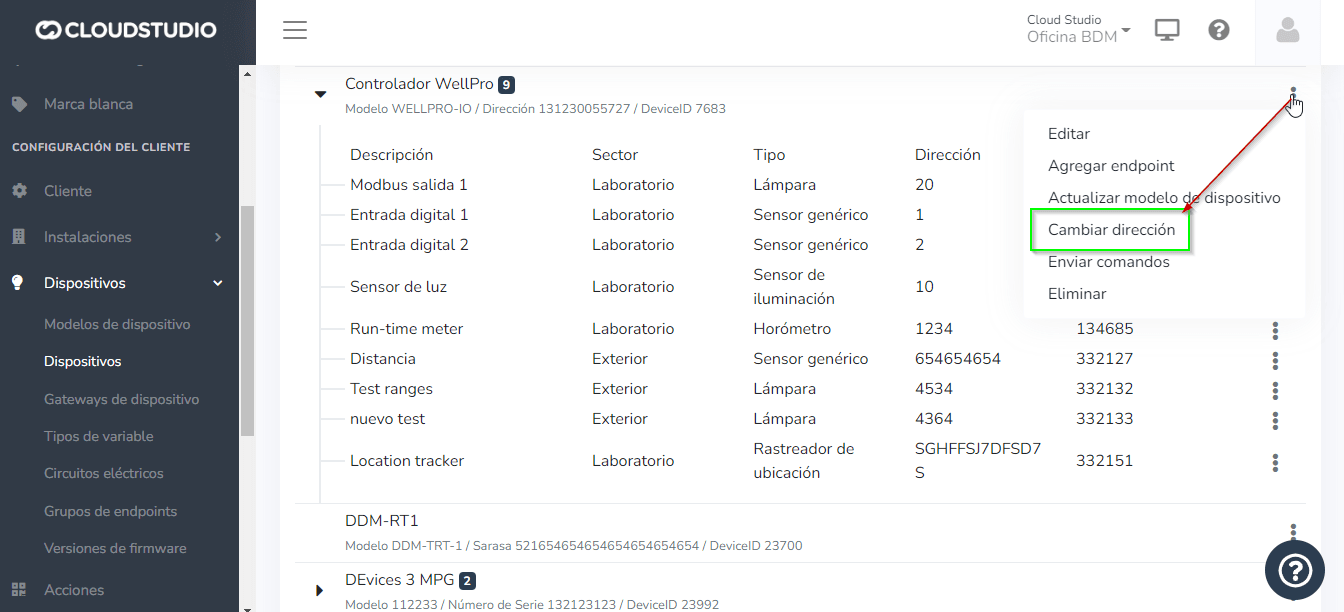
- A modal should open with a single text field that allows changing the device address. If the change is successful, the modal should close automatically and refresh the endpoint list.
- In case of an error, it should be displayed within the modal.
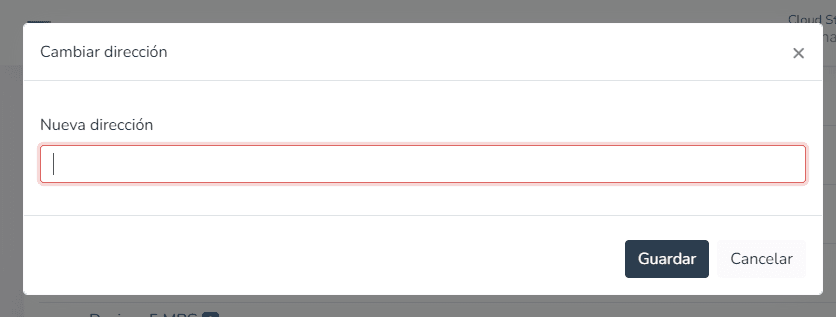
- Another way to change the "Address" is through scripts, located in Device > Device Models.
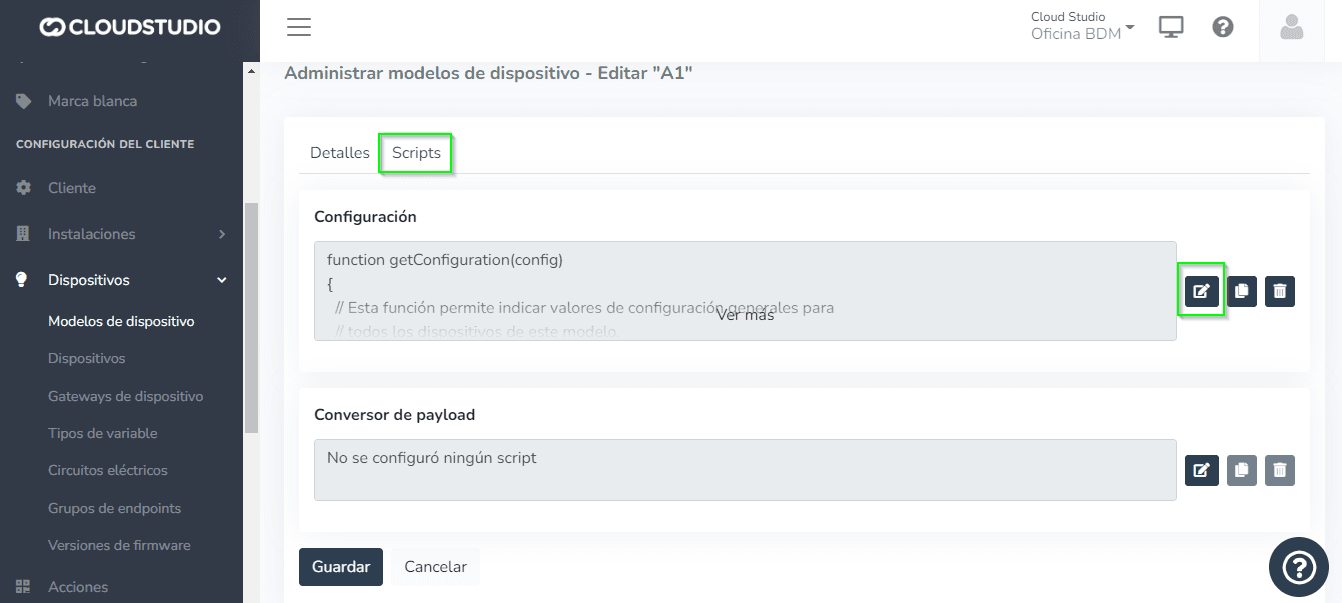
- Once inside "Edit script", proceed to modify the address as shown below:
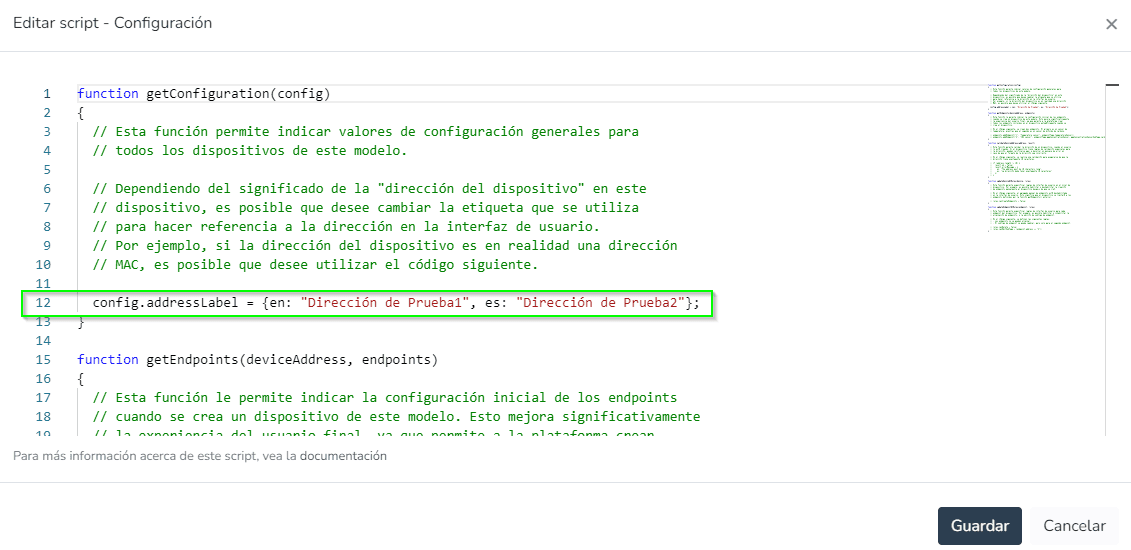
- You can choose to change the address in either English or Spanish, depending on the language configured on the platform.
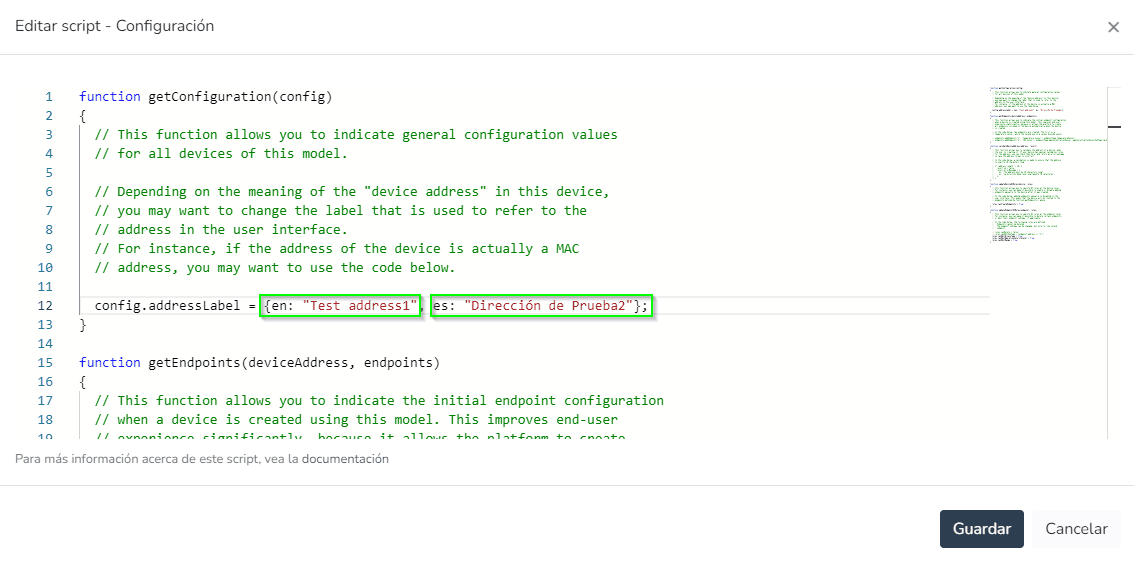
- Proceed to save the changes. A refresh of the endpoint list is required to view the new address.

- Informational alarms.
- Severity levels in alerts indicate the criticality associated with alarms. They are defined in the following security levels:
- There are 4 severity levels defined for alarms: Info, low, medium, and high.
In the alert CRUD, the severity level can be defined when creating an alert. Because of this, everywhere the alert is represented, for example in active alarm reports or alarm history, it will be represented according to the severity level with which the alert was created.
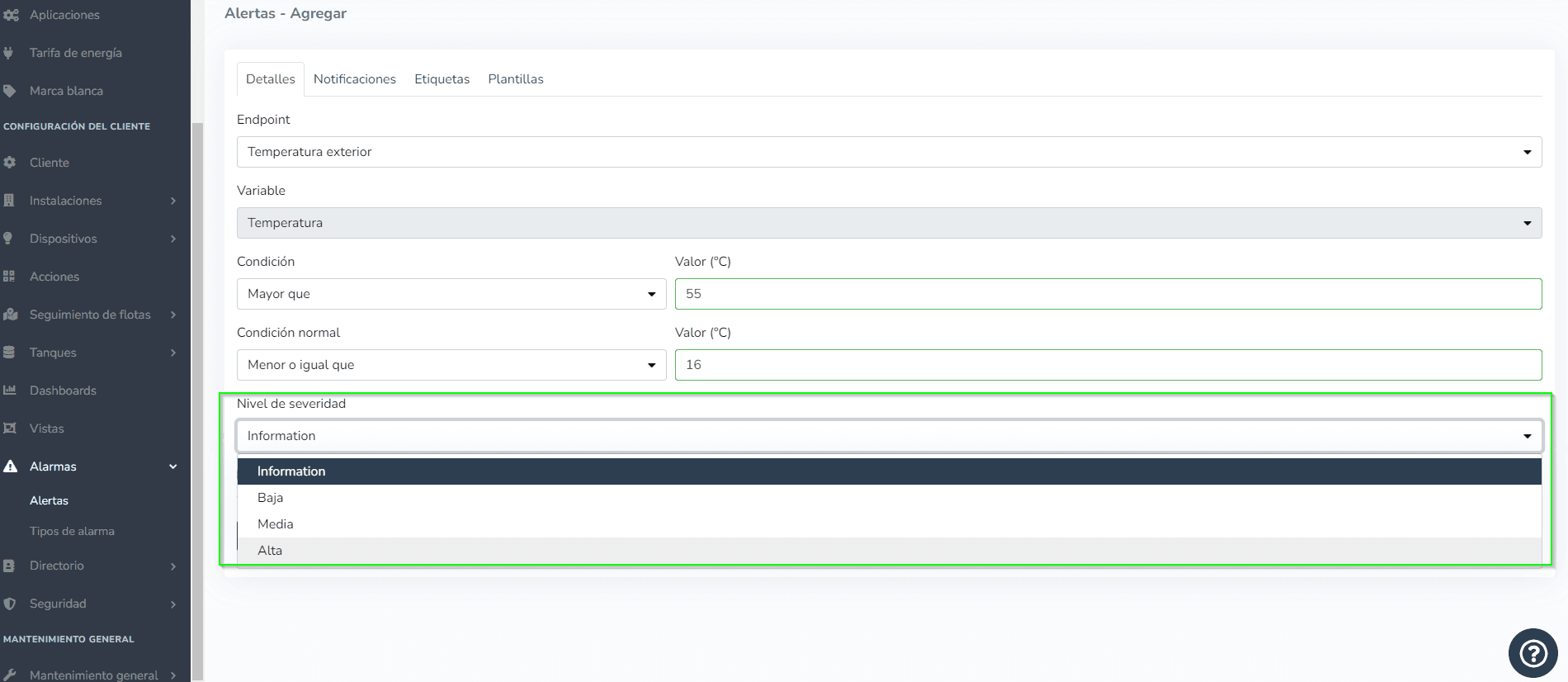
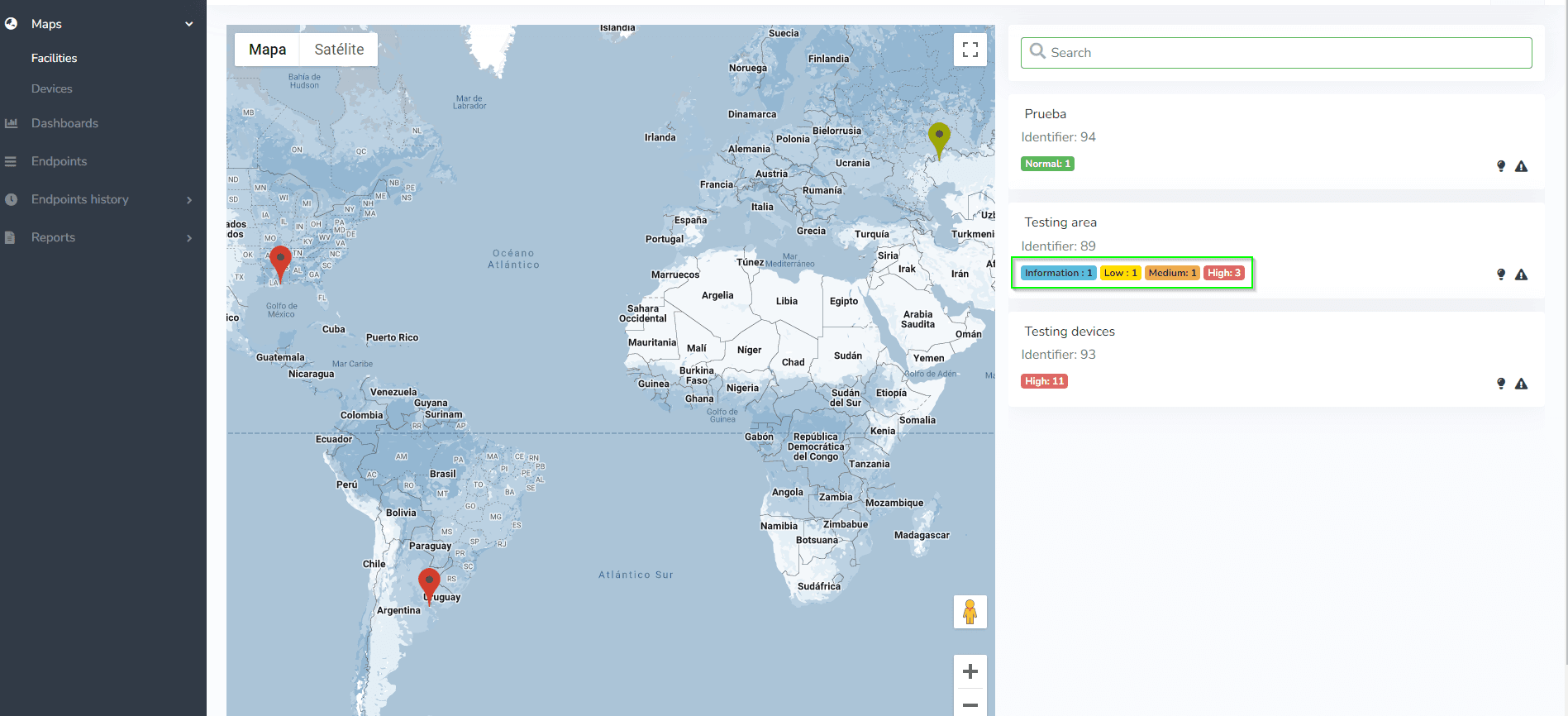
- The severity levels identified by colors are as follows:
- "Information" severity level is identified with the color blue.
- "Low" severity level is identified with the color yellow.
- "Medium" severity level is identified with the color orange.
- "High" severity level is identified with the color red.
Last updated on