

Create a Variable Type
Go to the client, device configuration, and within it select the 'Variable Types' option.
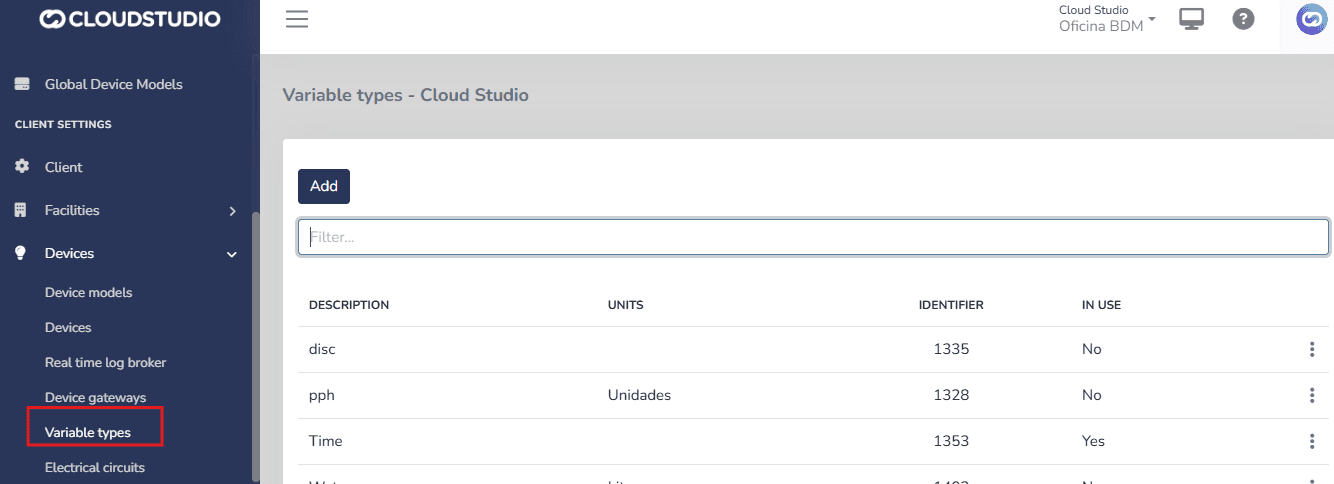
Then press the Add button to configure the variable.
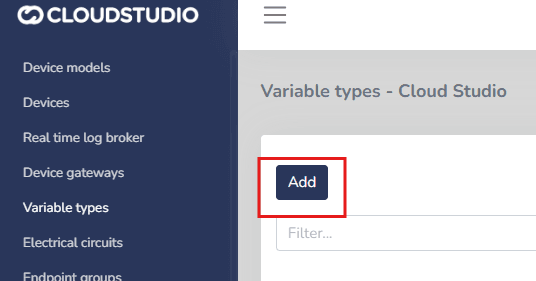
Once the "Add" button is pressed, a form will be displayed where you can fill in the variable information.
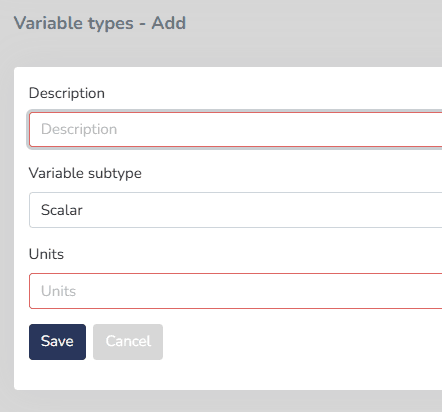
In the "Description" field, enter a representative name to identify the created variable and what type of sensor it will be measuring. In the "Variable Type" field, select from the list the subtype that represents the received measurement. There are several subtypes available on the platform:
- Scalar: for variables that can take any value within a given range. Example: temperature, pressure, etc.
- Discrete: for variables that can only take specific values, often representing categories or fixed states. Example: on/off, active/inactive, etc.
- Flow: for variables that measure the flow of something moving through a system. Example: water flow, gas flow, etc.
- Date: for variables that measure a specific date (without considering the exact time). Example: event date.
- Time: for variables that measure a time range or exact time (without being associated with a date). Example: system time.
- Date and Time: for variables that receive both the date and exact time of an event. Example: sensor timestamp.
Finally, define the unit of measurement with which states will be recorded in that variable. It is important that this unit is aligned with the selected variable type.
Some common units include:
Scalar: Degrees Celsius (C), Pascals (Pa), meters (m), etc.
Discrete: states are defined (on/off, positive/negative/neutral).
Flow: Liters per minute (L/min), cubic meters per hour (m3/h), etc.
Date: Date in format (DD/MM/YYYY).
Time: Time in format (HH:MM).
Date and Time: Date and time in format (DD/MM/YYYY HH:MM).
To define the values of discrete variables, States must be created.
States are fixed values that describe different conditions or categories in which the variable can be.
For each state, the following fields must be completed:
Value: This field indicates the value associated with the state (for example, 1 for "on" or 0 for "off").
Color: Each state can have an associated color for quick and clear visualization. For example, green for "active" and red for "inactive".
State Description Text: Provides a brief description or explanation for each state. For example, if the value is 1 and the state is "On", the description text could be: "Active".
Finally, press the Save button to create the variable.
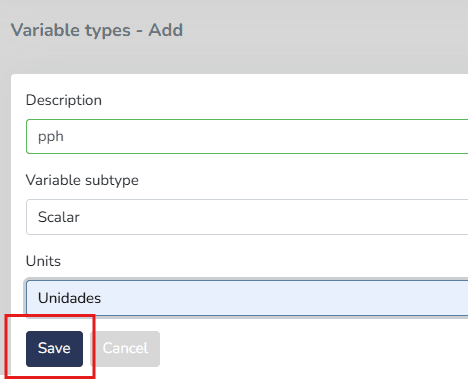
The variable will then be available in the client's variable list.
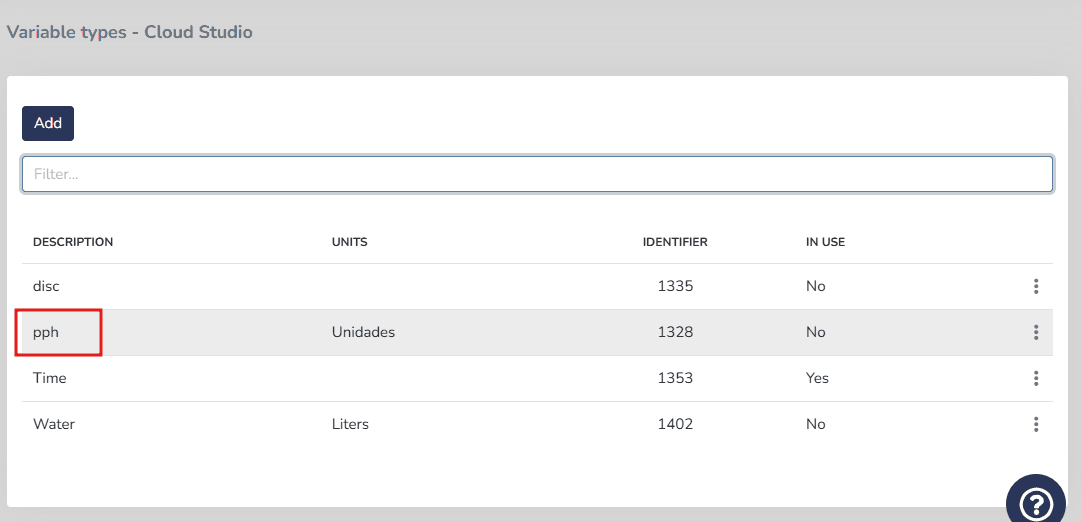
These variables will subsequently be available for use in the configuration of any of the client's devices, through the device model configuration script.
Creating a Custom Variable
Requirements:
- Declare it in the
**getEndpoints()**method, which requires a generic type (endpointType.genericSensor) and a variable identification through thevariableTypeId.
You can update its value using the **parseUplink()** method, extracting values from the payload.
Example: Custom Variable for SNR
In this example, a custom SNR (Signal-to-Noise Ratio) variable called SNR_FT is created, corresponding to the value received through the payload.
Step 1: Define the endpoint in getEndpoints()
javascript
function getEndpoints(deviceAddress, endpoints)
{
   var snr = endpoints.addEndpoint("3", "SNR_FT", endpointType.genericSensor);

 snr.variableTypeId = 1433;
}
With this code:
- A new endpoint with ID
"3"is added. - It is named
"SNR_FT". - The endpoint type is
genericSensorfor any variables that cannot be defined within the predefined sensors. - A unique identifier is assigned -- the
variableTypeId = 1433which must match the variable type configured on the platform (for example, a generic, numeric, or SNR-specific data type).
Step 2: Process the payload in parseUplink()
javascript
function parseUplink(device, payload) {
   var parsed = payload.asParsedObject();
   if (parsed.snr != 0) {
      device.endpoints.byIndex(2).updateGenericSensorStatus(parsed.snr);
   } else {
      device.endpoints.byIndex(2).updateGenericSensorStatus(null);
   }
}
With this code:
- The payload is converted to an accessible object (
asParsedObject()). - It checks whether the received
snrvalue is different from 0. - If it is, the corresponding endpoint value is updated with that data.
- When the value is 0, the sensor is updated as null (left without data).
Recommendations
device.endpoints.byIndex(2)refers to the third added endpoint (zero-based index). It is essential to ensure that the endpoint creation order matches the index being used.- Verify that the
variableTypeIdis correctly configured (type matches) and is available on the platform. - Use descriptive names for custom variables (for example,
SNR_FT,BatteryVoltage, etc.). - For multiple custom variables, it is critical to properly document the indices (
byIndex(n)) for correct information mapping.
Last updated on