

Facilities
In the facilities section of the platform, a complete suite of tools is offered for detailed and customized management.
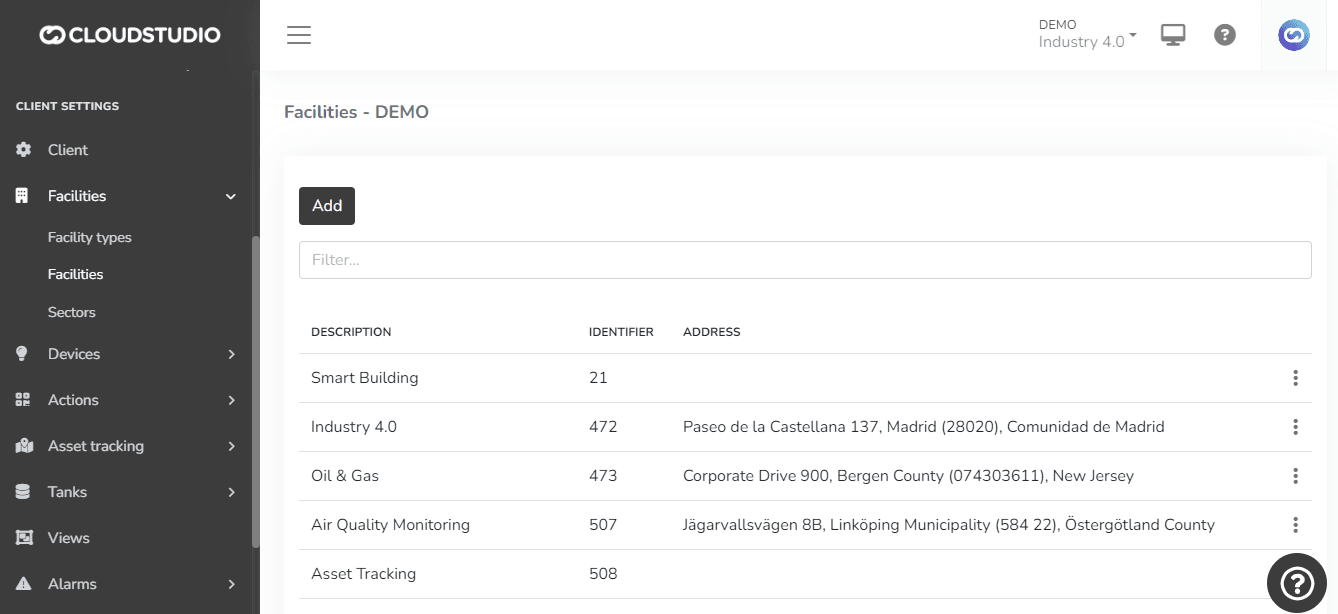
Here is a detailed description of the capabilities:
Details
Creation, Editing, and Deletion: In this section, the user can create, edit, and delete facilities, providing flexibility in environment management.
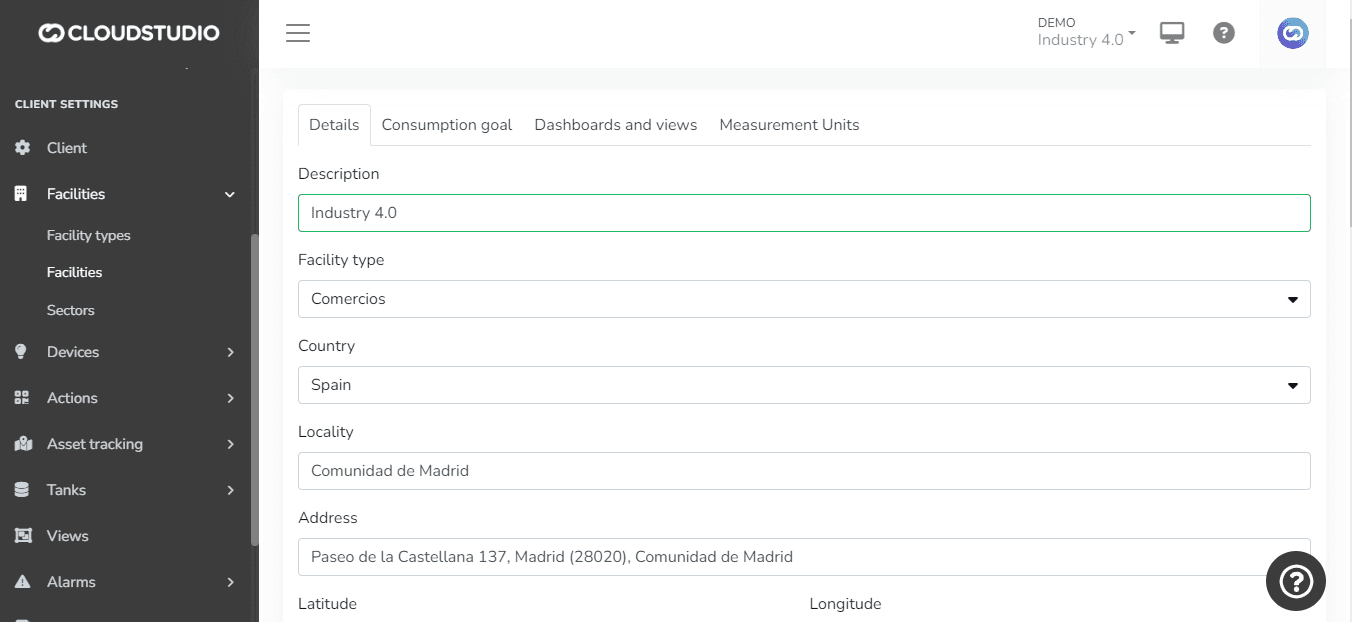
Detailed Configuration: Key details can be defined, such as description, facility type, country, locality, and address, providing essential contextual and geographic information.
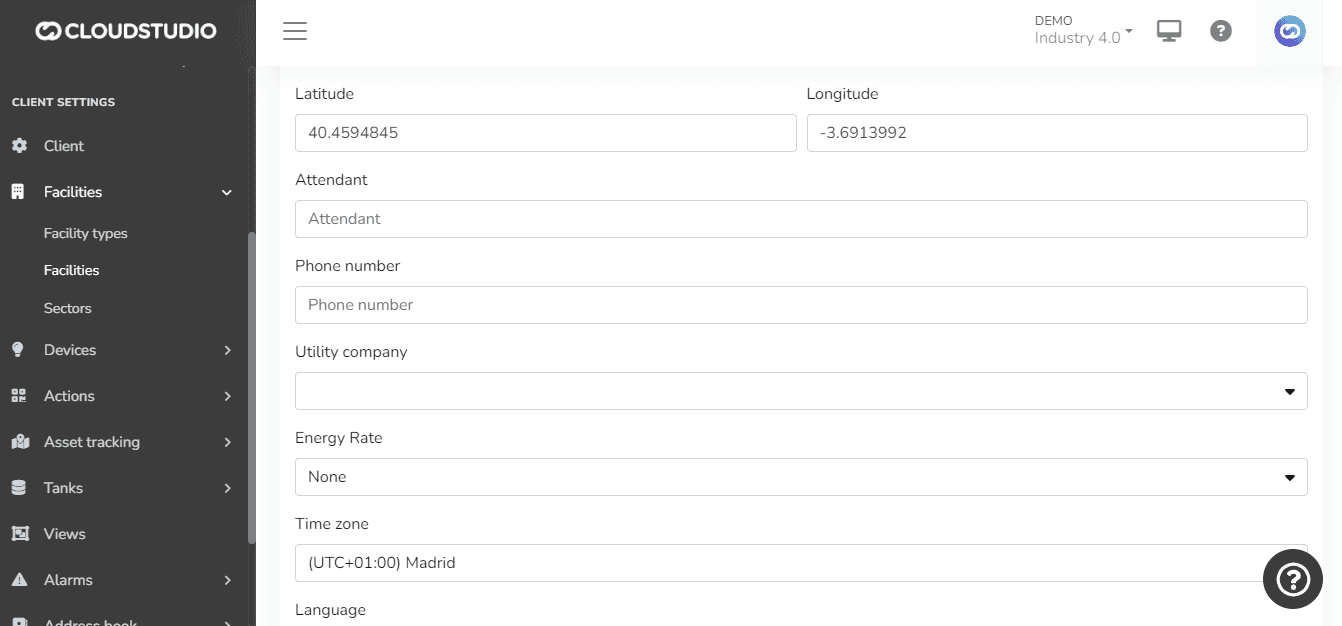
Customizable Location: The facility location can be set via address (e.g., Google Maps) or latitude and longitude, offering versatile options for geolocation.
Manager and Contact: Assignment of a facility manager with their respective contact number, facilitating communication and operational management.
Energy Data: Ability to assign the energy provider company and associated tariffs, enabling detailed monitoring and analysis of energy consumption.
Default Camera: The option to assign a default camera to the facility, improving security and providing a real-time view.
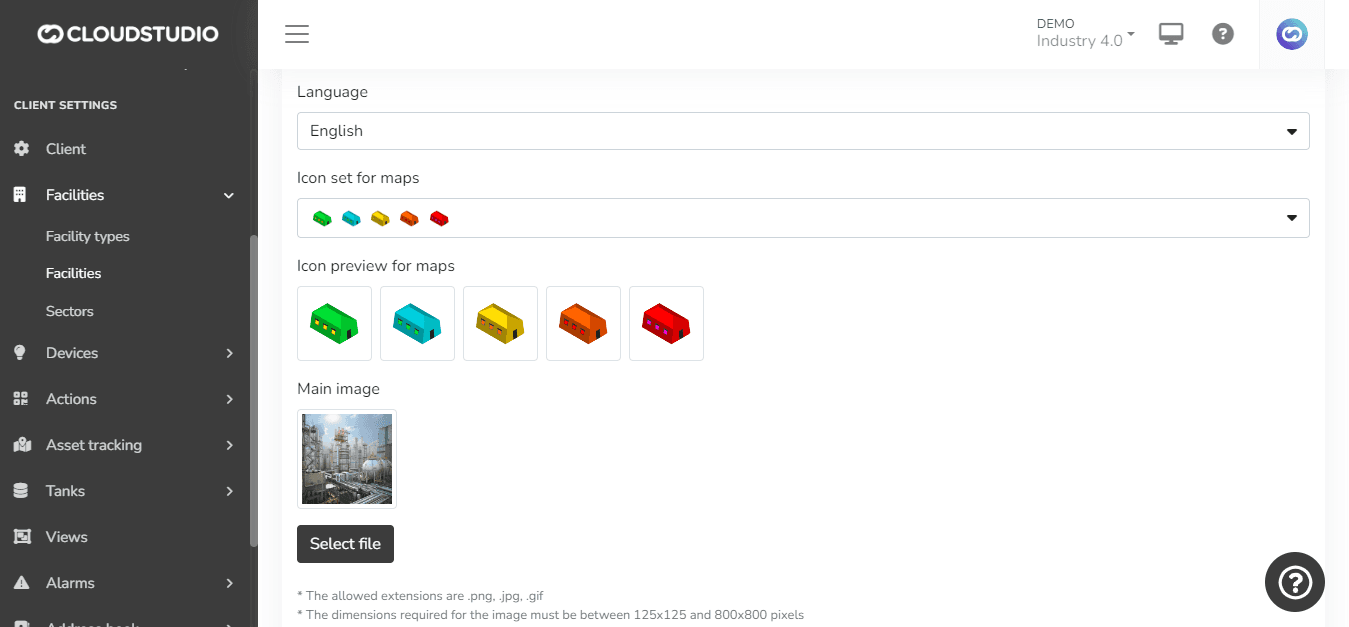
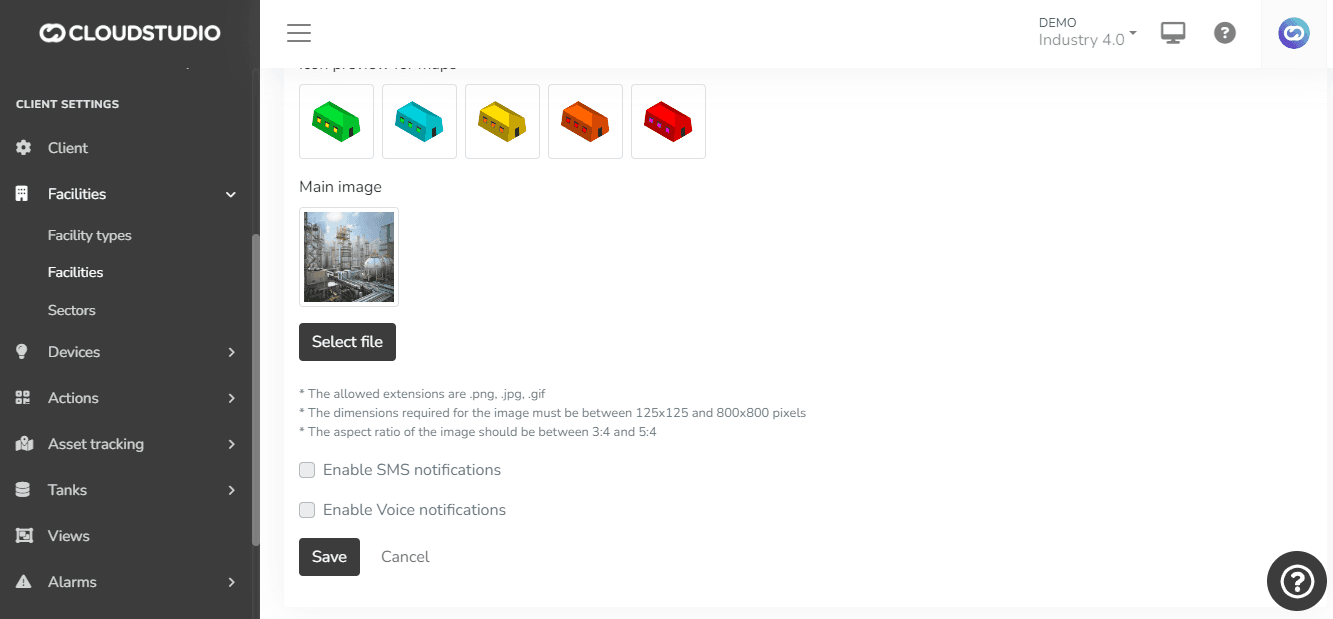
Custom Configuration: Selection of time zone, preferred language, and icon set to represent the facility on the map, offering a personalized visual and configuration experience.
Representative Images: Upload of a main facility image, enriching the visual representation and facilitating identification.
Notification Configuration: If SMS and voice messages have been enabled at the client level, the platform allows enabling/disabling these features at each facility level, providing precise control over notifications.
This robust functionality optimizes facility management and monitoring, providing a personalized and efficient experience.
Consumption Targets
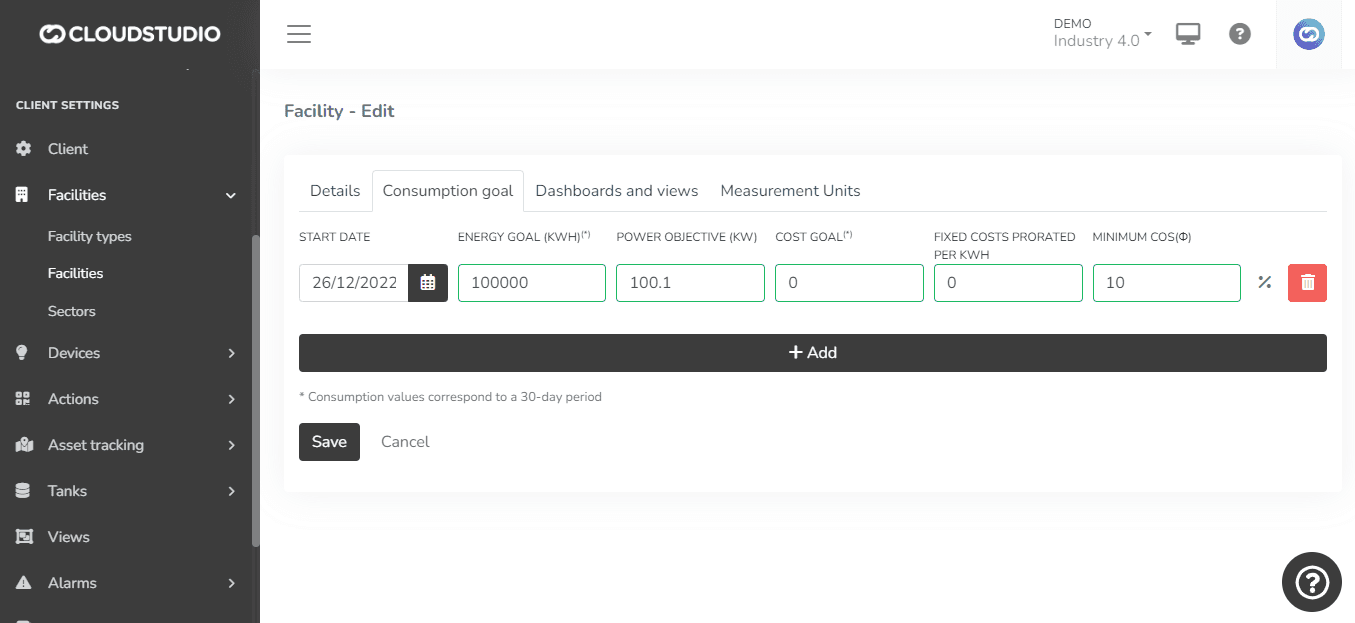
Within this subsection, the platform allows defining consumption targets, providing a set of key parameters for efficient energy management. Here are the elements that can be configured:
Start Date: Allows selecting the date from which the consumption targets will apply, providing flexibility in time planning.
Energy Consumption Target: A quantitative target for energy consumption can be set, providing a specific goal to achieve.
Power Target: Defines a specific target for electrical power, contributing to the management and control of installed capacity.
Cost Target: Allows setting a financial target for the cost associated with energy consumption, facilitating budget planning.
Fixed Cost Prorated per kWh: This configuration allows assigning a fixed cost that will be prorated per kWh consumed, providing a detailed cost structure.
Minimum COS(phi): Sets a minimum value for the power factor (COS(phi)), contributing to optimizing energy efficiency and avoiding penalties for low power factor.
These parameters offer a comprehensive tool for strategic energy consumption management, allowing specific goals to be set and performance monitored against these targets.
Dashboards and Views
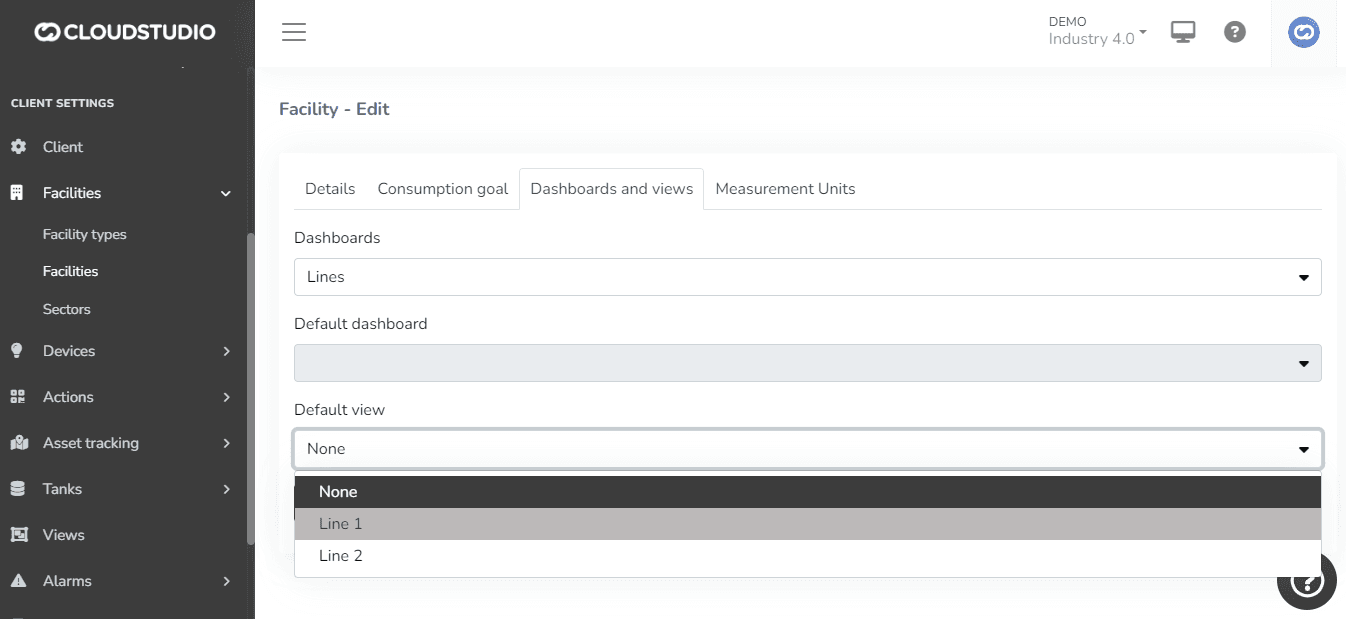
Within the dashboards and views subsection, a key feature is offered to customize the user experience on the platform. The available options are detailed below:
Dashboard Selection: Users have the ability to select the specific dashboards that will be accessible from the facility in question. This allows adapting the displayed information to the particular needs of each facility.
Default Dashboard and View Assignment: Additionally, the ability to assign a default dashboard and view is offered. This means that when accessing the side menu of the facility map, users will be automatically redirected to the default dashboard and view, speeding up access to relevant information.
This feature provides flexibility and customization, allowing users to define their preferred starting point and simplifying access to key information.
Units of Measurement
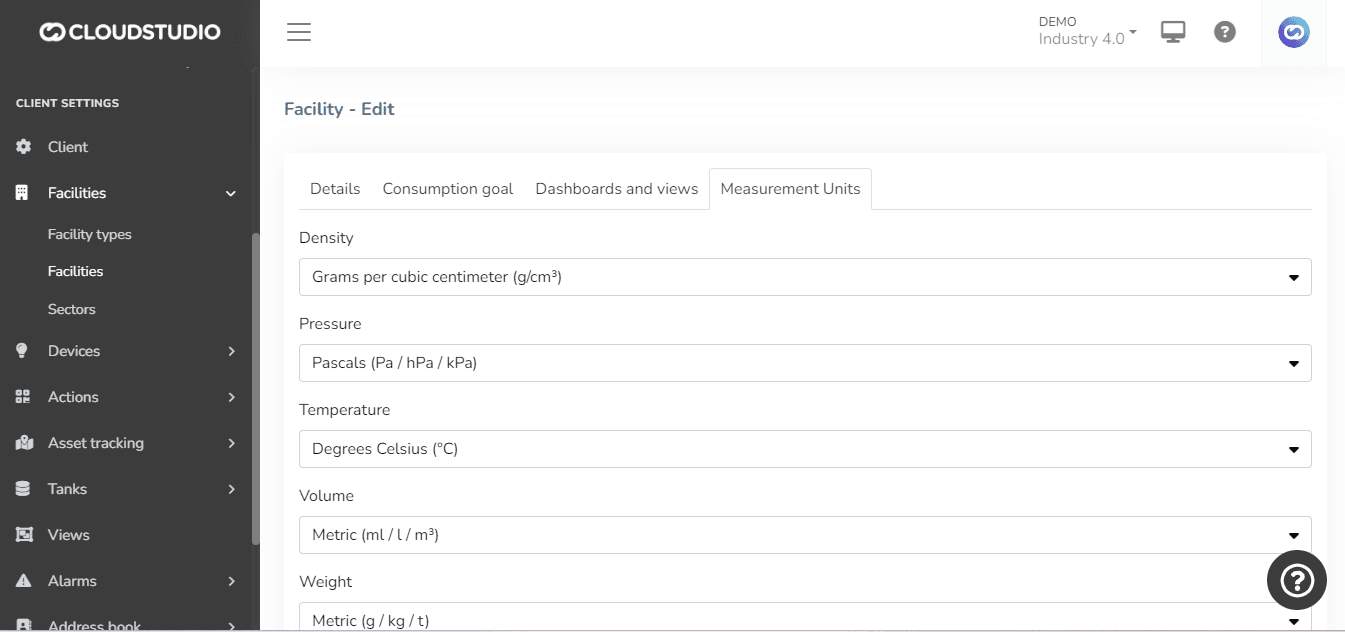
Within the units of measurement subsection, users are provided with an essential tool to customize data display in dashboards and views. The key characteristics of this feature are described below:
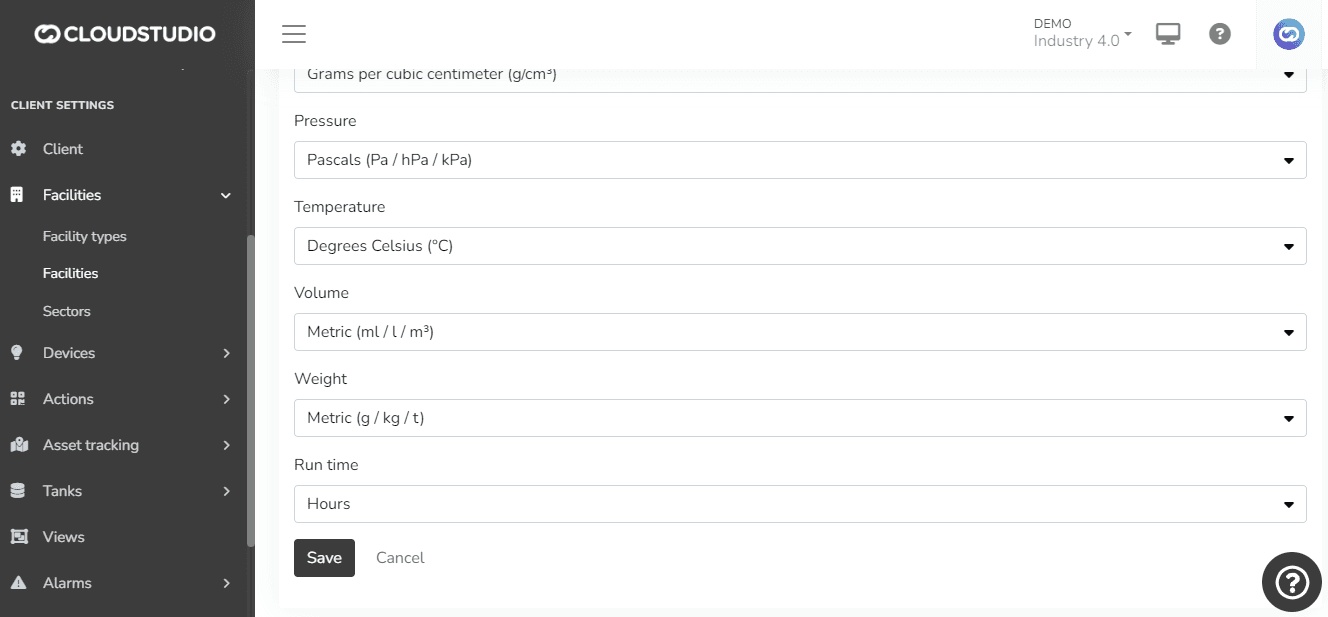
Unit of Measurement Selection: Users have the ability to select the desired units of measurement at each facility level. This allows adapting data presentation according to local preferences or specific standards.
Automatic Unit Conversion: The platform incorporates automatic unit conversion functionality. This feature ensures that data reported in different units is displayed consistently in dashboards and views, improving information comprehension and comparability.
Reporting Requirement Limitations: It is important to note that the unit selection in this subsection does not modify the fundamental requirements for the units in which data must be reported to the platform. For example, certain parameters, such as temperature, must be reported in specific units (e.g., degrees C), regardless of the display unit selection.
Configurable Variable Types: Configuration options are offered for various variable types, including density, pressure, temperature, volume, weight, and runtime. This flexibility ensures that the platform can adapt to a variety of contexts and needs.
The unit of measurement configuration in the facilities subsection improves the versatility and usefulness of the platform, allowing users to effectively customize data presentation.
Última atualização em
Tipos de Facility
Os tipos de facility no contexto IoT são categorias que permitem diferenciar e agrupar dados de acordo com a natureza e função dos ambientes físicos onde os dispositivos e gateways conectados são implantados...
Sectors
What sectors are within a facility in Gear Studio, and how to set up automation rules that apply to each of those areas on its own.